ASUS F1A75-V PRO 5-5
Chapter 5
5.2.4 Using the AMD
®
CATALYST
®
Control Center
Using an add-on graphics card
1. Install a graphics card onto your motherboard. Refer to the User Guide that comes with
your graphics card for details.
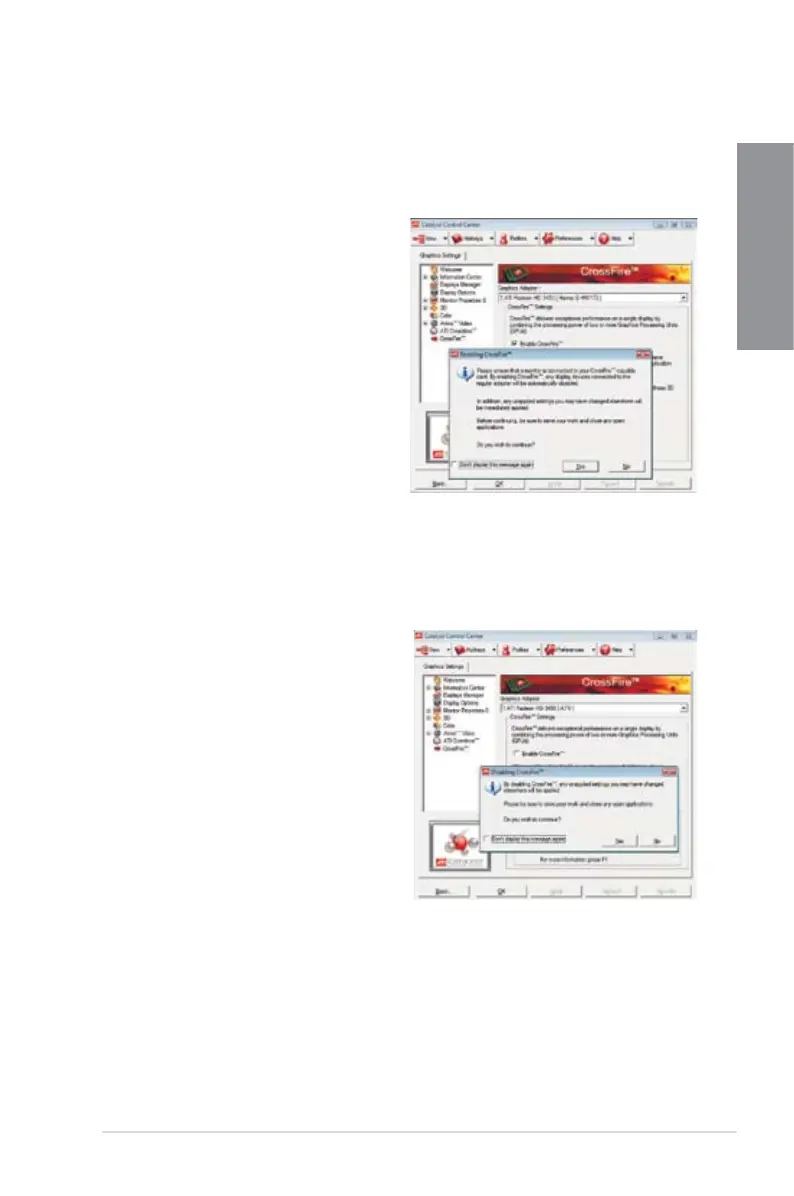
2. Right-click on the Windows
®
desktop,
then click AMD CATALYST(R) Control
Center from the shortcut menu. The
AMD CATALYST Control Center screen
appears.
3. Click
Graphics Settings >
CrossFire™, then select the Enable
CrossFire™ check box. When a
conrmation message pops up, click
Yes. The screen blacks out for about
one minute.
4. Click
OK. The add-on graphics card is
set to be the main monitor.
Using the onboard graphics card
1. Right-click on the Windows
®
desktop, and then click AMD CATALYST(R) Control
Center from the shortcut menu. The AMD CATALYST Control Center screen appears.
2. Click
Graphics Settings > CrossFire™,
then clear the Enable CrossFire™
check box. When a conrmation
message pops up, click Yes. The screen
blacks out for about one minute.
3. Click
OK.



 To Next Page