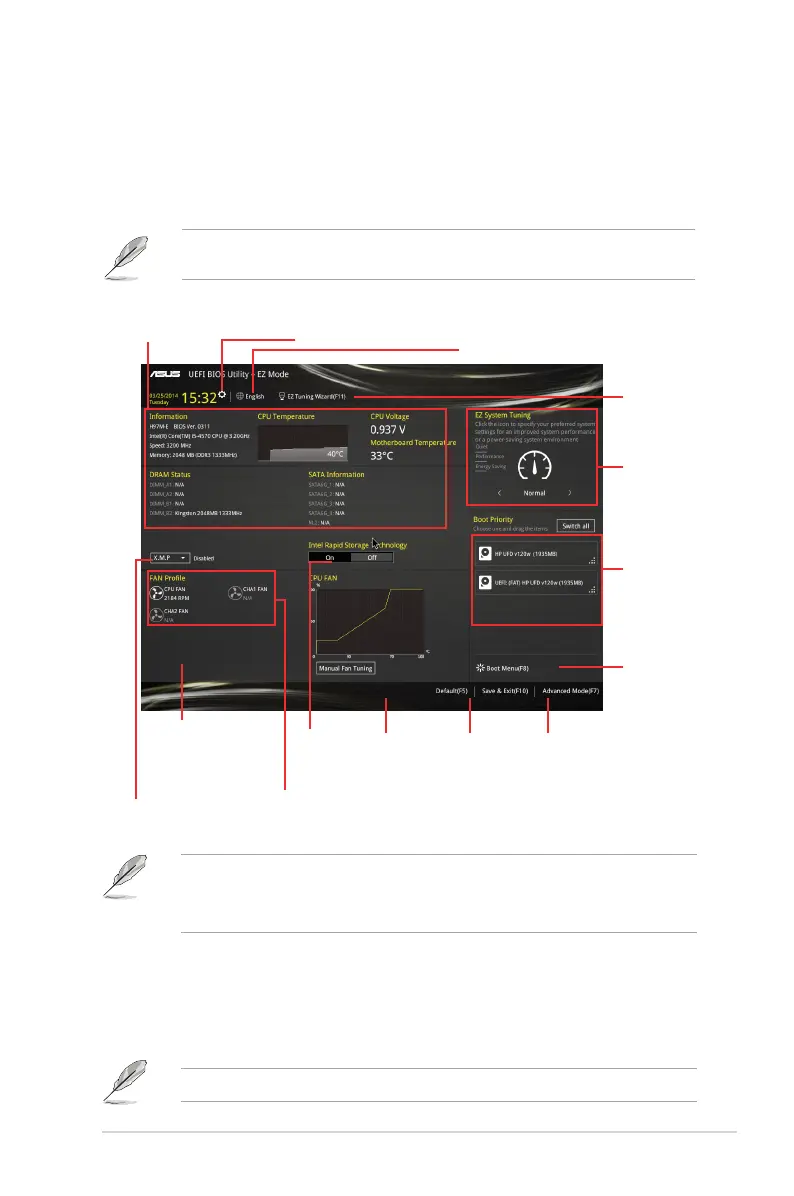
• The boot device options vary depending on the devices you installed to the system.
• The Boot Menu (F8) button is available only when the boot device is installed to the
system.
IRST support
setting
Loads
optimized
default
Save
changes
and exit the
BIOS setup
program
Displays the system information,
CPU voltage and CPU/
motherboard temperature
Displays the X.M.P.
status
Displays the CPU/
chassis fan speed
Selects the display language
of the BIOS setup program
Launches the
overclocking
(OC) and RAID
configration
wizard
Sets the
system
performance
mode
Selects the
boot device
priority
Selects the
boot device
priority
Displays the
Advanced mode
menus
Click to set
Fan Tuning
manually
Advanced Mode
The Advanced Mode provides advanced options for experienced end‑users to congure the
BIOS settings. The gure below shows an example of the Advanced Mode. Refer to the
following sections for the detailed congurations.
To access the EZ Mode, press F7.
Sets the system date and time
E Z Mode
By default, the EZ Mode screen appears when you enter the BIOS setup program. The EZ
Mode provides you an overview of the basic system information, and allows you to select
the display language, system performance mode and boot device priority. To access the
Advanced Mode, press F7.
The default screen for entering the BIOS setup program can be changed. Refer to the
Setup Mode item in section 2.8 Boot menu for details.
ASUS H97M-E
2‑7


 To Next Page