33
Recording voice
At any time, whether you phone is on stand-by or active mode, you can record sound, voice, or
add a recording to a note while using your device.
To create a voice recording using Notes:
1. Tap Start > Programs > Notes.
2. From the Notes list, tap New.
3. If you do not see the recording toolbar, tap Menu >
View Recording Toolbar.
4. Tap the record icon to begin recording.
5. Place the receiver near your mouth or source of sound.
6. Tap the stop icon when nished recording. A recording
icon appears on the note.
7. Tap .
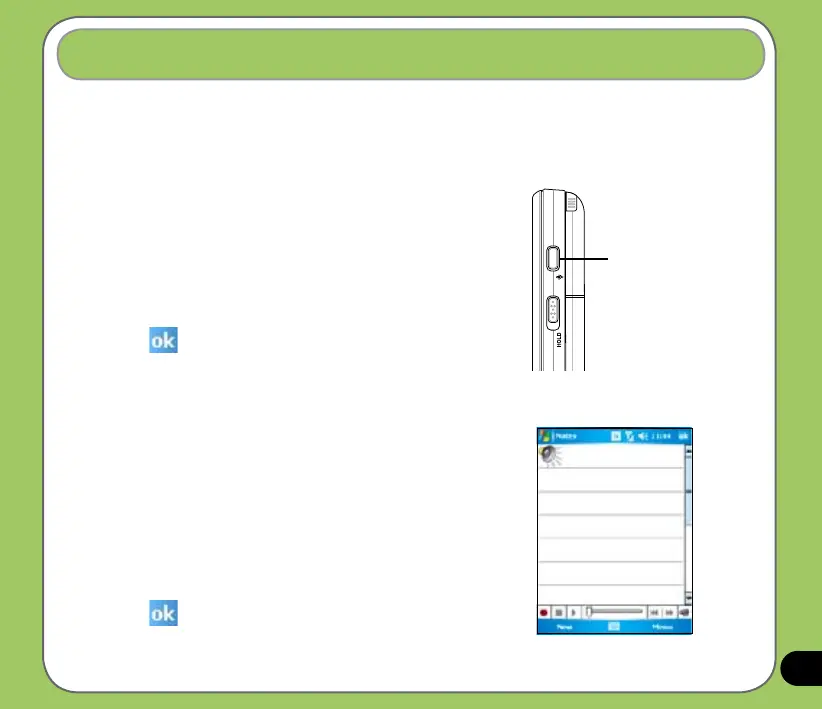
Record button
To start a voice recording:
1. Press Record button to launch voice recorder
application.
2. Tap the record icon to begin recording.
3. Place the receiver near your mouth or source of sound.
4. Tap the stop icon when nished recording. A recording
icon appears on the note.
5. Tap .


 To Next Page