EasyManua.ls Logo

Asus RP-AC51 User Manual

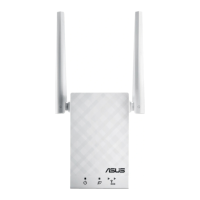
Asus RP-AC51
2 pages
To Next Page IconTo Next Page
Page #1 background imageLoading...
Page #1 background image
RP-AC51
Wi-Fi AC Repeater
Quick
Start Guide
E16302 / Third Edition / January 2020
LED explanations
POWER
On: RP-AC51 is power on.
Off: RP-AC51 is power off.
EXISTING NETWORK
On: Connected to the router/AP.
Off: Not connected to the
router/AP.
MOVE CLOSER
Need to move RP-AC51 closer
to the router/AP.
MOVE AWAY SLIGHTLY
Need to move RP-AC51 slightly
away from the router/AP.
Button explanations
POWER SWITCH
Switch this button on/off to turn
RP-AC51 on/off.
WPS BUTTON
Press this button to quickly
connect to the router/AP via the
WPS method.
RESET
BUTTON
Use a pin
to push this
button to reset
RP-AC51 to
its factory de-
fault settings.
Reset
BEFORE SETUP
WE SUGGEST...
around 2 meters
1
Place your RP-AC51 near your
router/AP.
2
Check the LEDs and see the
LED explanations.
1
Plug your RP-AC51 to a
power outlet.
2
Turn on the power switch.
Wait until the power LED turns blue,
indicating that your RP-AC51 is ready to
connect to your existing router/AP.
1
Press the WPS button on your
router/AP.
2
Press the WPS
button on your
RP-AC51 for
more than two (2)
seconds until the
power LED starts
to blink.
NOTE: Wait until the existing network LED blinks
for about two (2) minutes, then turns solid blue,
indicating the WPS process is completed.
Your RP-AC51’s wireless network name (SSID) changes to your existing Wi-Fi network name,
ending with _RPT or _RPT5G and shares your router/AP’s Wireless Password.
1
Tap SET UP EXTENDER.
2
Open your phone Wi-Fi,
and connect to your RP-
AC51’s SSID.
3
Follow the Quick Extender Setup instructions.
4
Assign a unique network name (SSID) for your extended
network.
5
Wait until the setup is completed.
SETUP METHODS
APP SUPPORT
METHOD
1
WPS SUPPORT
METHOD
2
Download the app
01
Use the app
02
Connect via WPS
01
Enjoy Wi-Fi
02
Placing your RP-AC51
01
Power On
02
Disconnect your Ethernet (wired) connection from your computer. Click
the Wi-Fi icon on the taskbar and connect to RP-AC51’s network:
ASUS_RPAC51 or ASUS_RPAC51_5G.
NOTE: The screenshot below is from a desktop PC.
ASUS_RPAC51
ASUS_RPAC51_5G
1
On a web browser, enter http://repeater.asus.com.
2
Set a unique repeater login name and password.
3
Select the existing network you want to extend.
1
Tick Same with Parent AP SSID/Password to copy
the router/AP’s SSID and password for your extended
network. You could also set a unique SSID and pass-
word for your extended network by typing in the text
box. When done, click Apply.
WEB SUPPORT
METHOD
3
Connect
01
Extend
02
Configure
03
E16302_RP-AC51_QSG_Special_A3_V3.indd 1 2020/1/9 16:25:24
Question and Answer IconNeed help?

Do you have a question about the Asus RP-AC51 and is the answer not in the manual?

Asus RP-AC51 Specifications

General IconGeneral
Maximum data transfer rate733 Mbit/s
Antennas quantity2
Wi-FiYes
Wi-Fi bandDual-band (2.4 GHz / 5 GHz)
Frequency band2.4 - 5 GHz
Cabling technology10/100Base-T(X)
Networking standardsIEEE 802.11a, IEEE 802.11ac, IEEE 802.11b, IEEE 802.11g, IEEE 802.11n
Ethernet LAN data rates10, 100 Mbit/s
Ethernet LAN interface typeFast Ethernet
Ethernet LAN (RJ-45) ports1
Security algorithmsWPA-PSK, WPA2-PSK
Product typeNetwork repeater
Product colorWhite
LED indicatorsPower, WLAN
Compatible operating systemsWindows 10, Windows 8.1, Windows 8, Windows 7, Mac OS X 10.7, Mac OS X 10.8, Mac OS X 10.9, Mac OS X 10.10, Mac OS X 10.11, Mac OS X 10.12
Power source typeAC
Weight and Dimensions IconWeight and Dimensions
Depth55 mm
Width81 mm
Height34 mm
Weight152 g

Summary

Overview and Initial Setup

LED Explanations

Understand the status lights for power, connection, and signal strength.

Button Explanations

Learn the function of the power, WPS, and reset buttons on the device.

Placement Recommendations

Position the RP-AC51 near your router/AP for optimal signal.

Powering On

Connect the RP-AC51 to a power outlet and turn it on.

Setup Methods

Method 1: App Support

Set up the RP-AC51 using the ASUS Extender mobile application.

Method 2: WPS Support

Connect the RP-AC51 to your router using the WPS button.

Method 3: Web Support

Configure the RP-AC51 via a web browser using its IP address.

AP Mode Setup

Connect in AP Mode

Connect your computer to the RP-AC51's network.

Log In and Set Access Point Mode

Access the RP-AC51 interface and select Access Point mode.

Configure AP Mode

Set up network name (SSID) and connect via Ethernet.

Frequently Asked Questions and Compliance

Troubleshooting Common Issues

Address questions about WPS support and LED indicators.

FCC and Industry Canada Compliance

Statements regarding interference, operation, and radiation exposure limits.

Related product manuals