EasyManua.ls Logo

Asus RP-AC68U Quick Installation Guide

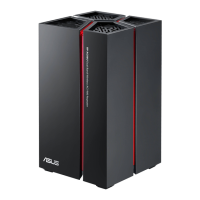
Asus RP-AC68U
4 pages
To Next Page IconTo Next Page
Page #1 background imageLoading...
Page #1 background image
Quick
Installation
Guide
A quick look
Five LAN Gigabit ports
USB 3.0 port x 1
WPS button x 1
Power on off button x 1
Wi-Fi LED:
2.4G LED / 5G LED:
Three LEDs on: RP-AC68U has good signal
connection with router.
Two LEDs on: RP-AC68U has normal
signal connection with router.
One LEDs on: RP-AC68U has weak signal
connection with router.
Off: RP-N12 doesnt connect to a router.
Plug your RP-AC68U into a
power outlet Near your
Router/AP
Method One
Power On
Push the two WPS buttons
Push the WPS button on your
Router/AP
Immediately push the WPS
button on your RP-AC68U
The Stylish LED should go to
flashing in about 2 minutes.
Wait until the Wi-Fi LED turn
on. You could know the
signal quality with different
LED number.
Relocate RP-AC68U to a location you like.
After the extender is relocated to a new place, RP-AC68U will reconnect to your router automatically in about one minute.
The ideal location for RP-AC68U is between your wireless
router and wireless device.
Make sure RP-AC68U is in a location where signals
indictor LED has over 2 led on at least.
Keep the RP-AC68U away from devices like cordless
phones, Bluetooth devices and microwave ovens to
minimize wireless interference.
If possible, try to place your extender in open
corridors or spacious locations rather than a
crowded room.
Enjoy!
The Range Extender shares your routers Wireless Network Name (SSID) and
Wireless Password
Frequently Asked Questions (FAQ)
Q1: What should I do if my router doesnt have a WPS button?
A1: You can use Method Two to set up RP-AC68U
Q2 Why is that the Wi-Fi LED does not light up after completing Method Two?
A1: You may have entered the wrong router SSID and password. Reset your RP-AC56,
double check your router SSID/password, and set up RP-AC56 again.
Q3 How do I reset RP-AC68U
A1: Press the RESET button on the button of RP-AC68U for about two (2)
seconds. Wait for about five (5) seconds until the LEDs blink slowly.
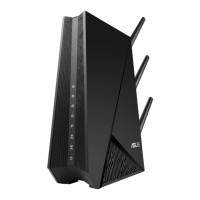
RP-AC68U
Dual band Wireless Ranger Extender

Reset button

Other manuals for Asus RP-AC68U

Question and Answer IconNeed help?

Do you have a question about the Asus RP-AC68U and is the answer not in the manual?

Asus RP-AC68U Specifications

General IconGeneral
Wi-Fi bandDual-band (2.4 GHz / 5 GHz)
Wi-Fi standards802.11a, Wi-Fi 5 (802.11ac), 802.11b, 802.11g, Wi-Fi 4 (802.11n)
Top Wi-Fi standardWi-Fi 5 (802.11ac)
WLAN data transfer rate (max)1300 Mbit/s
Bandwidth (first)2.4 GHz
Bandwidth (second)5 GHz
WLAN data transfer rates supported1900, 1, 2, 5.5, 6, 9, 11, 12, 18, 24, 36, 48, 54, 600, 1300 Mbit/s
Ethernet LANYes
Cabling technology10/100/1000Base-T(X)
Networking standardsIEEE 802.11a, IEEE 802.11ac, IEEE 802.11b, IEEE 802.11g, IEEE 802.11n
Ethernet LAN data rates10, 100, 1000 Mbit/s
Ethernet LAN interface typeGigabit Ethernet
Product colorBlack, Red
LED indicatorsWLAN
Ethernet LAN (RJ-45) ports4
USB 3.2 Gen 1 (3.1 Gen 1) Type-A ports quantity1
Mac operating systems supportedMac OS X 10.10 Yosemite, Mac OS X 10.11 El Capitan, Mac OS X 10.7 Lion, Mac OS X 10.8 Mountain Lion, Mac OS X 10.9 Mavericks
Windows operating systems supportedWindows 10 Education, Windows 10 Education x64, Windows 10 Enterprise, Windows 10 Enterprise x64, Windows 10 Home, Windows 10 Home x64, Windows 10 Pro, Windows 10 Pro x64, Windows 7 Enterprise, Windows 7 Enterprise x64, Windows 7 Home Basic, Windows 7 Home Basic x64, Windows 7 Home Premium, Windows 7 Home Premium x64, Windows 7 Professional, Windows 7 Professional x64, Windows 7 Starter, Windows 7 Starter x64, Windows 7 Ultimate, Windows 7 Ultimate x64, Windows 8, Windows 8 Enterprise, Windows 8 Enterprise x64, Windows 8 Pro, Windows 8 Pro x64, Windows 8 x64, Windows 8.1, Windows 8.1 Enterprise, Windows 8.1 Enterprise x64, Windows 8.1 Pro, Windows 8.1 Pro x64, Windows 8.1 x64
Output current1.75 A
Output voltage19 V
AC input voltage110 - 240 V
Power source typeAC
AC input frequency50 - 60 Hz
Operating temperature (T-T)0 - 40 °C
Cables includedLAN (RJ-45)
Security algorithmsWPA, WPA-EAP, WPA-PSK, WPA2, WPA2-EAP, WPA2-PSK, WPS
Weight and Dimensions IconWeight and Dimensions
Width106 mm
Height178 mm

Related product manuals