14
English
Mouse tab (Hardware Mode)
The settings in the Hardware Mode are similar to those in the Software Mode, with
some slight differences.
In Hardware Mode, there is only one profile available, and after you are satisfied with
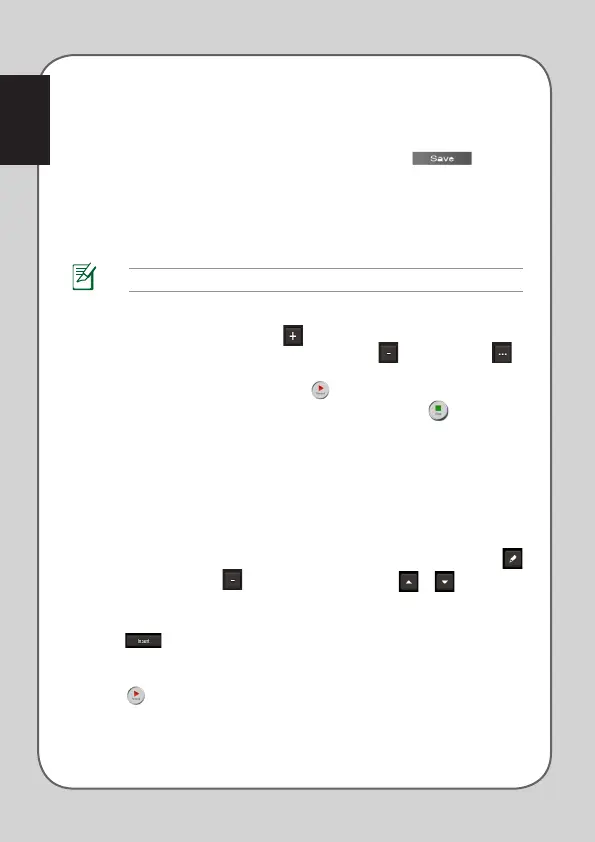
the changes that you have made, you may press the save button to save
this profile settings into the mouse on-board memory.
Macro tab
The Macros tab allows you to create macro profiles with different keystrokes and
button presses.
NOTE: Macro sequences contain mouse commands only in the Hardware Mode.
Creating a Macro
To create a new macro, press the button and input a macro name in the field
below Macro Name. To remove a macro, press the button . Press the button
to display Copy, Import & Export.
To create a macro command, click the button to record all your keystrokes and
button presses in the macro window automatically. Click the button to end the
macro command.
The Macro tab contains different delay options for creating macros:
Record Delay - The actual delay between commands is recorded as it is.
Default Delay - The delay between commands is your predefined time (in seconds).
No Delay - There is no delay between commands.
Editing a Macro
The macro commands of keystrokes or button presses are listed sequentially. Click
to edit a command and click to remove a command. Click or to move the
command up or down.
Select one of the following ways to add an additional command in a macro:
1. Click button,
When a new display window appears, select the command that you want to
insert before or after the highlighted macro command, including time delays.
2. Click button to record a new set of sequences.




 To Next Page