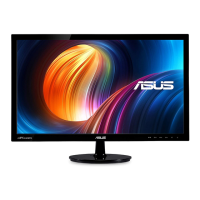
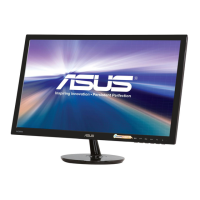
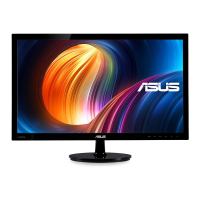
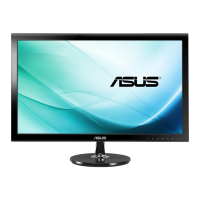
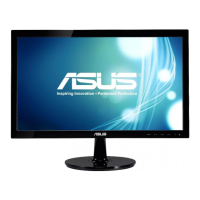
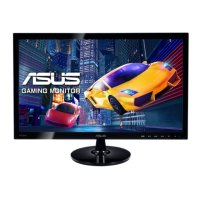
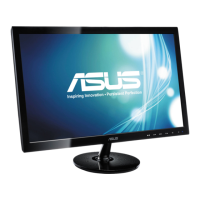
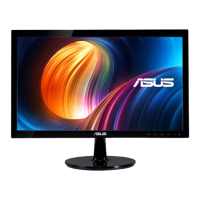
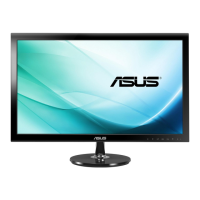
The ASUS VS228/VS238/VS247 Series LCD Monitor is a widescreen display designed to provide a crisp, broader, and brighter viewing experience with a host of features to enhance user interaction. This user guide covers the setup, operation, and troubleshooting of the monitor, ensuring users can maximize its capabilities.
Function Description
The ASUS VS228/VS238/VS247 Series LCD Monitor serves as a visual output device for computers, offering various input options to connect to different systems. It features an On-Screen Display (OSD) menu for easy configuration and adjustment of image settings, color modes, and system preferences. The monitor is designed for both general use and specific applications, with preset video modes optimized for different content types like scenery, standard, theater, game, night view, and sRGB. Some models also include an earphone output for audio convenience. The monitor is VESA wall-mount compatible, allowing for flexible placement options.
Important Technical Specifications
The VS228/VS238/VS247 Series includes several models with varying panel sizes and specific features.
Common Specifications:
- Max. Resolution: 1920 x 1080 (FHD) for all models.
- Backlight Tech.: LED Backlight Technology across the series.
- Intrisinc Contrast Ratio (Typ.): 600:1 for VS228DE/NE, 1000:1 for VS228DR/HR, VS238HR/NR, and VS247HR/HV/NR.
- Display Colors: 16.7 M for all models.
- Response Time: 5 ms for most models, with VS247HR offering 2 ms (G to G) and VS247HV offering 5 ms.
- Tilt: Adjustable from -5° to +20° for all models.
- VESA Wall Mounting: Yes (100mm x 100mm) for all models.
- Voltage Rating: AC 100~240V (Built-in) for all models.
- Power Consumption:
- VS228DE/NE/DR/HR: Power ON < 21.1W* (Based on Energy Star 6.0 standard)
- VS238HR/NR: Power ON < 22 W* (Based on Energy Star 6.0 standard)
- VS247HR/HV/NR: Power ON < 22.7 W* (Based on Energy Star 6.0 standard)
- Power Saving Mode: < 0.5 W for all models.
- Power OFF Mode: < 0.5 W for all models.
Model-Specific Specifications:
VS228DE/NE:
- Panel Size: 21.5"W (54.6 cm)
- Brightness (Typ.): 200cd/m²
- Viewing Angle (CR=10): ≥90°(H) / ≥ 65°(V)
- Earphone Output: No
- Sound from HDMI: No
- HDMI input (HDMI 1.3): No
- DVI input: VS228DE: No, VS228NE: Yes
- D-Sub input: Yes
- Phys. Dimension (WxHxD): 514 x 386 x 200 mm
- Box Dimension (WxHxD): 566 x 443 x 130 mm
- Net Weight (Esti.): 3.8 kg
- Gross Weight (Esti.): 5.9 kg
VS228DR/HR:
- Panel Size: 21.5"W (54.6 cm)
- Brightness (Typ.): 250cd/m²
- Viewing Angle (CR=10): ≥ 170°(H) / ≥ 160°(V)
- Earphone Output: VS228DR: No, VS228HR: Yes
- Sound from HDMI: VS228DR: No, VS228HR: Yes
- HDMI input (HDMI 1.3): VS228DR: No, VS228HR: Yes
- DVI input: VS228DR: No, VS228HR: Yes
- D-Sub input: Yes
- Phys. Dimension (WxHxD): 514 x 386 x 200 mm
- Box Dimension (WxHxD): 566 x 443 x 130 mm
- Net Weight (Esti.): 3.8 kg
- Gross Weight (Esti.): 5.9 kg
VS238HR/NR:
- Panel Size: 23"W (58.4 cm)
- Brightness (Typ.): 250cd/m²
- Viewing Angle (CR=10): ≥ 170°(H) / ≥ 160°(V)
- Earphone Output: VS238HR: Yes, VS238NR: No
- Sound from HDMI: VS238HR: Yes, VS238NR: No
- HDMI input (HDMI 1.3): VS238HR: Yes, VS238NR: No
- DVI input: Yes
- D-Sub input: Yes
- Phys. Dimension (WxHxD): 552 x 400 x 200 mm
- Box Dimension (WxHxD): 608 x 460 x 130 mm
- Net Weight (Esti.): 3.4 kg
- Gross Weight (Esti.): 5.8 kg
VS247HR/HV/NR:
- Panel Size: 23.6"W (59.9 cm)
- Brightness (Typ.): 250cd/m²
- Viewing Angle (CR=10): ≥ 170°(H) / ≥ 160°(V)
- Earphone Output: VS247HR/HV: Yes, VS247NR: No
- Sound from HDMI: VS247HR/HV: Yes, VS247NR: No
- HDMI input (HDMI 1.3): VS247HR/HV: Yes, VS247NR: No
- DVI input: Yes
- D-Sub input: Yes
- Phys. Dimension (WxHxD): 562 x 411 x 200 mm
- Box Dimension (WxHxD): 618 x 469 x 130 mm
- Net Weight (Esti.): 4.4 kg
- Gross Weight (Esti.): 6.8 kg
Usage Features
- Monitor Base Assembly: The monitor base connects to the arm by turning clockwise until a click indicates a secure connection. The monitor angle can then be adjusted for optimal viewing.
- Connecting Cables: The monitor supports VGA input across all models. DVI input is available for VS228NE/HR, VS238NR/HR, and VS247NR/HR/HV models. HDMI input (HDMI 1.3) is available for VS228HR, VS238HR, VS247HR, and VS247HV models.
- Front Panel Controls:
- S/A S Button: Used for auto-adjustment (VGA mode only) and switching between six SPLENDID™ Video Enhancement preset modes (Scenery, Standard, Theater, Game, Night View, sRGB). Also functions as an exit button in the OSD menu.
- 0/▼ Button: Decreases selected function values or moves to the next function. Also a hotkey for contrast adjustment.
- MENU Button: Enters the OSD menu and selects highlighted functions/icons.
- */▲ Button: Increases selected function values or moves right/up. Also a hotkey for brightness adjustment.
- Input Select Button: (Available for VS228HR / VS238HR / VS247HR / VS247HV only) Switches between VGA, DVI, or HDMI inputs.
- Power Button/Power Indicator: Turns the monitor on/off. The indicator shows blue for ON, amber for Standby mode, and OFF for OFF.
- OSD (On-Screen Display) Menu:
- Splendid: Offers six preset video modes (Scenery, Standard, Theater, Game, Night View, sRGB) with individual reset options.
- Scenery Mode: Best for scenery photos.
- Standard Mode: Best for document editing.
- Theater Mode: Best for movie watching.
- Game Mode: Best for game playing.
- Night View Mode: Best for dark-scene games or movies.
- sRGB: Best for viewing photos and graphics from PCs.
- Note: In Standard Mode, Saturation, Skin Tone, Sharpness, and ASCR are not user-configurable. In sRGB, Brightness, Contrast, Saturation, Color Temp., Skin Tone, Sharpness, and ASCR are not user-configurable.
- Color: Adjusts image color preferences.
- Brightness: Range 0-100. Hotkey for activation.
- Contrast: Range 0-100. Hotkey for activation.
- Saturation: Range 0-100.
- Color Temp.: Three preset modes (Cool, Normal, Warm) and one User Mode (R, G, B adjustable 0-100).
- Skin Tone: Three modes (Reddish, Natural, Yellowish).
- Smart View: Enhances visibility after tilting the screen.
- Image: Adjusts image sharpness, aspect control, position, and focus.
- Sharpness: Adjusts picture sharpness (0-100). Available only in "Standard Mode" of Splendid menu.
- Trace Free: Speeds up response time (0-100). Available for VS247HR only.
- Aspect Control: Adjusts aspect ratio to "Full", "4:3", or "Over Scan" (HDMI input only).
- ASCR: Enables/disables dynamic contrast ratio (ASUS Smart Contrast Ratio). Disabled in "Standard Mode".
- Position: Adjusts horizontal (H-Position) and vertical (V-Position) image position (0-100). Available for VGA input only.
- Focus: Reduces horizontal and vertical line noise by adjusting Phase and Clock (0-100). Available for VGA input only.
- Input Select: Selects input source (VGA, DVI, HDMI).
- System Setup: Adjusts system configuration.
- Splendid Demo Mode: Activates demo mode for Splendid function.
- Volume: Adjusts earphone output volume (0-100). Available for VS228HR, VS238HR, VS247HR, VS247HV only.
- ECO Mode: Activates power saving mode. May affect gray levels and brightness.
- OSD Setup: Adjusts OSD position (H-Position, V-Position), OSD Timeout, DDC/CI, and Transparency.
- Language: Selects OSD language (English, French, German, Spanish, Italian, Dutch, Russian, Traditional Chinese, Simplified Chinese, Japanese).
- Information: Displays monitor information (Input Port, Resolution, H-freq., V-freq, Model Name).
- All Reset: Reverts all settings to factory default.
- VESA / IBM Modes Support Timing: The manual provides detailed lists of supported resolutions, refresh rates, and horizontal frequencies for D-SUB, DVI-D, and HDMI inputs.
- HDMI 1.3 CEA-861 Formats Supported Timing: Specific timing lists for HDMI input are also provided.
Maintenance Features
- Safety Information:
- Read documentation carefully before setup.
- Avoid exposure to rain or moisture.
- Do not open the monitor cabinet due to high voltages.
- Contact qualified service technician for power supply issues.
- Ensure all cables are correctly connected and undamaged.
- Do not block ventilation slots.
- Operate from specified power source.
- Use appropriate power plug.
- Avoid overloading power strips.
- Avoid dust, humidity, and temperature extremes; place on a stable surface.
- Unplug during lightning storms or prolonged disuse.
- Do not push objects or spill liquid into slots.
- Use with UL listed computers (100-240V AC).
- Contact technician for technical problems.
- Care & Cleaning:
- Disconnect cables and power cord before repositioning or cleaning.
- Clean monitor surface with a lint-free, non-abrasive cloth. Mild cleaner can be used for stubborn stains.
- Avoid cleaners containing alcohol or acetone. Use LCD-specific cleaners.
- Do not spray cleaner directly on the screen.
- Troubleshooting (FAQ):
- Power LED not ON: Check monitor ON mode, power cord connection.
- Power LED amber, no screen image: Check monitor/computer ON mode, signal cable connection, bent pins. Test with another monitor.
- Screen image too light/dark: Adjust Contrast and Brightness via OSD.
- Screen image not centered/sized properly: Use auto-adjustment (A button for 2 seconds), adjust H-Position/V-Position via OSD.
- Screen image bounces/wave pattern: Check signal cable, move electrical devices.
- Screen image has color defects: Check signal cable, perform Reset via OSD, adjust R/G/B color settings or Color Temperature.
- Screen image blurry/fuzzy: Use auto-adjustment (VGA mode only), adjust Phase and Clock settings via OSD.
- No sound or low sound (for specific models): Check audio cable connection, adjust monitor/computer volume, ensure sound card driver is installed and activated.
- Detaching the Arm/Stand (for VESA wall mount):
- Pull stop lever and turn anticlockwise to unlock.
- Detach base from monitor.
- Gently pull away plate covering stand neck.
- Remove four screws securing stand with a screwdriver.
- Detach stand from monitor.
- Note: Cover table surface with soft cloth to prevent damage. Hold stand while removing screws.
- Note: VESA wall mount kit (100 x 100 mm) is purchased separately. Use UL Listed Wall Mount Bracket with minimum weight/load (Screw size: M4 x 10 mm).

 Need help?

 To Next Page
 General