EasyManua.ls Logo

Asus WL-520gU - User Manual

Asus WL-520gU
51 pages
Print Icon
To Next Page IconTo Next Page
Loading...
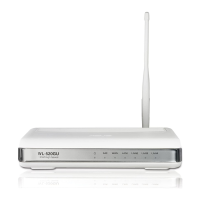
WL-520GU Wireless Router
User Manual
WL-520GU
125M High Speed
AIR WAN LAN1 LAN2 LAN3 LAN4

Other manuals for Asus WL-520gU

Questions and Answers

  • F
    Felicia GreenJul 30, 2025
    How to restore Asus WL-520gU to default settings?
    • J
      Joshua JimenezJul 30, 2025
      To restore your Asus Wireless Router to its default settings, press the Restore button on the rear panel of the router for more than five seconds.
  • N
    Nathan FrancisAug 5, 2025
    What to do if my Asus WL-520gU Wireless Router ADSL “LINK” light is blinking?
    • W
      watkinsheatherAug 5, 2025
      Ensure all cables are properly connected. If the ADSL light continues to blink or remains off, disconnect the power cord from the ADSL or cable modem, wait a few minutes, and then reconnect it. If the issue persists, you should contact your ADSL service provider.
  • M
    Mindy DonaldsonAug 11, 2025
    What to do if client cannot establish wireless connection with Asus WL-520gU Wireless Router?
    • S
      Sabrina LawsonAug 11, 2025
      If a client device can't connect wirelessly to the Asus Wireless Router, it could be due to several reasons. If the client is out of range, move the router closer. You might also try changing the channel settings. For authentication issues, use a wired connection to connect to the router and check the wireless security settings. If you can't find the router, press the Restore button on the rear panel for more than five seconds, and check the SSID and encryption settings in the wireless adapter.
  • A
    Andrew NewtonAug 17, 2025
    What to do if I cannot access the internet via wireless LAN adapter on Asus WL-520gU Wireless Router?
    • M
      Mary ConnerAug 17, 2025
      If you cannot access the Internet via a wireless LAN adapter, move the router closer to the wireless client. Check that the wireless adapter is connected to the correct wireless router and that the wireless channel conforms to the channels available in your country/area. Also, verify the encryption settings and ensure the ADSL or Cable connection is correct. You can also try using another Ethernet cable.
  • J
    jennifersimonAug 23, 2025
    What to do if I forgot my Asus Wireless Router network name or encryption keys?
    • C
      Cameron RayAug 25, 2025
      If you've forgotten your Asus Wireless Router's network name or encryption keys, try setting up a wired connection and configuring the wireless encryption again. Alternatively, press the Restore button on the rear panel of the wireless router for more than five seconds.

Summary

Knowing your wireless router

Package contents

Lists items included in the wireless router package.

System requirements

Specifies the necessary hardware and software for setup.

Before you proceed

Outlines essential guidelines before starting the installation.

Front panel features

Describes the indicators and ports on the front of the router.

Rear panel features

Details the ports and buttons on the rear of the router.

Bottom panel features

Describes the vents and mounting hooks on the bottom.

Mounting options

Explains how to mount the router on a surface.

Setting up the hardware

Setting up the wireless router

Guides on initial router setup and EZSetup utility.

Setting up a wired connection

Instructions for connecting the router via an Ethernet cable.

Setting up a wireless connection

Steps to connect the router wirelessly.

Configuring the wireless router

Overview of accessing and using the web GUI for configuration.

Using the web GUI

How to access and navigate the router's web interface.

Configuring the network clients

Accessing the wireless router

Requirements for accessing the router.

Setting an IP address for clients

Explains DHCP and manual IP configuration for clients.

Windows 9 x;ME IP configuration

Steps to configure IP settings in Windows 9x/ME.

Windows NT4.0 IP configuration

Steps to configure IP settings in Windows NT 4.0.

Windows 2000 IP configuration

Steps to configure IP settings in Windows 2000.

Windows XP IP configuration

Steps to configure IP settings in Windows XP.

Configuring via the web GUI

Web GUI configuration overview

General guide to using the router's web interface.

Using the Network Map

How to view network status and configure connections.

Quick Internet Setup (QIS) for WAN

Guide to automatically detect and set up WAN connection.

Managing EzQoS bandwidth

How to prioritize network traffic for better performance.

Upgrading the firmware

Steps to update the router's firmware.

Restoring;Saving;Uploading settings

Procedures for managing router configuration settings.

Installing the utilities

Installing ASUS WLAN utilities

Instructions for installing utilities from the support CD.

Device Discovery utility

Utility to detect and configure ASUS Wireless Router devices.

Firmware Restoration utility

Utility to restore router firmware after a failed upgrade.

EZSetup utility

Utility for easy setup of secure wireless networks.

Adding devices via USB flash drive

How to add devices to the network using EZSetup and a USB drive.

Network Printer Setup utility

Utility to set up a USB printer on the router.

Troubleshooting

Connectivity and Internet Access Issues

Troubleshooting steps for web browser, wireless, and internet access problems.

Network Credential Recovery and System Restore

Recovering forgotten network keys and resetting router to defaults.

Appendices

Notices and FCC Statement

Contains FCC statements, co-location prohibition, and related notices.

Safety Information

RF exposure guidelines and general safety precautions.

Declaration of Conformity (R&TTE)

Product compliance with R&TTE directive.

CE Mark Warning

Information regarding CE mark compliance and potential interference.

GNU General Public License

Licensing terms for included software.

ASUS Contact Information

Contact details for ASUS technical support and offices.

Declaration of Conformity

Formal declaration of product conformity with standards.

Asus WL-520gU Specifications

General IconGeneral
Bandwidth2.4 GHz
xDSL connectionNo
Dimensions (WxDxH)164 x 116.5 x 31 mm
Power requirements+5V; 2A
USB ports quantity1
Filtering descriptionURL
Maximum data transfer rate0.125 Gbit/s
Compatible operating systemsWindows 2000/XP/Vista
Full duplexYes
VPN supportIPSec, PPTP, L2TP
Networking standardsIEEE 802.11b, IEEE 802.11g, IEEE 802.11i, IEEE 802.1x, IEEE 802.3, IEEE 802.3u
Channels quantity13 channels
Ethernet LAN (RJ-45) ports4
Security algorithmsWPA, WPA-PSK, WPA2
Authentication method802.1x RADIUS, MAC
Storage temperature (T-T)-30 - 50 °C
Operating temperature (T-T)0 - 40 °C
Storage relative humidity (H-H)20 - 90 %
Operating relative humidity (H-H)50 - 90 %
LED indicatorsLAN, WAN
Weight and Dimensions IconWeight and Dimensions
Weight262 g

Videos

How to Set Up ASUS WL-520GU

Related product manuals