EasyManua.ls Logo

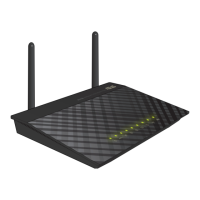
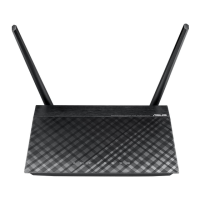
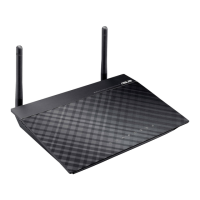
Asus DSL-N12E - User Manual

Asus DSL-N12E
61 pages
Print Icon
To Next Page IconTo Next Page
Loading...
User Manual
DSL-N12E
11n Wireless Router

Table of Contents

Other manuals for Asus DSL-N12E

Questions and Answers

  • D
    Donald WrightJul 26, 2025
    What to do if internet is not accessible on Asus DSL-N12E?
    • T
      Tammy BrooksJul 26, 2025
      If you're experiencing internet connectivity issues, start by checking the status indicators on both your ADSL modem and the wireless router. Also, verify if the WAN LED on the wireless router is lit. If the WAN LED is off, try replacing the cable and testing the connection again.
  • F
    fhughesJul 31, 2025
    How to fix Asus Wireless Router when client cannot establish a wireless connection?
    • J
      Johnathan MaciasJul 31, 2025
      If a client device cannot connect wirelessly to the Asus Wireless Router, consider the following solutions: First, ensure the router is within close range of the wireless client. If the range is adequate, try adjusting the channel settings. If the problem persists, use a wired connection to connect to the router and check the wireless security settings. As a last resort, press the Restore button on the rear panel for more than five seconds. If the router cannot be found, insert a needle inside the Reset hole at the rear panel for more than five seconds and check the settings in the wireless adapter such as SSID and encryption settings.
  • B
    Brian CurtisAug 5, 2025
    How to restore Asus Wireless Router to its default settings?
    • V
      Victoria SmithAug 5, 2025
      To restore the system to its default settings, insert a needle into the Reset hole at the rear panel of the wireless router for more than five seconds.
  • K
    Kathy ZavalaAug 10, 2025
    What to do if ADSL 'LINK' light blinks continuously on Asus DSL-N12E?
    • T
      tturnerAug 10, 2025
      If the ADSL 'LINK' light on your modem blinks continuously or remains off, indicating that internet access is not possible and the router can't connect to the ADSL network, ensure all cables are properly connected. If the issue persists, disconnect the power cord from the ADSL or cable modem, wait a few minutes, and then reconnect it. If the ADSL light continues to blink or stays off, contact your ADSL service provider.
  • C
    Curtis PhillipsAug 15, 2025
    What to do if ADSL Modem 'Link' light is ON but Internet Access is not possible on Asus Wireless Router?
    • M
      Michelle ChavezAug 15, 2025
      If the ADSL Modem 'Link' light is ON, but you still cannot access the internet, start by restarting your computer. Then, refer to the Quick Start Guide of the wireless router and re-configure the settings. Check if the WAN LED on the wireless router is ON and verify the wireless encryption settings. Ensure that your computer can obtain an IP address via both wired and wireless networks. Finally, make sure your web browser is configured to use the local LAN and isn't set to use a proxy server.
  • J
    jenniferthompsonAug 20, 2025
    What to do if I forgot network name or encryption keys for Asus DSL-N12E?
    • D
      Darren KingAug 20, 2025
      If you have forgotten your network name or encryption keys, try setting up a wired connection and configuring the wireless encryption again. Alternatively, insert a needle into the Reset hole at the rear panel of the wireless router for more than five seconds to reset the router.

Summary

About This User Guide

How the Guide is Organized

Provides an overview of the manual's structure and content.

Conventions Used in This Guide

Knowing Your Wireless Router

Package Contents and System Requirements

Lists items included and necessary system specifications.

Hardware Features Overview

Details the router's physical components, ports, and indicators.

Mounting Options

Instructions on how to install or mount the router.

Getting Started

Initial Router Setup and Access

Guides users through initial setup and accessing the router's interface.

Quick Internet Setup (QIS) Wizard

Step-by-step process for configuring the internet connection via QIS.

Configuration Steps Summary

Covers WAN, WLAN interface setup and saving configurations.

Configuring Network Clients

Managing Network Clients

Explains how to manage devices connected to the router.

Client IP Configuration by OS

Details IP configuration steps for Windows 2000, XP, and Vista/7.

Web GUI Configuration

Wireless Network Settings

Covers basic, security, access control, multi-SSID, advanced, and WPS wireless settings.

LAN and WAN Network Settings

Configures local area network (LAN) interfaces, DHCP, and wide area network (WAN) connections.

Internet Service and Security Configuration

Manages DNS, DDNS, Firewall rules, UPnP, and IGMP proxy settings.

Administration and System Management

Covers firmware upgrades, system logs, user accounts, and time settings.

Diagnostic and Status Monitoring

Provides tools for network troubleshooting and viewing router status.

Troubleshooting

Common Issues and Solutions

Provides guidance for resolving common problems encountered with the router.

Appendices

Notices and Compliance Statements

Includes regulatory compliance, FCC, CE, and R&TTE information.

Safety and Licensing Information

Covers safety warnings, environmental concerns, and software licensing details.

ASUS Contact Information

Provides contact details for ASUS technical support and service.

Asus DSL-N12E Specifications

General IconGeneral
Ethernet LANYes
Cabling technology10/100Base-T(X)
Networking standardsIEEE 802.11b, IEEE 802.11g, IEEE 802.11n, IEEE 802.3, IEEE 802.3u
Ethernet LAN data rates10, 100 Mbit/s
Ethernet LAN interface typeFast Ethernet
Wi-Fi standards802.11b, 802.11g, Wi-Fi 4 (802.11n)
Top Wi-Fi standardWi-Fi 4 (802.11n)
WLAN data transfer rate (max)300 Mbit/s
Rack mountingNo
Frequency band2.4 GHz
Filtering descriptionIP
Output power description12 V/0.8 A
Operating temperature (T-T)14 - 122 °F
WLAN data transfer rates supported1, 2, 5.5, 6, 9, 11, 12, 24, 36, 48, 54, 300 Mbit/s
RJ-11 ports quantity1
Ethernet LAN (RJ-45) ports4
DSL specificationG.992.1, G.992.2, G.992.3, G.992.5
DHCP client-
Supported network protocolsIPv4
Antennas quantity2
Antenna gain level (max)5 dBi
Security algorithms128-bit WEP, 64-bit WEP, 802.1x RADIUS, WPA-PSK, WPA2-PSK, WPS
AC input voltage100 - 240 V
AC input frequency50 - 60 Hz
Storage temperature (T-T)-40 - 60 °C
Operating relative humidity (H-H)5 - 95 %
Product colorBlack, Grey
LED indicatorsDSL, LAN, Power, WLAN
Cables includedLAN (RJ-45), Phone (RJ-11)
Weight and Dimensions IconWeight and Dimensions
Depth124 mm
Width168 mm
Height30 mm
Weight300 g

Related product manuals