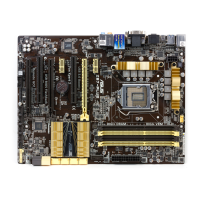
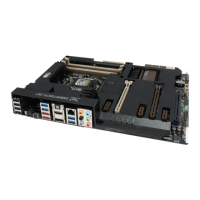
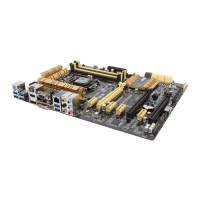
ASUS Z87M-PLUS
6-5
Chapter 6
Creating a partition
• Ensure to back up your data before creating a partition using the Microsoft partition
tool. Incorrect partitioning results to data loss.
• The system may become unstable if DRAM is set to a high frequency.
To create a partition:
1. Launch the Computer Management window for the following Windows
®
operating
systems:
a. For Windows
®
7, click Start then right-click Computer > Manage.
b. For Window
®
8, right-click on the Start screen to launch to launch All Apps bar,
click All Apps icon then right-click Computer > Manage.
2. Click
Disk Management on the left pane of Computer Management window.
3. Select the SSD that you want to partition.
6.2 Intel
®
Rapid Start Technology
Intel
®
Rapid Start Technology allows you to quickly resume your computer from hibernate
or sleep mode. It reduces the amount of data transferred to SSD resulting in a faster or
improved resume or wake up time.
• Ensure that you enable the Intel
®
Rapid Start Technology in BIOS before using
the Intel
®
Rapid Start Technology. In BIOS, click Advanced Mode > Advanced >
PCH Conguration > Intel
®
Rapid Start Technology then set Intel
®
Rapid Start
Technology to [Enabled].
• Ensure to create a partition rst before installing the Intel
®
Rapid Start Technology
utility. The utility will not proceed with the installation if you have not created a
partition.
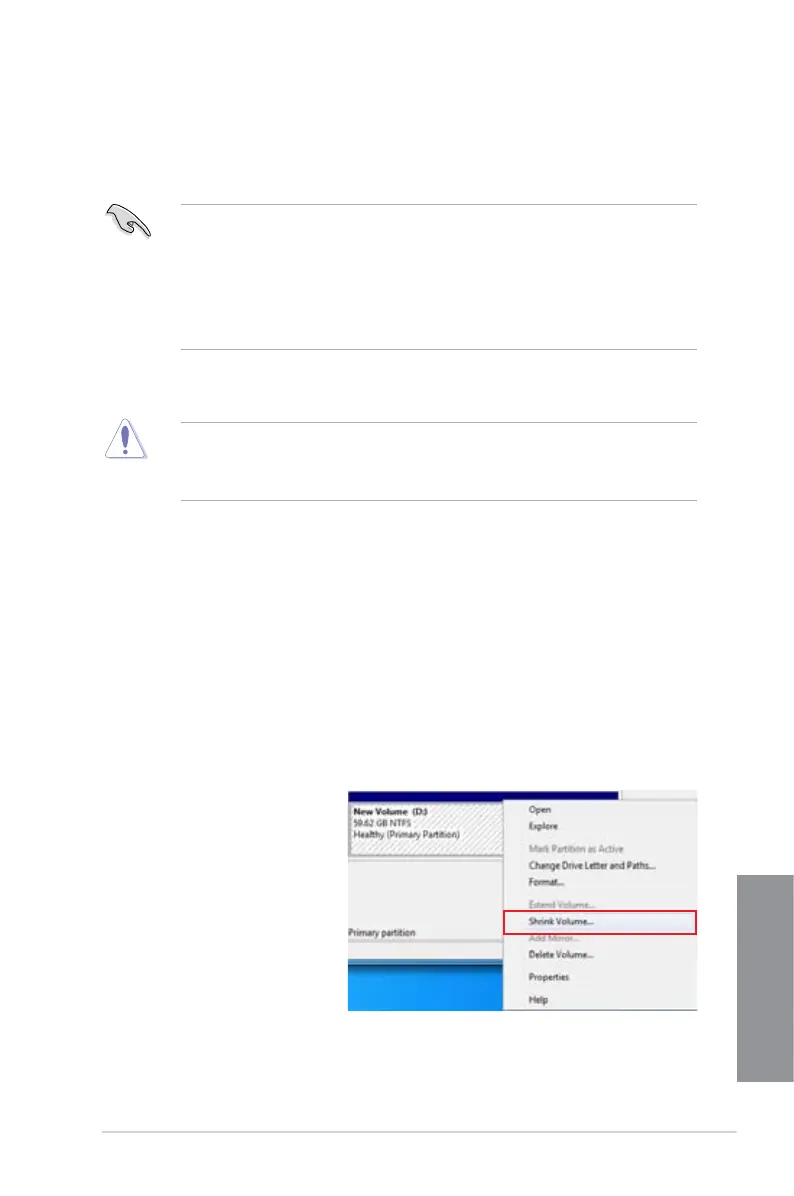
4. Right-click the New Volume
that you want to shrink from,
then click Shrink Volume.



 To Next Page