AWMS-2-BT75-H Page 3 of 4
WARNING:
Ensure clips
closed before
tilting
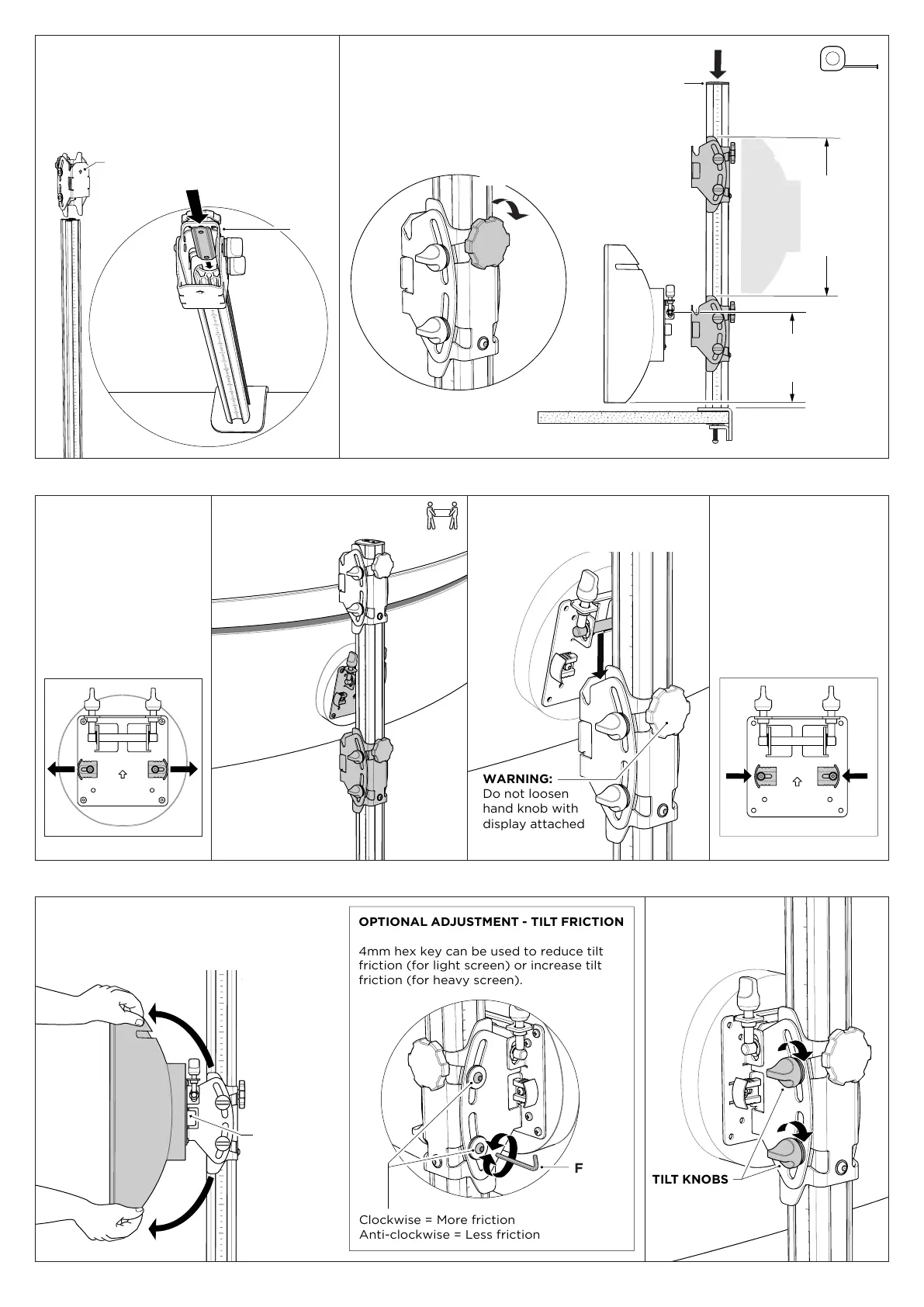
5. Attach bottom display
6. Set tilt
5.1 Set VESA plate clips
to open position.
Bottom display must be
attachedtobracketrst.
WARNING:
Use two people to install
display
5.4 Set VESA plate
clips to closed position.
6.1 Adjust display tilt
angle by gripping edges
of screen and rolling up or
down to desired position.
6.2 Set display
angle by tightening
tilt knobs.
5.3 Centre VESA plate close to
post and slowly lower until bar on
VESA plate sits in saddle in bracket.
5.2 Lift display until
VESA plate is above
the bracket.
4.2 Line up the inner guide
on rear of bracket with rear
channel on post.
Slide inner guide into channel,
then lower bracket.
Arrow side
towards user
TIGHTEN
WARNING:
Never loosen knob while
display is on bracket
D
MEASURE
≥ Display
height
between
brackets
I
MEASURE to
ensure clearance
to desk
4.3 Firmly tighten hand knob at
chosen height.
Ensureheightissufcientfor
display to clear desk once in place.
Repeatwithsecondbracketandt
post cap.
MEASURE
≥ Display
height
between
brackets
I
MEASURE to
ensure clearance
to desk
OPEN
CLOSED
NOTE:
Display hangs from the
bracket like a painting.
After clips are closed,
if corners of the screen
are pushed downwards,
rocking movement is
expected.
WARNING:
Do not loosen
hand knob with
display attached
Clockwise = More friction
Anti-clockwise = Less friction
OPTIONAL ADJUSTMENT - TILT FRICTION
4mm hex key can be used to reduce tilt
friction (for light screen) or increase tilt
friction (for heavy screen).
F



 To Next Page