Controlling HyperDecks with ATEM 2 M/E and 4 M/E Advanced Panels
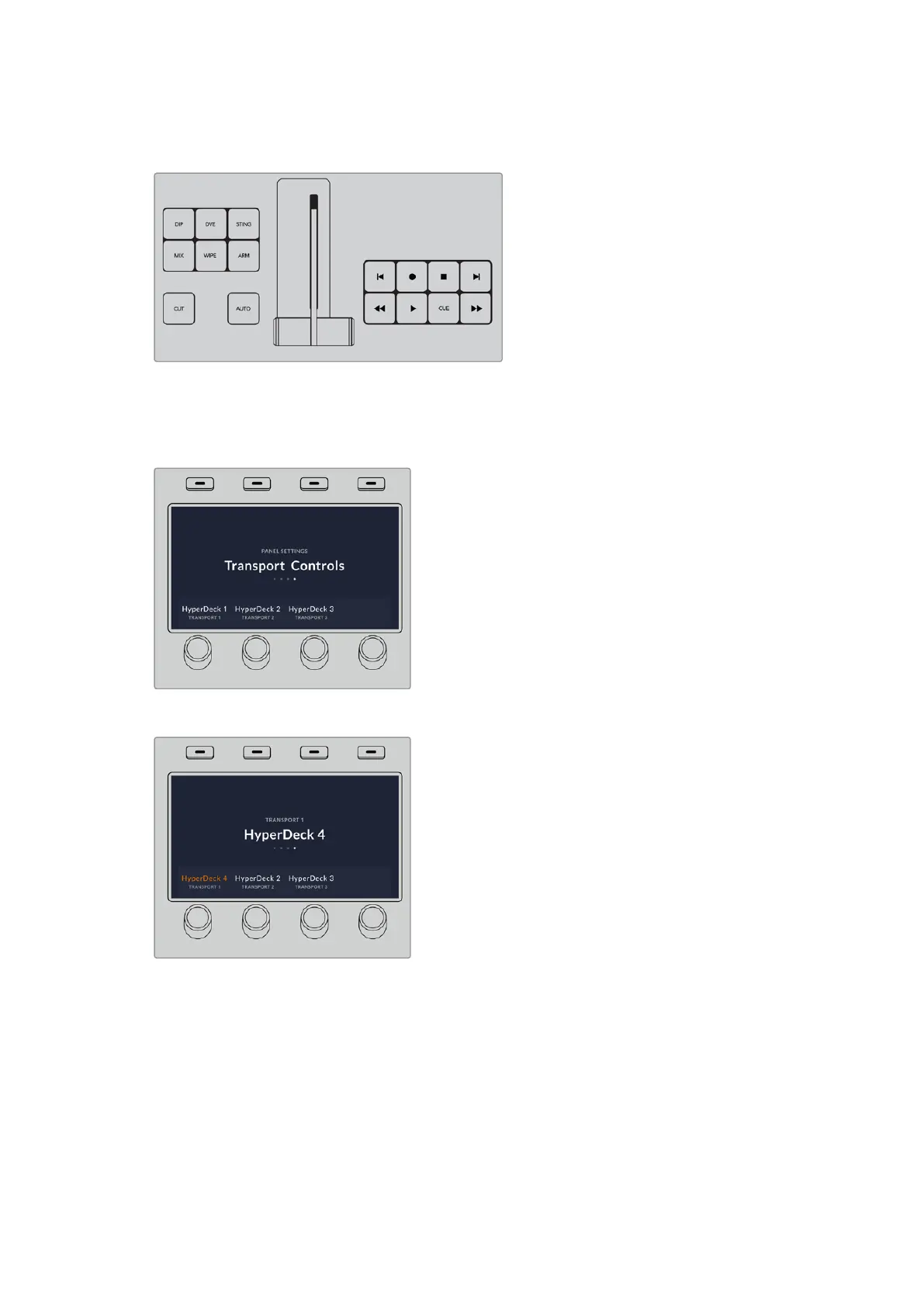
ATEM 2 M/E and 4 M/E Advanced panels feature up to three banks of dedicated transport
controls so you can operate up to three HyperDecks directly from the panel buttons. To set up
your HyperDecks with ATEM 2 M/E or 4 M/E Advanced Panel, press the ‘settings’ control panel
button and press the ‘panel’ soft control knob.
Using the right arrow button, navigate to the 4th page for transport controls.
Using the rotating soft control you can set your HyperDeck to a set of transport controls.
It’sworth noting that ‘transport 1’ are the buttons at the bottom of the panel closest to the
operator, and ‘transport 3’ on ATEM 4 M/E Advanced Panel are closest to the LCD display.
Once you’ve allocated your HyperDeck to a set of transport controls, use them to control
playback including play, skip and cue.
92HyperDeck Control



 To Next Page