EasyManua.ls Logo

ATEN CN8000 - User Manual

ATEN CN8000
204 pages
Print Icon
To Next Page IconTo Next Page
Loading...
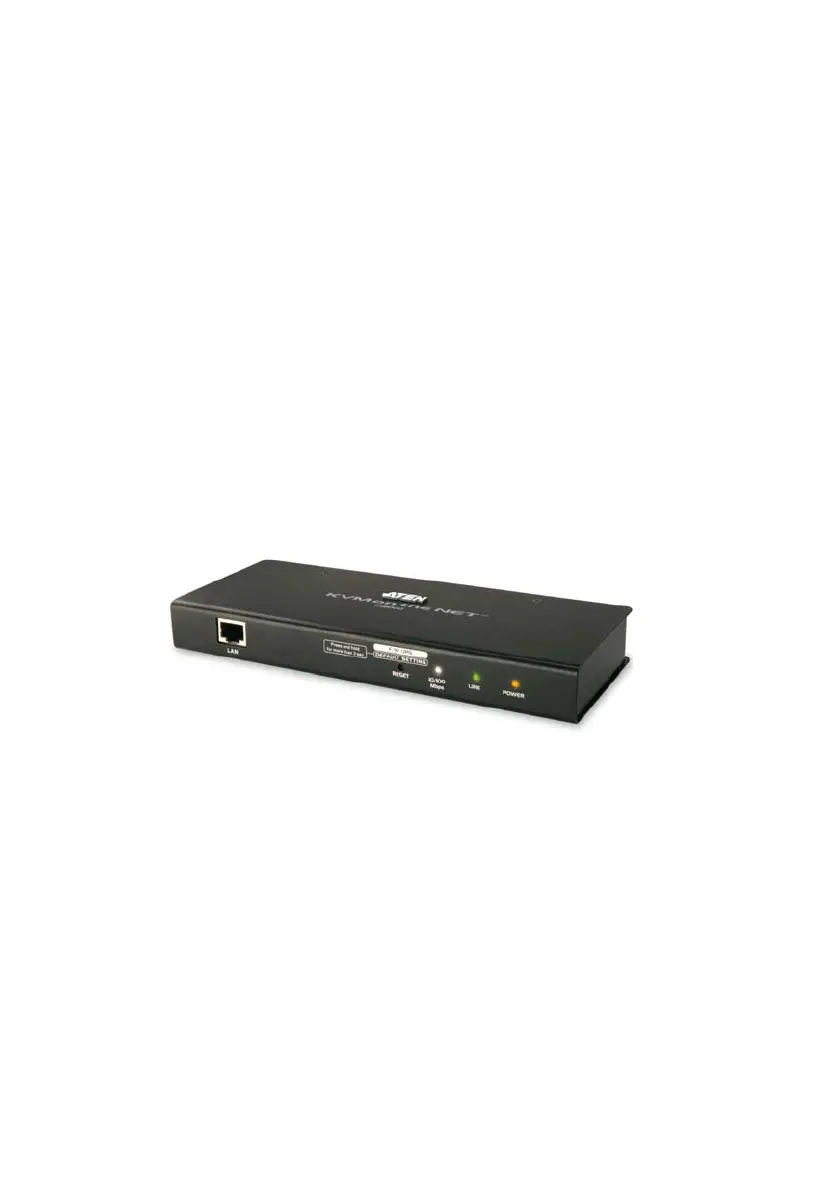
KVM On the NET
TM
CN8000
User Manual
www.aten.com

Table of Contents

Questions and Answers

  • P
    Pamela MillerSep 4, 2025
    How to resolve Java Applet connection issues with ATEN CN8000 Control Unit?
    • C
      Carmen AshleySep 4, 2025
      If the Java Applet won't connect to the CN8000 Control Unit, ensure that Java 6 Update 3 or higher is installed on your computer. Also, verify that you are including the correct login string when specifying the CN8000's IP address. If problems persist, close and reopen the Java Applet, then try again.
  • M
    Mrs. Melissa MartinezAug 25, 2025
    What to do if the remote mouse pointer is out of step on ATEN CN8000 Control Unit?
    • M
      Melissa GordonAug 25, 2025
      If the remote mouse pointer of your ATEN Control Unit is out of sync, follow these steps: 1. Check the Mouse Sync Mode setting. If it's set to Automatic, change it to Manual. 2. If you are in Manual mode, use the AutoSync feature to synchronize the local and remote monitors. 3. If the problem persists, use the Adjust Mouse feature to bring the pointers back in sync. 4. If the above steps don't work, consult Additional Mouse Synchronization Procedures.
  • T
    Tyler MathisAug 25, 2025
    Why Java Applet won't connect to ATEN Control Unit CN8000?
    • T
      Terry WadeAug 26, 2025
      If the Java Applet won't connect to the ATEN Control Unit CN8000, make sure that Java 6 Update 3 or higher is installed on your computer. Also, verify that you are including the correct login string when you specify the CN8000's IP address. As a last resort, close and reopen the Java Applet and try again.
  • M
    Matthew SmithSep 12, 2025
    How to resolve video display problems with 13W3 interface systems on ATEN?
    • M
      Mrs. Monica Beck MDSep 12, 2025
      For video display problems with 13W3 interface systems, the display resolution should be set to 1024 x 768: * Under Text Mode: Go to OK mode and issue the following commands: setenv output-device screen:r1024x768x60 reset-all * Under XWindow: Open a console and issue the following command: m64config -res 1024x768x60, then log out and log in.
  • B
    Brandon GreeneSep 18, 2025
    How to fix mouse pointer not moving on Fedora server with ATEN Control Unit CN8000?
    • B
      Brooke TrujilloSep 18, 2025
      If the mouse pointer doesn't move on a remote server running Fedora when accessed via the ATEN Control Unit CN8000, and the remote server is connected with a PS/2 cable, log into the CN8000 with a browser, open a viewer, and set Mouse DynaSync to Manual in the control panel.
  • D
    Daniel MaloneSep 7, 2025
    How to fix Fedora remote server mouse pointer issues with ATEN CN8000?
    • C
      Craig WilliamsSep 7, 2025
      If the remote server is running Fedora and the mouse pointer doesn't move, and the remote server is connected with a PS/2 cable, log into the CN8000 with a browser, open a viewer, and on the control panel set Mouse DynaSync to Manual.
  • D
    Daniel BentonAug 31, 2025
    How to solve video display problems with 13W3 interface systems on ATEN CN8000?
    • R
      Randy HoAug 31, 2025
      For video display problems with 13W3 interface systems (e.g., Sun Ultra servers) when using the ATEN Control Unit, the display resolution should be set to 1024 x 768. Under Text Mode: Go to OK mode and issue the commands: `setenv output-device screen:r1024x768x60` and `reset-all`. Under XWindow: Open a console and issue the command: `m64config -res 1024x768x60`, then log out and log in.
  • W
    William CooperSep 23, 2025
    Why doesn't Windows Client link appear in Firefox on ATEN Control Unit CN8000?
    • R
      renee78Sep 23, 2025
      The Windows Client link requires ActiveX, which Firefox doesn't support. Therefore, only the Java Applet is available when using Firefox with the ATEN Control Unit CN8000.
  • K
    Kelli MorganSep 15, 2025
    Why is ATEN Control Unit CN8000 operating erratically?
    • B
      Bonnie WalshSep 15, 2025
      If the ATEN Control Unit CN8000 is operating erratically, ensure it is started before the KVM switch. If the KVM switch was started first, reset or restart it. You may also need to reset the CN8000.
  • R
    Robert ToddAug 28, 2025
    Why Virtual Media doesn’t work on ATEN Control Unit?
    • L
      Laura RiceAug 28, 2025
      If Virtual Media isn’t working with your ATEN Control Unit, especially on older computers, get the latest firmware version for your mainboard from the manufacturer and upgrade your mainboard firmware.

Summary

Package Contents

Chapter 1: Introduction

CN8000 System Overview

Introduces the CN8000 system, its purpose, and capabilities.

Features and Benefits

Remote Access and Management Capabilities

Covers Over-IP, Virtual Media, Console/OOB access, and Remote Power Control.

User Interface and Accessibility

Includes ease of configuration, multi-platform support, and on-screen keyboard.

Video and Display Enhancements

Features superior video quality, flexible desktop display, and mouse synchronization.

Security and Authentication

Covers advanced security, external authentication, and user management features.

System Requirements

Remote User Computer Requirements

Specifies hardware and software requirements for client computers accessing the system.

Server Hardware Requirements

Lists required hardware and ports for servers connected to the CN8000.

CN8000 Components

Front Panel Components

Identifies and describes the components on the front panel of the CN8000.

Rear Panel Ports and Connectors

Identifies and describes the ports and connectors on the rear panel.

Chapter 2: Hardware Setup

Mounting Procedures

Provides instructions for mounting the CN8000 unit.

Rack Mounting Instructions

Details the procedure for mounting the CN8000 in a standard equipment rack.

DIN Rail Mounting Instructions

Explains how to mount the CN8000 onto a DIN rail.

CN8000 Installation Guide

Step-by-step guide for physically connecting and installing the CN8000.

Chapter 3: Browser Login

Logging In Procedure

Guides users through accessing the CN8000 via browser, including security alerts and credentials.

Remote Console Preview

Displays a snapshot of the remote server and links to launch viewers.

User Preferences Configuration

Allows users to configure viewer, language, and password settings.

Chapter 4: Administration

Introduction to Administration

Introduces administrative utilities for configuring the CN8000's environment.

Device Information Display

Displays the CN8000's status, firmware version, and network addresses.

Network Configuration Settings

Covers service ports, IP address assignment, DNS server, and network transfer rate.

ANMS (Advanced Network Management Settings)

Configures login authentication and authorization from external sources.

Log Server and SNMP Server Configuration

Sets up logging to a Log Server and configures SNMP trap notifications.

Authentication and Security Settings

Covers disabling local authentication, RADIUS settings, and security.

LDAP and CC Management Settings

Configures LDAP/LDAPS authentication and CC Management authorization.

User Station Filters and Login String

Filters access by IP/MAC and allows specification of a login string.

Account Policy and Login Failures

Defines username/password policies and settings for failed login attempts.

User Profile Management

Details user profile items like username, password, permissions, and account types.

Console Management and Serial Console

Sets up operating parameters for the RS-232 serial port and console access.

Firmware Upgrade Process

Instructions for downloading and installing new firmware versions.

Chapter 5: The WinClient Viewer

Starting Up the WinClient Viewer

Guides on how to launch the WinClient Viewer application.

WinClient Control Panel Overview

Describes the functions and appearance of the WinClient control panel.

Virtual Media Operations Explained

Details using virtual media icons and performing media redirection.

Smart Card Reader Redirection

Details redirecting smart card readers for server authentication.

Control Panel Configuration Settings

Customizes control panel items and graphical settings.

Control Panel Customization Options

Configures screen options, user info display, and snapshot parameters.

Chapter 7: The Log File

Log File Screen Overview

Describes viewing and managing the system's event log file.

Chapter 8: The Log Server

Log Server Installation Guide

Provides instructions for installing the Log Server administrative utility.

Starting Up the Log Server

Guides on launching the Log Server application and its interface components.

Log Server Main Screen Overview

Describes the two main panels of the Log Server interface: List and Event.

Chapter 9: AP Operation

Windows Client AP Installation

Guides on installing the stand-alone Windows Client program.

Starting Up the Windows Client

Explains how to launch the Windows Client application and input serial number.

Windows Client Connection Screen

Describes the connection screen for accessing the CN8000 via Windows Client.

Logging In via Windows Client

Details the login process using username and password for the Windows Client.

Administrator Utility - Security Settings

Controls access and security configurations through the Admin Utility.

Administrator Utility - User Management

Manages user profiles and permissions within the Administrator Utility.

Administrator Utility - Maintenance Settings

Manages firmware upgrades, backups, and restores via the Admin Utility.

Java Client AP Starting Up

Guides on launching the Java Client application and inputting serial number.

Java Client Connection Screen

Describes the connection screen for accessing the CN8000 via Java Client.

Logging In via Java Client

Details the login process using username and password for the Java Client.

Chapter 10: LDAP Server Configuration

Extend and Update Active Directory Schema

Guides on extending the schema to support CN8000 attributes.

Appendix

IP Address Determination Methods

Explains methods to determine and assign an IP address to the CN8000.

Troubleshooting - General Operation Issues

Provides solutions for common operational problems like erratic behavior or slow mouse movement.

Virtual Media Support Matrix

Details virtual media support for different drive types and client viewers.

Administrator Login Failure Resolution

Provides a procedure to clear corrupted or forgotten administrator login information.

CN8000 Hardware Specifications

Lists the technical specifications for connectors, switches, emulation, video, and environment.

ATEN CN8000 Specifications

General IconGeneral
Dimensions (WxDxH)81 x 200 x 25 mm
Product colorBlack
Power consumption (typical)6.3 W
Storage temperature (T-T)-20 - 60 °C
Operating temperature (T-T)0 - 50 °C
Storage relative humidity (H-H)0 - 80 %
DC-in jackYes
Ethernet LAN (RJ-45) ports1
Motherboard chipset-
Built-in speaker(s)No
Weight and Dimensions IconWeight and Dimensions
Depth200 mm
Width81.5 mm
Height25 mm
Weight490 g