22
Device Maintenance6
6.2 Common faults and troubleshooting
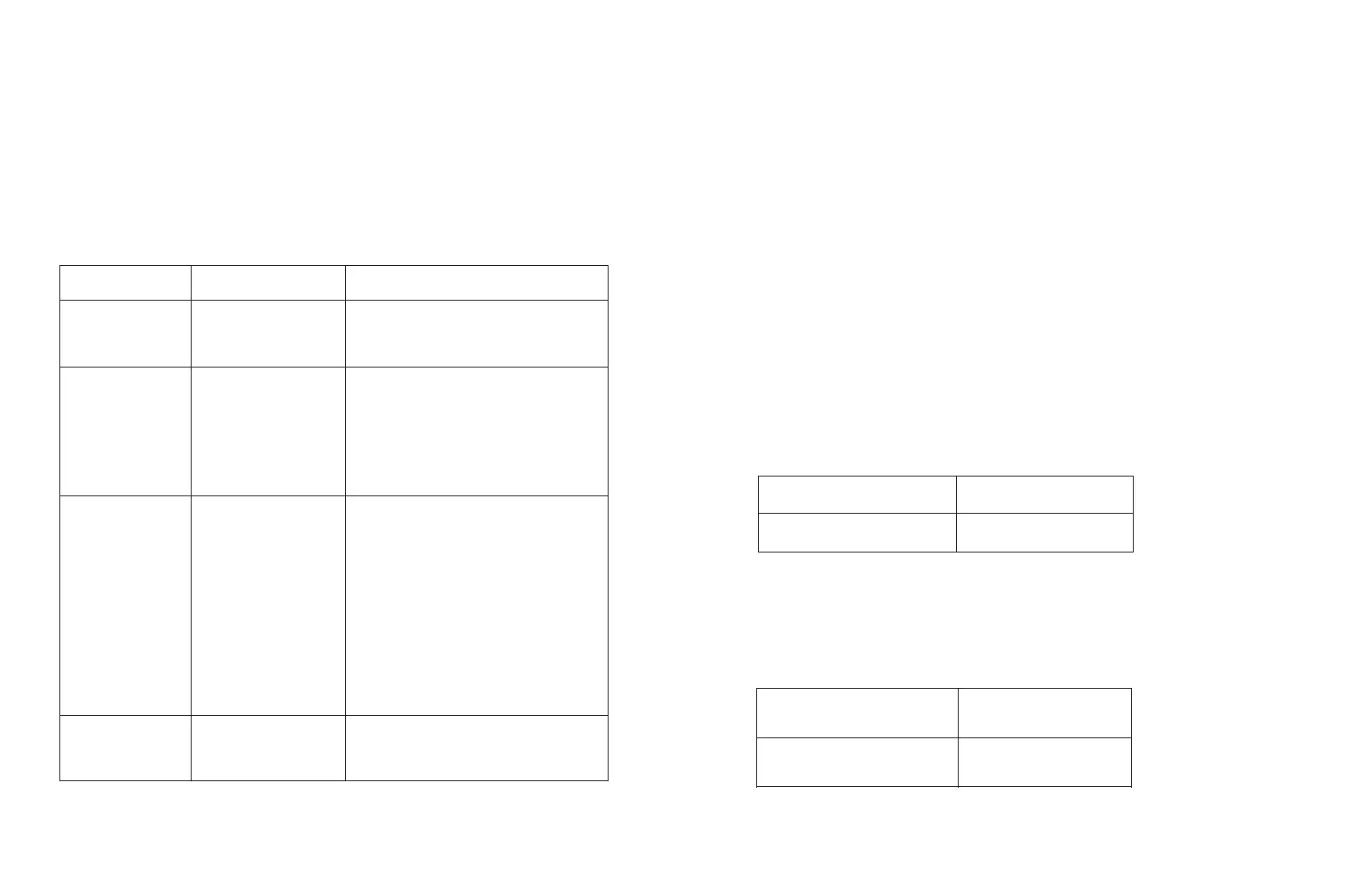
Fault
Cause
Suggestion
Cannot enter the
EnerLog internal
page
EnerLog can not
obtain the IP
1.Enable Router DHCP Function
2.PC and the EnerLog must be in
the same domain.
EnerLog internal
page "System
Status
Information"
shows
disconnected
Unable to connect to
server
1.Check whether the router network is
connected to the Internet.
2.Check if the "server address" is
correct
The international user server domain is
server.atesspower.com.
EnerLog is
online, but the
monitored device
is disconnected
after logging in to
the account
1.Monitor connection
failed
2.No access to the
internal page to
add equipment
3.Inconsistent
Photovoltaic
equipment address
and added
equipment address
4.Illegal PV device
serial number
1.Check the communication line is in
contact with the stability
2.Enter the internal page "datalogger
settings" to add photovoltaic devices
3.On the "Device Status" page of the
internal page, check whether the
device's communication address is
consistent with the added device.
4.Check whether the serial number of
the monitored PV equipment is 10
digits. It can only contain English
letters and numbers, and there are no
illegal characters.
Long time no
refresh interface
after operation
Configuration page
does not respond
Refresh the page or login in again.
6.1 Reset EnerLog
1. If you press the "Reset" button for 4 seconds, EnerLog will restart.
2. If you press the "Reset" button for 10 seconds, EnerLog will clear all internal
information and restore factory settings. All information in the server communication
section will be retained.
6.3 Maintenance
1. Avoid frequent switching of power supply, handle with care to prevent damage;
2. EnerLog is a product for indoor use, do not place it in humid environments or in
direct sunlight.
General specification
7 Technical specifications
7.1 EnerLog specification
Length * width * height 175mm*105mm*31mm
Net Weight 320g
Operating environment
23


 To Next Page