Most
PSS
audio settings can be accessed through the qui
ck
menu that you can access
by pressing the PS button on your controller, then navigating to the speaker icon.
You
can qu
ic
kly and easily change the output device, volume levels a
nd
game/chat mix
through this function.
Note on Play Station Game/Chat mix: Due to the complexity
of
the system, Sony has
not made the game/chat functionality publicly available for third party headphones and
the buil
t-
in game/chat interface
on
your headphones will not work with PlayStation's chat
features.
You
will need to adjust game/chat balance from the quick menu.
Note on sys1em volume controls: These controls are not tied to Maxwell's on-board
volume controls.
We
recommend leavi
ng
this setting close to max and fine-tuning the
volume from the headphones themselves to give yourself the maxim
um
headroom and
gain
control_
The lower this setting is, the less volume you'll have to play with
on
Maxwell's own physical volume controL
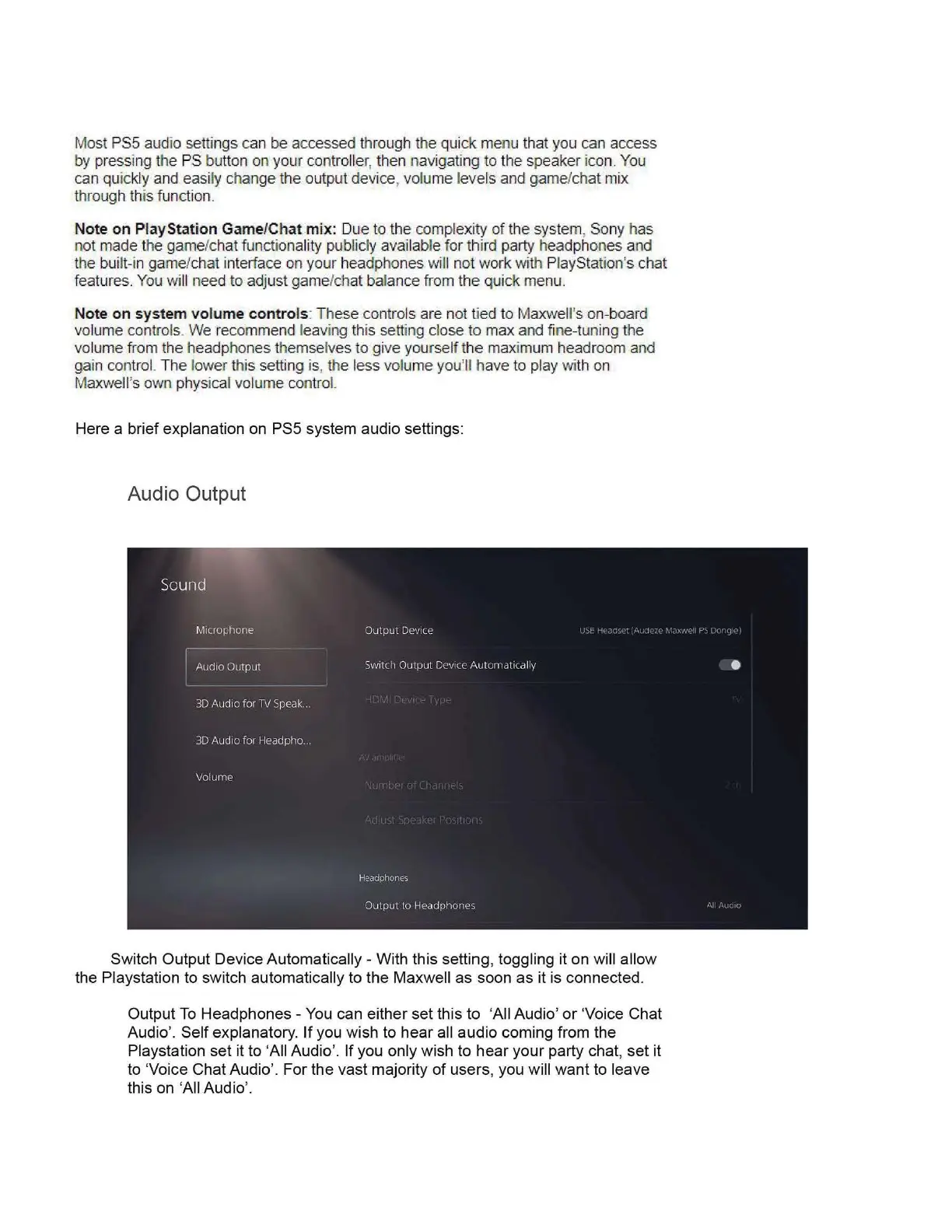
Here a brief explanation on PSS system audio settings:
Audio
Output
--...
So
und
Mi
crophone
Output
Device
Audio
0Ltput
Sw1tcl1
Output
Cl'v1
cc Au
tu111d
ti
cd
lly
3D
Audio
for
TV
Speak
..
3D
Audio
for
Headpho
. .
Vol
um
e
Headphones
Out
put
to
HeJdphones
Switch Output Device Automatically - With this setting, toggling it
on
will
allow
the Playstation to switch automatically
to
the Maxwell
as
soon
as
it is connected.
Output To Headphones - You can either set this
to
'All Audio'
or
'Voice Chat
Audio'. Self explanatory.
If
you wish
to
hear
all
audio
coming from the
Playstation
set
it
to
'All Audio'.
If
you only wish
to
hear
your party chat, set it
to 'Voice Chat Audio'. For the vast majority
of
users
, you will w
ant
to leave
this on 'All Audio
'.


 To Next Page
 Loading...