3130
For Use with Android Devices (USB):
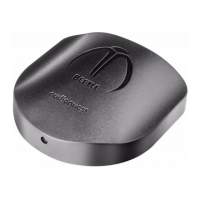
Beetle will work with most Android devices running on Android 4.1
OS and newer, provided that the device manufacturer has adhered to
the USB specication and implementation, and supports audio over
USB, otherwise known as USB Host Mode. To verify that your Android
device complies with isochronous USB audio, download and run USB
Host Check: https://play.google.com/store/apps/details?id=org.
tauruslabs.usbhostcheck.
In our early pre-production testing, we found that some Android (4.1 OS
and newer) devices do not provide native support for audio over USB.
If you nd that your Android 4.1 (or newer) device does not support
audio over USB, we ask that you please contact the manufacturer of your
device. To determine whether your device supports audio over USB,
consult the user manual or visit the manufacturer’s website.
For a reliable media player that has it’s own built-in USB device driver,
ensuring reliable connectivity to all USB DACs, we suggest the following
application: http://www.extreamsd.com/index.php/2015-07-22-
12-01-14/usb-audio-driver. This application is compatible with
various audio formats and will manage music on both the Android’s
internal memory and inserted SD cards. Additionally, with the
phone connected to the Wi-Fi network, this application can nd and
connect to DLNA servers/libraries. As of Version 2.2.5, USB Pro Player
now supports playback for Tidal Streaming.
In order to connect your Android device to Beetle:
1. Android devices use a USB format known as OTG (On The Go). OTG
USB ports require a unique 5-pin USB micro to 4-pin USB A (Female)
adaptor. In order to connect an Android device and/or USB cable to
a DAC, an OTG adaptor must be installed into the Android device.
See www.audioquest.com/dragontailOTG.
2. Select the appropriate cable for your Android device. AudioQuest
oers a wide range of high-performance USB cables, with connectors
suitable for Android devices (such as USB Micro and USB Mini
and DragonTail OTG). For more information, go to the USB Cables
section at http://www.audioquest.com/digital-interconnects/
and http://www.audioquest.com/DragonTailOTG. In some rare
cases, a proprietary connection or adaptor will be required to transmit
audio over USB. (Consult your device’s user manual or visit the
manufacturer’s website.)
3. Turn down the volume on your Android device to at least 50%.
4. Select your desired music/media app, and then select your desired
song or stream.
5. Adjust volume to desired level.


 To Next Page