1716
¡ Conguring Digital Output: Many televisions, streaming devices
(such as Apple TV, Amazon Fire TV), television set top boxes,
satellite receivers, and DVD and Blu-ray disc players have optional
settings for properly conguring “Digital Out” or “Sound.” Typically,
the menu can be accessed by selecting “Setup” or “Settings” from
the device’s remote control.
¡ Digital Output: Many devices have multiple options for output,
such as Optical, HDMI, or Coax. While some devices will select the
output automatically, most devices will ask the user to choose a
specic output path for the digital signal. In this case, please select
“Optical” or “Toslink.”
Music-only streamers, such as Sonos or Bluesound, automatically
output a signal across the Optical output; they do not require
user selection.
¡ Digital Output Format: Often, there are two or three options for
Digital Output Format, including Bit Stream, Automatic, and
LPCM. Beetle is designed to accept LPCM. Please select this as
your preference.
¡ Maximum Sample Rate: The maximum sample rate that Beetle will
accept is 96kHz.
¡ Speaker conguration: Because Beetle is a two-channel stereo-
only device, only the main left and right speakers should be
switched to “On.” If your source device provides options for “Size,”
such as “Small” or “Large,” please select “Large” (or “Full-range”). Do
not enable secondary speaker options, such as Sub, Center, Side,
or Rear.
¡ Once you have made these selections and optimizations, Beetle is ready
to transmit audio.
2
Apple OS X® Setup (10.6.8 or newer)
For Windows Setup, skip to page 22.
For Apple Mobile Setup, skip to page 29.
For Android Setup, skip to page 30.
Beetle is compatible with Apple OS X, versions10.6.8 and later. OS
X menus may appear slightly dierent from the screenshots shown
below. Some have changed over the life of OS X, but their functionality
has remained the same.
Setup For USB and Optical
Using “System Preferences” to send audio to Beetle, while keeping
alerts and sound eects on the computer’s speakers: Insert a USB
cable between Beetle and your computer’s USB port.
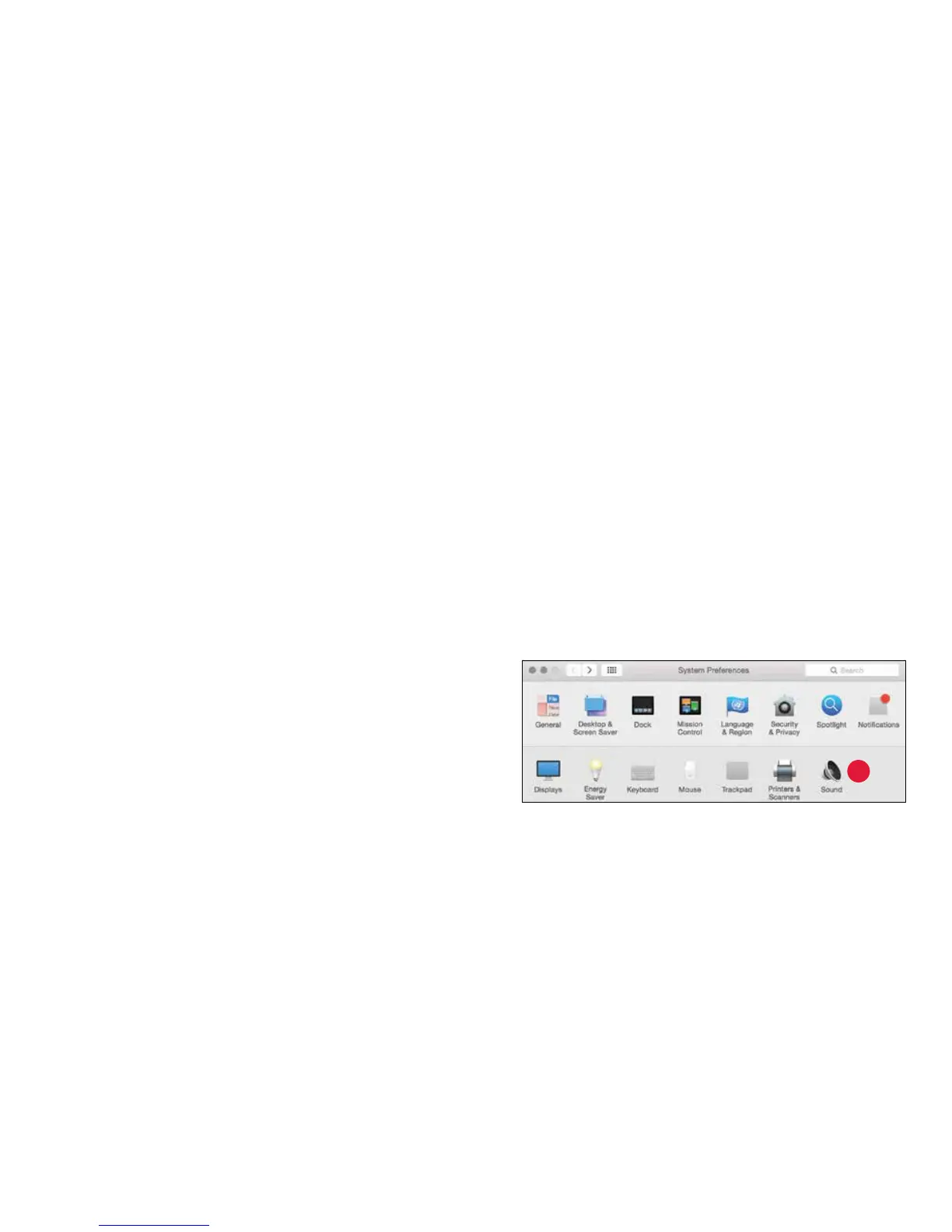
1. Open “System Preferences” from the Dock or from the Apple®
dropdown menu (top left).
2. Click on the “Sound” icon.


 To Next Page