1918
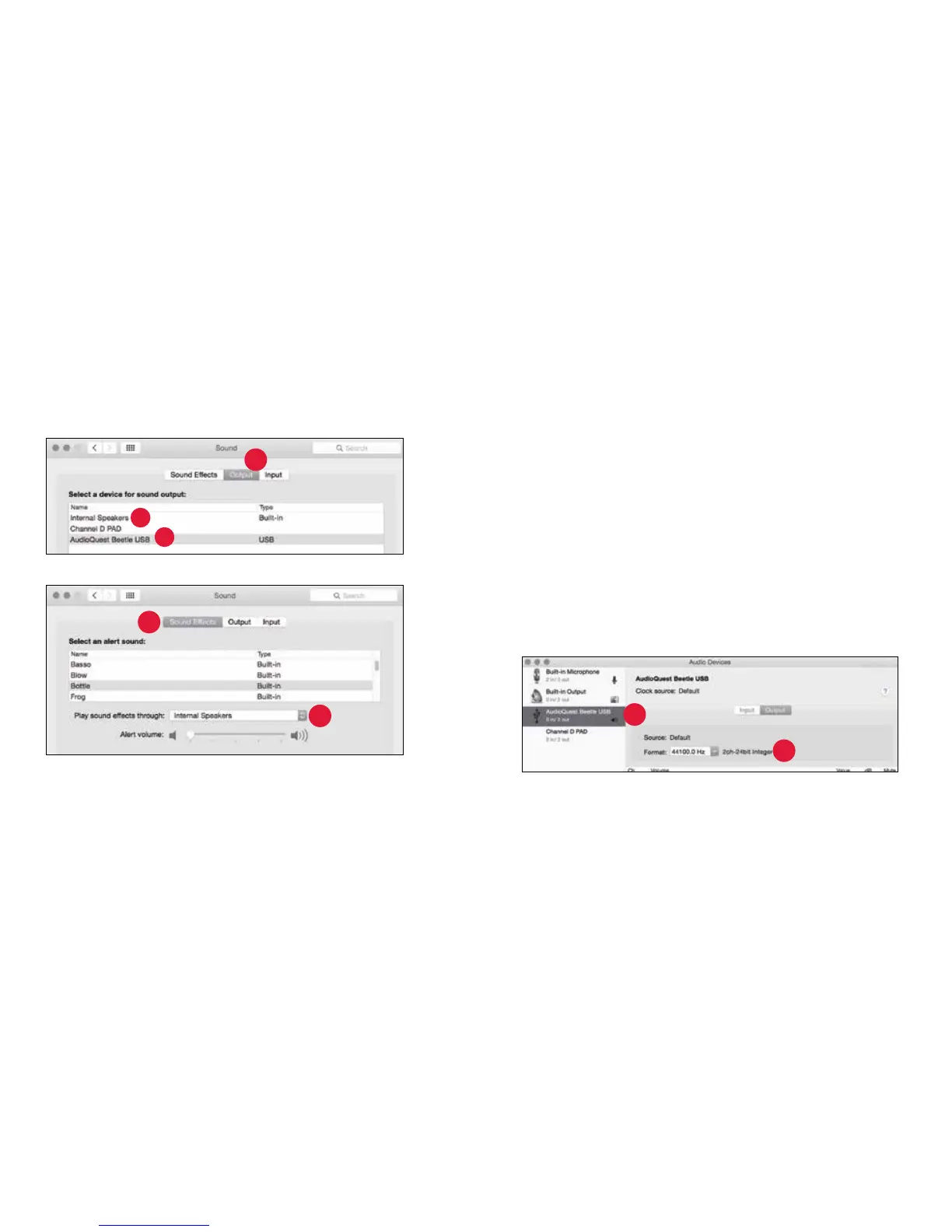
3. In the Sound panel, click on the “Output” tab.
a. For USB, Select “AudioQuest Beetle.”
b. For Optical, Select “Internal Speakers”
4. Click on the Sound panel’s “Sound Eects” tab.
4
5
3a
3
3b
3
4
5. In the “Play sound eects through” menu, choose:
a. For USB, Select “Internal Speakers.”
b. For Optical, Select “Internal Speakers” and be sure to turn the
volume all the way down (left) to mute.
6. Close the window.
Setting up the “Audio MIDI Setup” so computer audio plays through
Beetle:
1. Open the “Applications” folder, and then the “Utilities” folder.
2. Within Utilities, double-click to open “Audio MIDI Setup.”
3. For USB: Within the “Audio Devices” panel, click on “AudioQuest Beetle.”
a. For Optical: Within the “Audio Devices” panel, click on “Built-in
Output.”
4. Use the “Format” dropdown menu to choose a sample rate—most
likely 44100.0 Hz. (See “Why is ‘Format’ important,” on page 21.)


 To Next Page