(See “Why is ‘Format’ Important,”
right.)
b. For “Exclusive Mode,” check both
options
, then click “OK.”
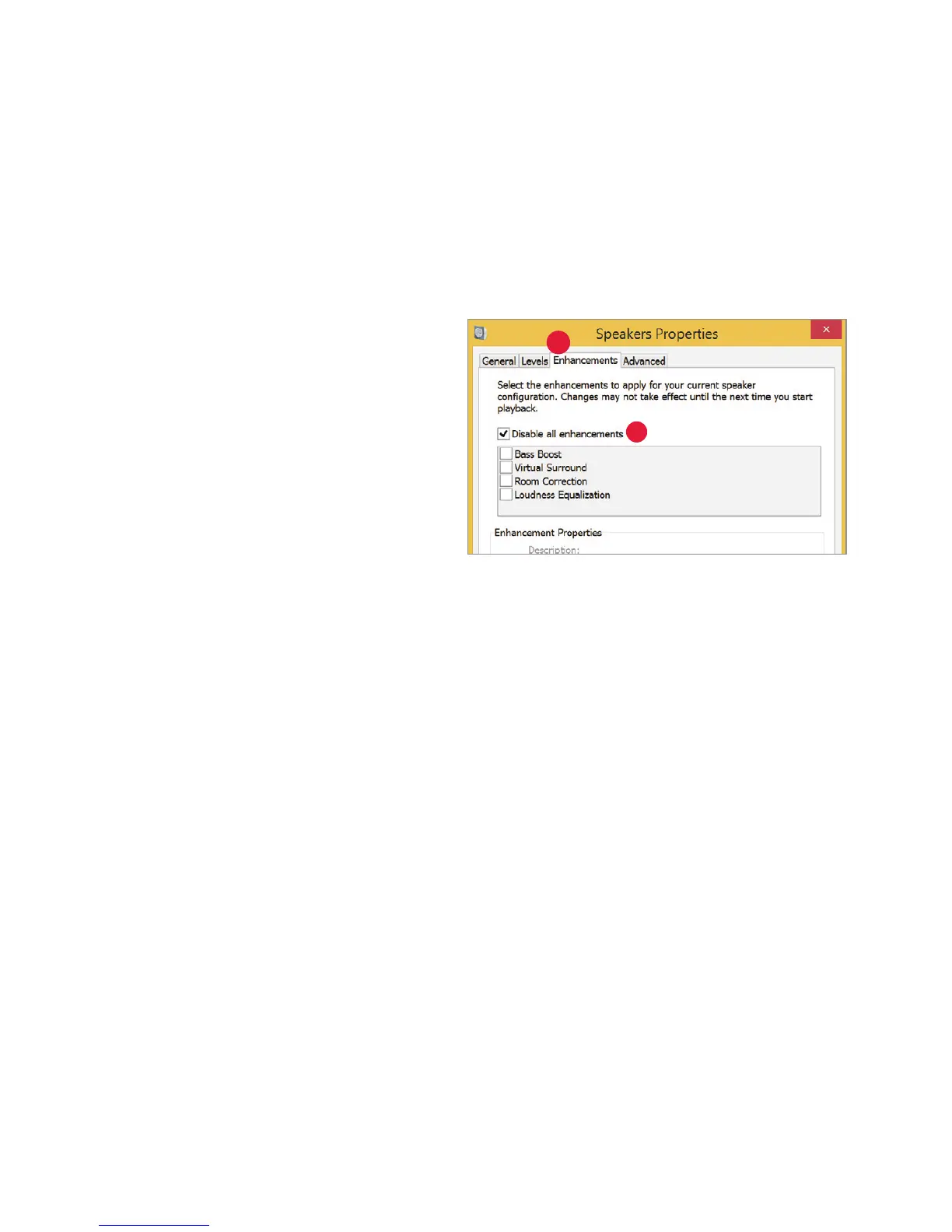
7. For Windows 8.1: Click “Enhancements”
butt
on.
a. Select “Disable All Enhancements.”
8. For Windows 7: Setting chimes and
aler
ts to play through the computer’s
speakers and not DragonFly Red:
a. Select “Sounds” tab.
b. For “Sounds Scheme,” select “No
S
ounds.” This prevents chimes and
computer alerts from playing back
through DragonFly Red.
c. Enter “DragonFly Red 1.0” as your
“S
ound Scheme” (optional). Click
“OK.” Close window.
7
7a
14


 To Next Page