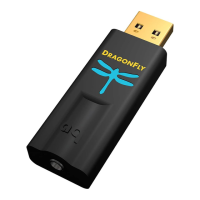
For Use with Windows® 7, 8.1, and 10
Setup for USB
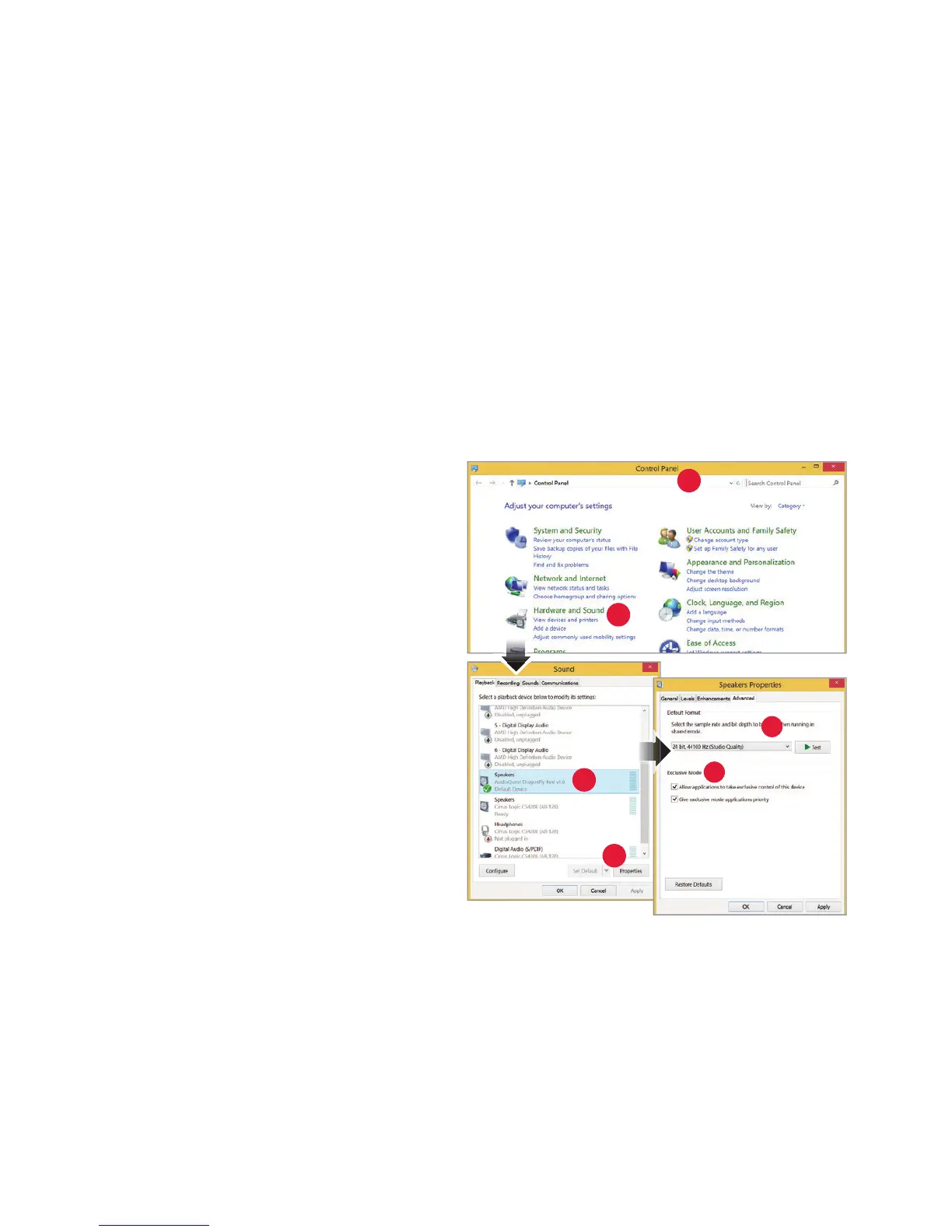
Using “Control Panel” “Sound” settings to send audio to DragonFly Red, while keeping
alerts and sound eects on the computer’s speakers:
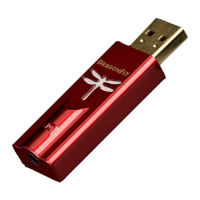
1. Insert DragonFly Red into your
c
omputer’s USB port.
2. Go to Start menu and launch
“
Control Panel.”
3. Open “Hardware and Sound” panel.
4. Select “Sound.”
5. For USB: The AudioQuest DragonFly
Red is added as
“Speakers.” Ensure it is
the “Default Device.” Select “Speakers.”
6. Click “Properties” button for more
setup options
.
a. Click “Advanced” tab. Use the
dr
opdown menu to choose the
sample rate—most likely
24-bit/44100.0 Hz.
3
2
5
6
6a
6b
13


 To Next Page