GB - 15
PLAYING A DISC
SKIP (Forward / Reverse)
While you are playing a disc, press the NEXT button to move to the beginning of the next chapter or track. Press
the
PREV button to move to the previous chapter or track. Playback will automatically begin.
Audio Selection
On some discs, the sound is recorded in two or more formats. Follow the directions below to select the type of playback.
NOTE :
• If only one audio format is recorded, the number does not change.
• Approximately two seconds later, playback continues in the new audio format.
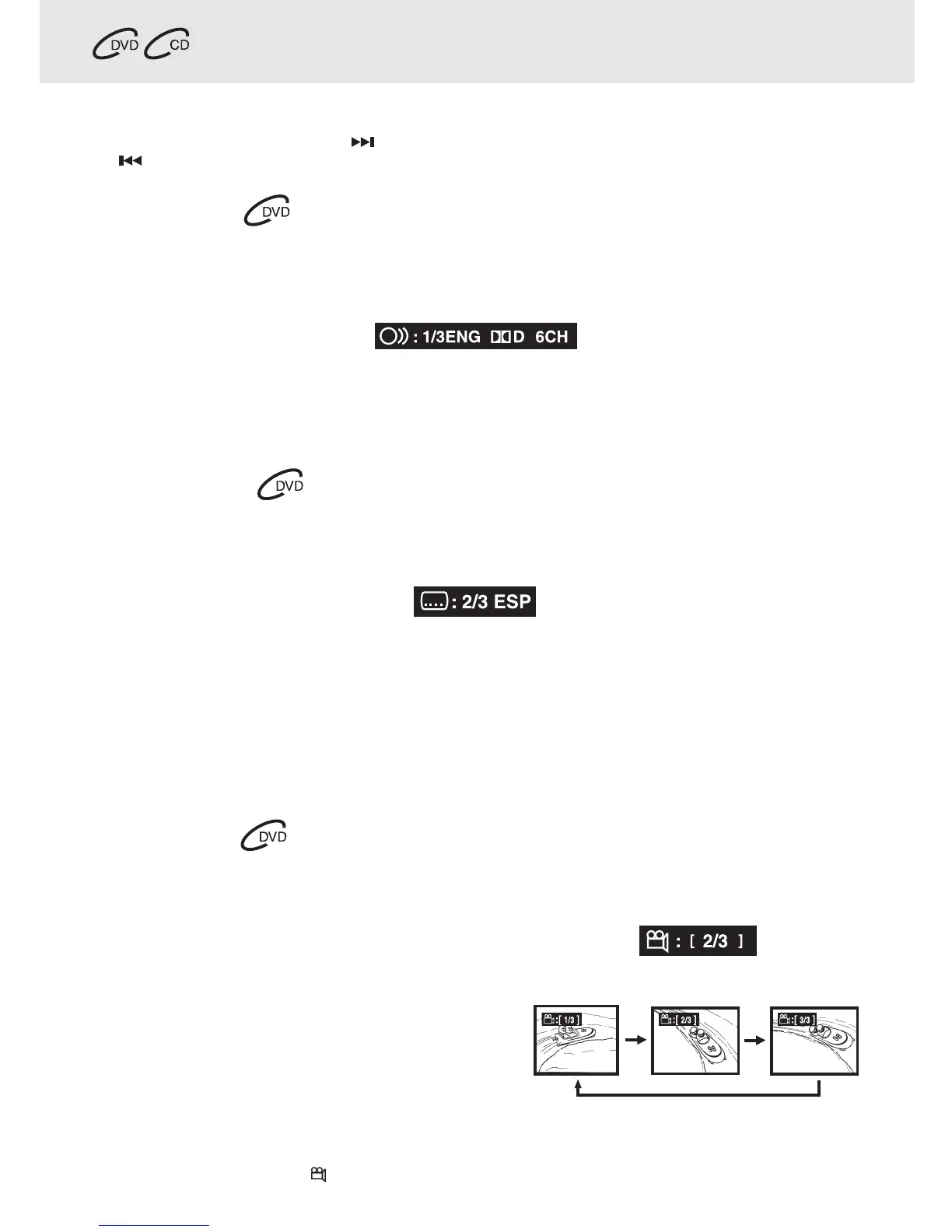
1. While a disc is playing, press the AUDIO button to show the current audio format number.
2. Press the AUDIO button repeatedly to select the desired audio format.
Subtitle Selection
1. While a DVD is playing, press the SUBTITLE / RETURN button to display the current language setting, as shown in the
example below.
2. Press the SUBTITLE / RETURN button repeatedly to select the desired subtitle language.
NOTE :
• If only one language is recorded, the language does not change.
• Approximately two seconds later, playback continues with the new subtitle you selected.
• The number of languages recorded differs depending on the disc.
• If no button is pressed within a few seconds, playback continues without changing the current subtitle.
• This function can only be used for discs on which subtitles have been recorded in multiple languages.
• On some DVDs, subtitles are activated from the main menu of the DVD. Press the MENU button to activate the
main menu.
Angle Selection
Some DVDs contain scenes that have been shot from a number of different angles. For these discs, the same
scene can be viewed from each of these different angles.
NOTE:
• This function can only be used for discs on which scenes shot from multiple angles have been recorded.
• If only one angle is recorded, “
: [ 1/1 ] ” is displayed.
1. While you are playing a DVD with different angles
recorded, press the ANGLE button to view the number of
current angles available.
2. Press the ANGLE button repeatedly to change the scene
to the next recorded angle.
• Approximately two seconds later, playback continues
from the new angle you selected.
• If no button is pressed within 10 seconds, playback
continues without changing the current angle.
Sequence of angle shots
(Example)
1. While a disc is playing, press the AUDIO button to show the current audio format number.
2. Press the AUDIO button repeatedly to select the desired audio format.
Basic playback



 To Next Page