77
Keeping notes for each vehicle serviced for each customer will keep
your business well organized.
To access History Notes
1. Tap the Shop Manager application on the MaxiCheck Job Menu.
2. Select Customer Manager or Vehicle History.
3. Select a customer account by tapping the corresponding name card.
A Customer Information sheet displays (if Customer Manager is
selected). Or, select a vehicle history record item to open the
Historical Test record sheet (if Vehicle History is selected).
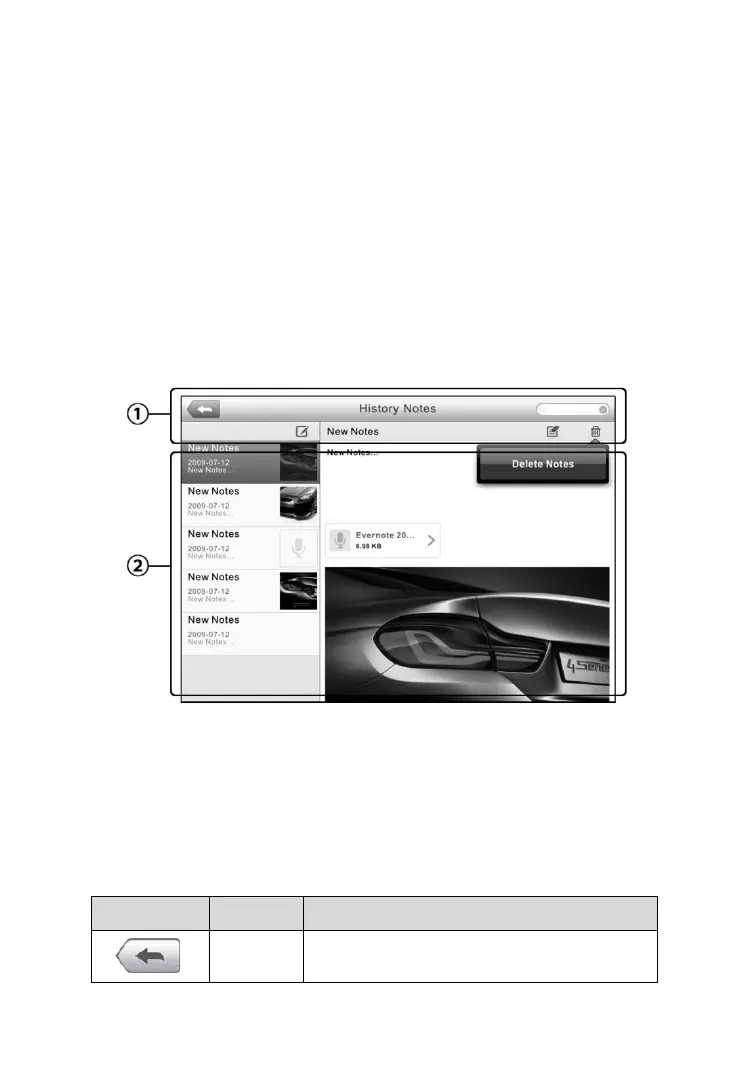
4. Tap the History Notes button on the top bar. Now the History Notes
screen displays.
1) Functional Buttons – navigates and enables various tasks
2) Main Section – displays the note list on the left column and the
detail information of the selected note on the right column
Table 6-2 Function Buttons in History Notes
Returns to the previous screen.
Figure 6-4 Sample History Notes Screen



 To Next Page