Play function
1. FM play
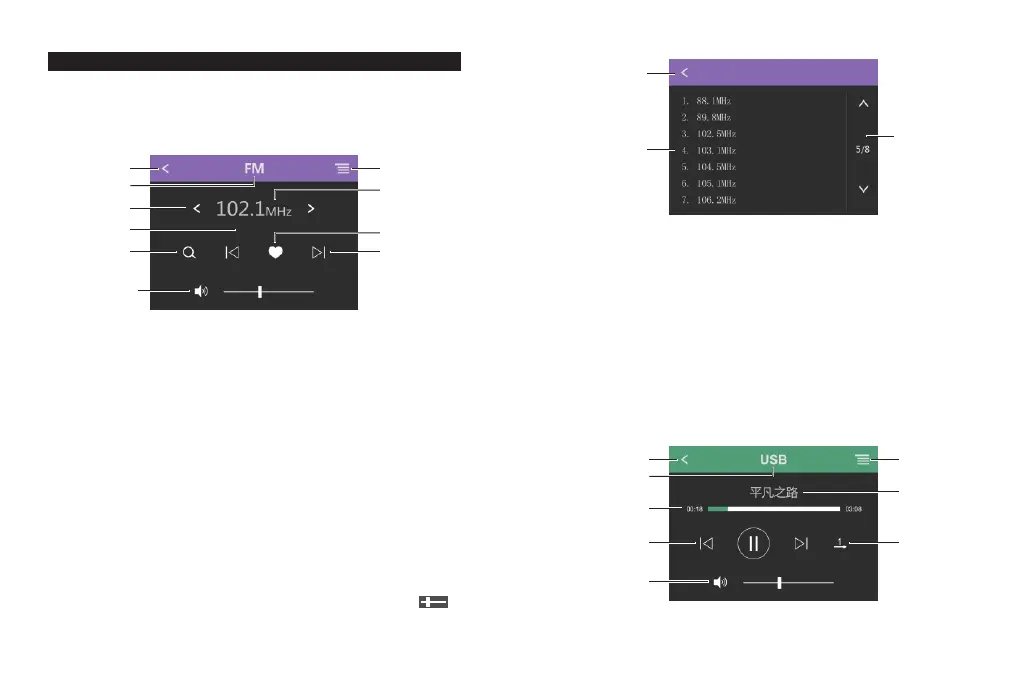
Twice-click the "FM" key to enter the radio mode
。
- 3 -
1 2
4
5
3
8
7
9
10
Pic. 1
6
2. USB play
Twice click “ USB ”in the homepage and it will enter USB play mode.
- 4 -
1
2
1. B utton of "Return "; press it and it will return to FM interface.
2. Radio list navigation bar, it can turn the page up and down when
there are many pages,
3. The radio list display area. It displays the stored radio stations.
( Save / cancel the saving in the FM interface to add or delete the
station in the list.)
Pic.2
3
1 2
5
4
3
6
7
8
Pic.3
Playing
Radio list
1. B utton of "Return "; click it and it will r eturn to homepage.
2. Radio list button; click it and it will enter radio list interface(Pic.2).
3. It displays the current mode.
4. Button of radio frequency subtle tuning: press ”<“ and the
frequency will go down; press ">" and it will go up. Long press
“< ”or “> ”and it can half-automatically search radio’s
frequency and the searching will stop when available channel is searched .
5. Displays the current radio frequency.
6. Display the status
7. Button to save/keep the radio channel. Press it and the channel will be
saved .Press it again and it will be canceled
8. Button of fully automatic channel searching. Available frequency will
be saved to the radio list when it is searched
9. Radio channel switch button. Press it to move forward or backward.
10. Volume button, press it and it will be mute; slide the“ ”and
the volume will be adjusted.


 To Next Page