3
Status LED indicator Voice prompt
Power on Flash BLUE for about 1s Power on
Power o Flash RED for about 1s, then turns o Power o
Ready to pair One earphone ashes BLUE & RED Pairing
Connected Both earphones' LEDs ash BLUE once every 8s Your headset is connected
Not connected with phone
One earphone ashes BLUE once every 8s,
while the other ashes BLUE & RED
Disconnected
Earphones Not connected
with each other
Both earphones ash BLUE & RED NA
Low battery Triple-Flash RED every 5 mins Battery low
Charging SOLID RED NA
Fully charged Both earphones' Indicators dim out NA
Charging Case
Status LED indicator
Battery low SOLID BLUE
Charging SOLID RED
Fully charged Indicator dimmed out
How to pair
How to use with Mobile Device / PC
For rst use
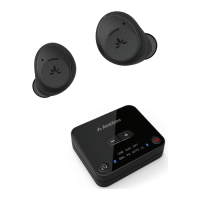
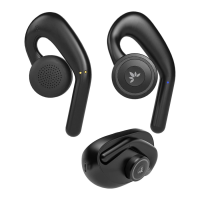
Please put both earphones onto the charging case
1. Remove BOTH earphones to turn them ON.
2. Wait for the LED on ONE of the earphones to ash BLUE & RED - PAIRING MODE.
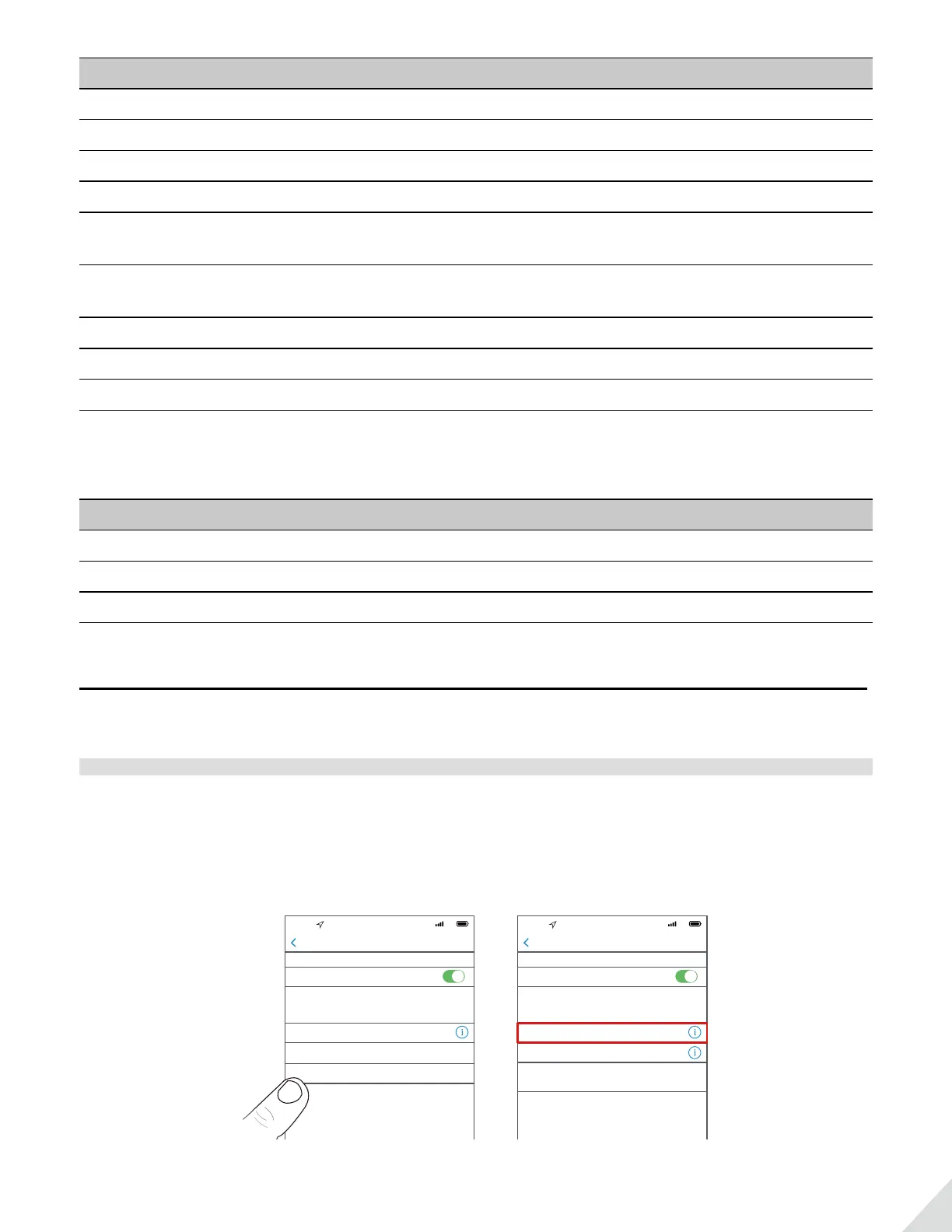
3. Search & select Avantree TWS116 from the Bluetooth menu on your device to connect.
9:30
5G
Settings Bluetooth
Bluetooth
Avantree TWS106
Avantree TWS116
Not Connected
Now discoverable as “iPhone(2)”
MY DEVICES
OTHER DEVICES
To pair an Apple Watch with your iPhone, go to the Watch
app.
9:30
5G
Settings Bluetooth
Bluetooth
Avantree TWS116 Connected
Avantree TWS106 Not Connected
Now discoverable as “iPhone(2)”
MY DEVICES
OTHER DEVICES
To pair an Apple Watch with your iPhone, go to the Watch
app.
4. Once connected, the ashing on both earphones will slow down signicantly.


 To Next Page