EasyManua.ls Logo

Avaya IP Office 5621 - User Manual

Avaya IP Office 5621
2 pages
Print Icon
To Next Page IconTo Next Page
Loading...
IP Office 5621 Quick Reference Guide
Programmable Buttons
The programmable feature buttons enable you to access a range of IP Office system features. Some of
these features are available by default, others can only be programmed by your system administrator.
Contact your system administrator for more information.
Admin and Admin1 are two functions that enable you to program the most frequently used features against
other feature buttons. The programmable features that are available via Admin and Admin1 are:
Admin Name Description Admin Name Description
Acct Account Code Entry Park Call Park to Other Extension
AD Abbreviated Dial Prog Abbreviate Dial Program
Admin Self-Administer SAC Send All Calls
AutCB Automatic Callback Spres AD Suppress
CFrwd Call Forwarding All Timer Timer
CPark Call Park TmDay Time of Day
CPkUp Call Pickup Admin1 Name Description
Dir Directory Park Park
DPkUp Directed Call Pickup <User> User
GrpPg Group Paging <Group> Group
HFAns Internal Auto-Answer Flash Hook Flash
HGNS+ Set Hunt Group Night Service AD Abbreviated Dial
Default Short Codes
You can access a variety of system features by dialling short codes. The following table shows the default
short codes. For a full list of your phone’s default short codes, see the 2IP Office 4620 and 5620 Series User
Guide".
Replace N, where shown, with an appropriate number. For example, *07*N#, where N is the extension to
which you want your calls forwarded to, when you have forwarding switched on.
Short Code Description Short Code Description
*00 Cancel All Forwarding *30 Call Pick Up Any
*01 Forward Unconditional On *31 Call Pick Up Group
*02 Forward Unconditional Off *32*N# Call Pick Up Extension
*03 Forward On Busy On *33*N# Call Queue
*04 Forward On Busy Off *34 Hold Music
*05 Forward On No Answer On *35*N# Extn Login
*06 Forward On No Answer Off *36 Extn Logout
*07*N# Forward to Number *37*N# Park Call
*08 Do Not Disturb On *38*N# Ride Call
*09 Do Not Disturb Off *39 Relay On
*10*N# Do Not Disturb Exception Add *40 Relay Off
*11*N# Do Not Disturb Exception Delete *41 Relay Pulse
*12*N# Follow Me Here *45*N# Call Steal
*13*N# Follow Me Here Cancel *46 Call Steal
*14*N# Follow Me To *47 Conference Add
*17 Voicemail Collect *48 Voicemail Ringback On
*18 Voicemail On *49 Voicemail Ringback Off
*19 Voicemail Off *50 Forward Hunt Group Calls On
*20*N# Set Hunt Group Night Service *51 Forward Hunt Group Calls Off
*21*N# Clear Hunt Group Night Service *53*N# Call Pickup Members
*29 Toggle Calls *57*N# Forward On Busy Number
Further information about Avaya IP Office is available from www.avaya.com/support and also from
http://marketingtools.avaya.com/knowledgebase/.
Reference: 15-601105
Issue 2 (22 November 2006)
IP Office 5621 Quick Reference Guide
This guide covers the basic functionality of your IP Office 5621 phone.
For more information on your phone settings and features, see the "IP Office 4620 and 5620 Series User
Guide.
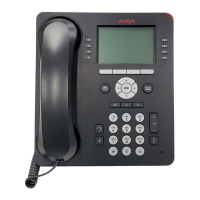
The diagram below shows the main phone features:
1
Feature Buttons/Display
9
Redial
2
Message Waiting Lamp
10
Dialling Pad
3
Page Left/Right
11
Volume Controls
4
Options
12
Mute
5
Hold
13
Headset
6
Transfer
14
Speaker
7
Conference
15
Phone/Exit
8
Drop
16
Softkey
TelephoneMagic.com
Question and Answer IconNeed help?

Do you have a question about the Avaya IP Office 5621 and is the answer not in the manual?

Overview

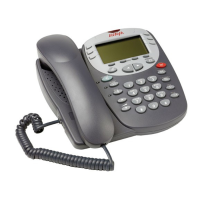
The Avaya IP Office 5621 is a sophisticated digital telephone designed for business communication, offering a comprehensive suite of features to enhance productivity and streamline call management. It serves as a primary communication tool within an office environment, providing users with robust call handling capabilities, voicemail access, and various programmable options.

Function Description:

The core function of the Avaya IP Office 5621 is to facilitate voice communication, enabling users to make, receive, and manage telephone calls efficiently. It integrates with the IP Office system, providing access to a wide range of telephony features. Beyond basic calling, the device supports advanced functions such as call forwarding, conferencing, speed dialing, and voicemail, making it a versatile communication hub. The programmable buttons and short codes allow for extensive customization, adapting the phone's functionality to individual user needs and departmental workflows.

Usage Features:

Making and Receiving Calls:

Users can make calls by picking up the handset or pressing the speakerphone button, then dialing the desired number, including any necessary outside line digits or area codes. Incoming calls are answered by picking up the handset or pressing the speakerphone button. The speakerphone feature allows for hands-free communication, which can be activated or deactivated by pressing the dedicated speakerphone button. Volume adjustments for the speakerphone can be made using the navigation buttons.

Call Management:

  • Hold: To place an active call on hold, the user presses the "HOLD" button. To retrieve a held call, the user presses the button corresponding to the held call.
  • Transferring Calls: Calls can be transferred to another extension. While on an active call, the user presses "TRANSFER." The current call is placed on hold, and the user hears a dial tone. The user then dials the number of the desired recipient. For an unannounced transfer, if the line is free, the user can hang up. If the line is busy or unanswered, the user presses the button corresponding to the held call. For an announced transfer, the user remains on the line, waits for an answer, announces the call, and then hangs up. If the line is busy or unanswered, the user presses the button corresponding to the held call.
  • Conferencing: The phone supports multi-party conference calls. To establish a conference, the user dials the first party and waits for an answer. Then, the user presses "CONFERENCE." The current call is placed on hold, and a dial tone is heard. The user then dials the next party and waits for an answer. To add the new party, the user presses "CONFERENCE" again. This process can be repeated for additional participants. To drop oneself from the conference, the user simply hangs up.
  • Mute: During a call, the "MUTE" button can be pressed to prevent the other party from hearing the user. Pressing "MUTE" again reinstates two-way conversation.
  • Redial: The "REDIAL" button allows users to quickly redial previously dialed numbers. If configured, it can display the last six dialed numbers, allowing the user to select one. The redial number selection can be changed via the "Options" and "Application Options" menus, toggling between "Last 6 Numbers" and "Last Number."
  • Speed Dials: The phone supports speed dialing for frequently called numbers. Users can access their speed dials by pressing "SpDial." If there are more speed dials than can be displayed on one screen, the navigation buttons can be used to scroll through them. Once the desired speed dial is shown, pressing the corresponding button will automatically dial the number. New speed dials can be added by pressing "SpDial" and then "Add." The user can enter a name using the alphanumeric keypad and then enter the number or extension. Short codes can also be added as speed dials.

Voicemail Access:

Users can retrieve their voicemail by pressing the "MESSAGES" button. If Visual Voice is configured, the "Voice" button can be used.

Call Diversion and Forwarding:

  • Diverting Calls: Calls can be diverted to another extension using Follow Me codes. For example, dialing "12N#" (where N is the extension number) diverts all calls to the extension the user is currently using. To redirect calls back to the user's own extension, "13N#" is dialed. To divert calls from the user's own extension to another, "14N#" is dialed. To cancel divert calls from the user's own extension, "14#" is dialed.
  • Call Forwarding: Calls can be forwarded to a specific number by dialing "07XXX#" (where XXX is the forwarding number).
    • Forward Unconditional: "*01" to activate, "*02" to deactivate.
    • Forward On Busy: "*03" to activate, "*04" to deactivate.
    • Forward On No Answer: "*05" to activate, "*06" to deactivate.

Do Not Disturb (DND):

To activate Do Not Disturb, the user dials "*08." An "N" is displayed on the screen. To deactivate, the user dials "*09."

Programmable Buttons and Short Codes:

The Avaya IP Office 5621 features programmable buttons that can be customized to access a range of IP Office system features. These buttons can be assigned various functions, such as account codes, call park, call forwarding, and more. Short codes provide an alternative method to access these features, allowing users to dial a specific code to activate a function. The device supports both system-wide and user-specific short codes.

Maintenance Features:

While the manual primarily focuses on usage, the Avaya IP Office 5621 is designed for reliability and ease of use within a business environment. Maintenance typically involves system-level administration rather than direct user interaction with the physical device.

  • System Administration: The IP Office system administrator manages the programmable buttons, short codes, and other system features. This includes setting up new users, configuring call routing, and updating system software. Users can request changes to their programmable buttons or short codes through their system administrator.
  • Default Short Codes: The device utilizes default short codes for various functions. These codes are pre-configured within the IP Office system and provide a standardized way to access common features. Any changes to these default codes or the creation of new ones are handled by the system administrator.
  • Troubleshooting: In case of issues, users can refer to the IP Office 4620 and 5620 Series User Guide for more detailed information or contact their system administrator for support. The device's robust design minimizes the need for frequent user-level maintenance.
  • Software Updates: Firmware updates for the Avaya IP Office 5621 are managed by the system administrator to ensure optimal performance, security, and access to new features.

The Avaya IP Office 5621 is a robust and adaptable communication tool, designed to meet the diverse needs of modern business environments through its extensive feature set and customizable options.

Avaya IP Office 5621 Specifications

General IconGeneral
ConnectivityEthernet
SpeakerphoneYes
Headset SupportYes
Power over EthernetIEEE 802.3af compliant PoE
Ethernet Ports2 x 10/100 Mbps Ethernet ports
Supported ProtocolsSIP, H.323
Headset PortRJ9 headset port
HandsetHearing Aid Compatible (HAC)
Weight1 kg

Related product manuals