User’s Manual
ENG-5
English Deutsch Français Español Português Nederlands Ελληνική
3.1 Using the AVerTV BoxW7 Plus / AVerTV BoxW9 Plus
Different countries have different TV systems, for example, PAL-BG, PAL-DK, NTSC-J, NTSC-M…etc. AVerTV Box
functions only with the TV system of the country it is manufactured for and originally distributed in.
Each column in the table below corresponds to a different type of TV system. Only one of these TV systems (only
one column) will appear as your SET AREA. Make sure that you select the correct country signal from the menu.
To change the area setting, refer to SET AREA (page 9).
SECAM-DK SECAM-L PAL-I PAL-BG PAL-DK
BULGARIA FRANCE UK AUSTRALIA TURKEY CHINA
PAL-N
PAL-M
NTSC-M
UKRAINE HK AUSTRIA ITALY CZECH
ARGENTINA BANGLADESH MALTA MACEDONIA
BRAZIL BELGIUM NETHERLANDS POLAND-1
KOREA CYPRUS NETHERLANDS_1 POLAND-2
PHILIPPINES DENMARK NETHERLANDS_2 POLAND-3
TAIWAN EGYPT NORWAY SLOVAKIA
USA-HRC FINLAND PORTUGAL VIETNAM
USA-IRC GERMANY RUMANIA
USA-STD GREECE SINGAPORE
HUNGARY SLOVENIA
INDIA SPAIN
INDONESIA SWEDEN
IRAN SWITZERLAND
ISRAEL_ZAHAV SYRIA
ISRAEL_MATAV THAILAND
ISRAEL_IDAN UAE
ISRAEL_GVANIM YUGOSLAVIA
To ensure that you can select and watch all active channels, refer to section CH SCAN (page 8) on how to
automatically scan and memorize all active TV channels in your area.
To access various TV controls, open up the menu displays or press on the remote control buttons.
3.2 The Remote Control
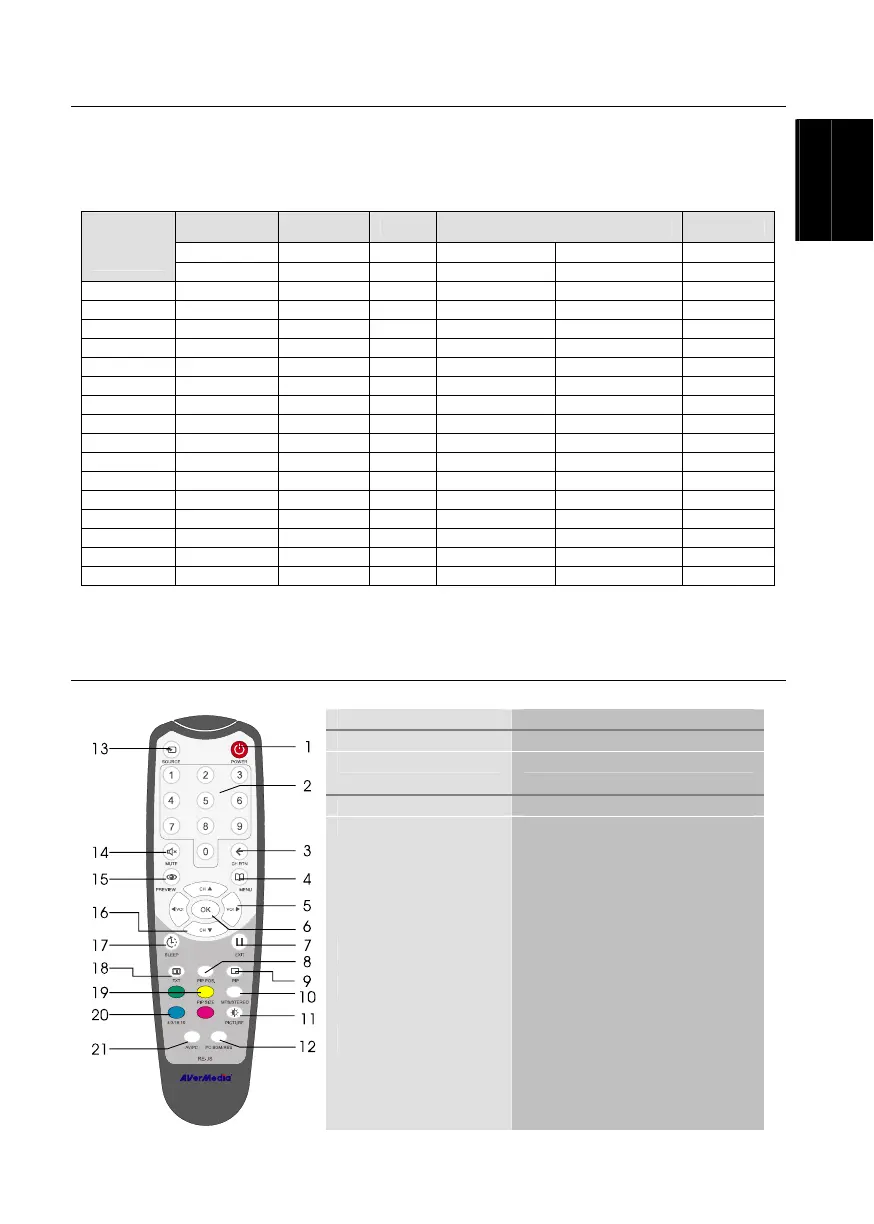
The diagram below shows the remote control unit layout.
1.POWER Turn the unit on/off
2.NUMBER BUTTONS To select a TV channel
3.CHANNEL RETURN Go to the previously selected channel
4.MENU To call up the menu display
5.VOL ◄/► - To increase and decrease volume level.
- Use these button to adjust the menu or
picture setting.
- In adjusting the OSD position, use these
buttons to move the menu display to the
left and right of the screen.
6.OK
In the menu, press this button to confirm
the selection.
7.
To temporarily freeze the image on the
screen. Press the button again to
unfreeze the image.
8.PIP Pos.
To move the small TV/Video screen
using the CH▲, CH ▼, Vol◄, and
Vo l ► buttons in PIP mode.



 To Next Page
 Loading...