39
Sending Your Document to Clouds
Basic Operation
Important:
To send your scanned images to a cloud server such as DropBox, Google Drive,
or Evernote, make sure you have the privilege to access the cloud servers. For
example you need to create a login name and password first.
Using the Default Settings
1. Load your document in the ADF with the 1
st
page facing down and the top
of the pages pointing to the feeder.
2. Press the Cloud
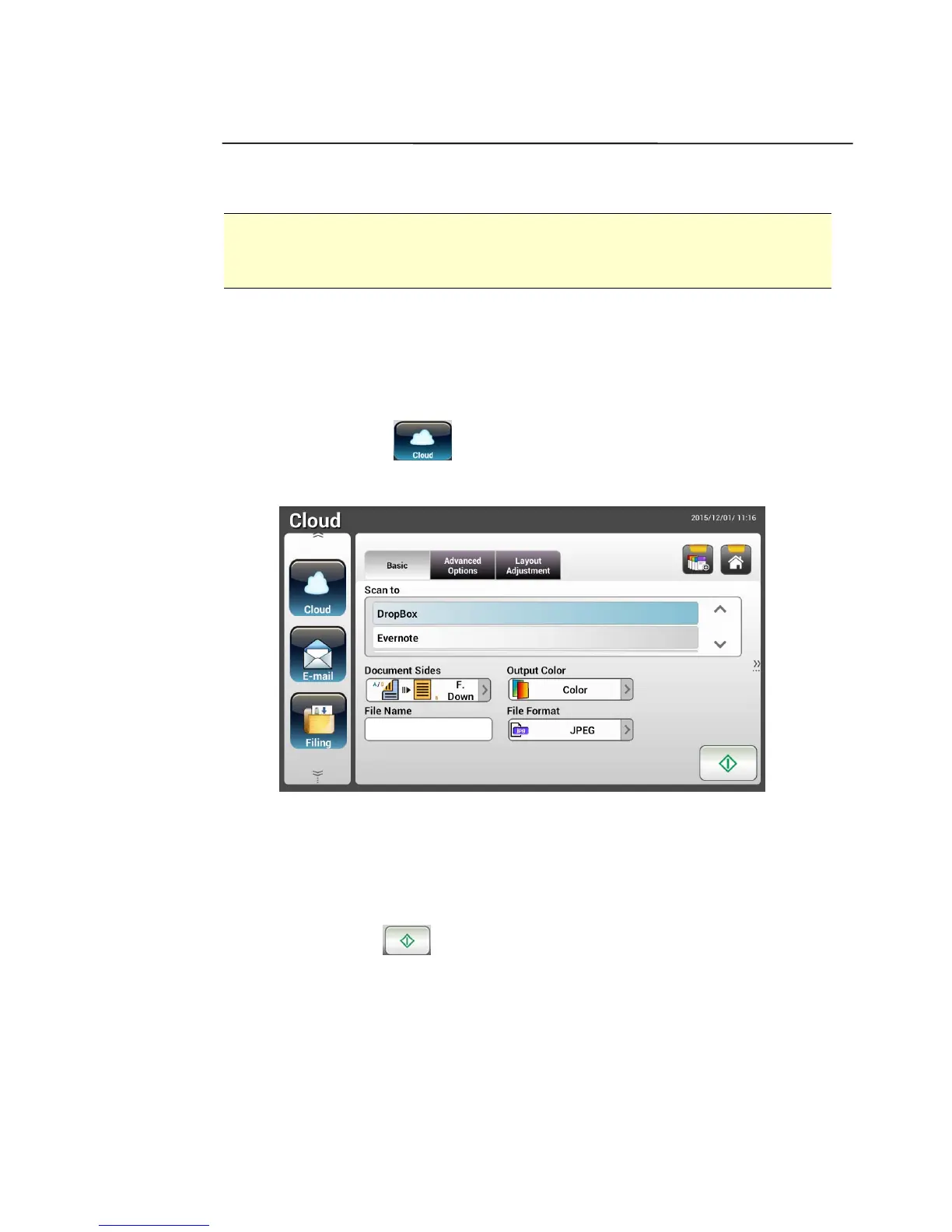
button on the Home screen. The LCD Touch Panel
prompts the following Cloud main screen.
2. Choose your desired cloud server to save your scanned images. Choice:
Dropbox, Evernote, Google Drive.
3. Check if the document side, output color, or file format meets your
requirements. If not, change the settings to suit your needs.
4. Tap the Start
button. The scanner starts scanning and a Preview
screen will be prompted.


 To Next Page
 Loading...