83
11. You can view the scanned image in Fit Page (
) or Actual Size (100%)
button (
) from the Viewing toolbars at the right side.
12. Click the Close box or Quit from the File menu to exit the Scan Validation
Tool.
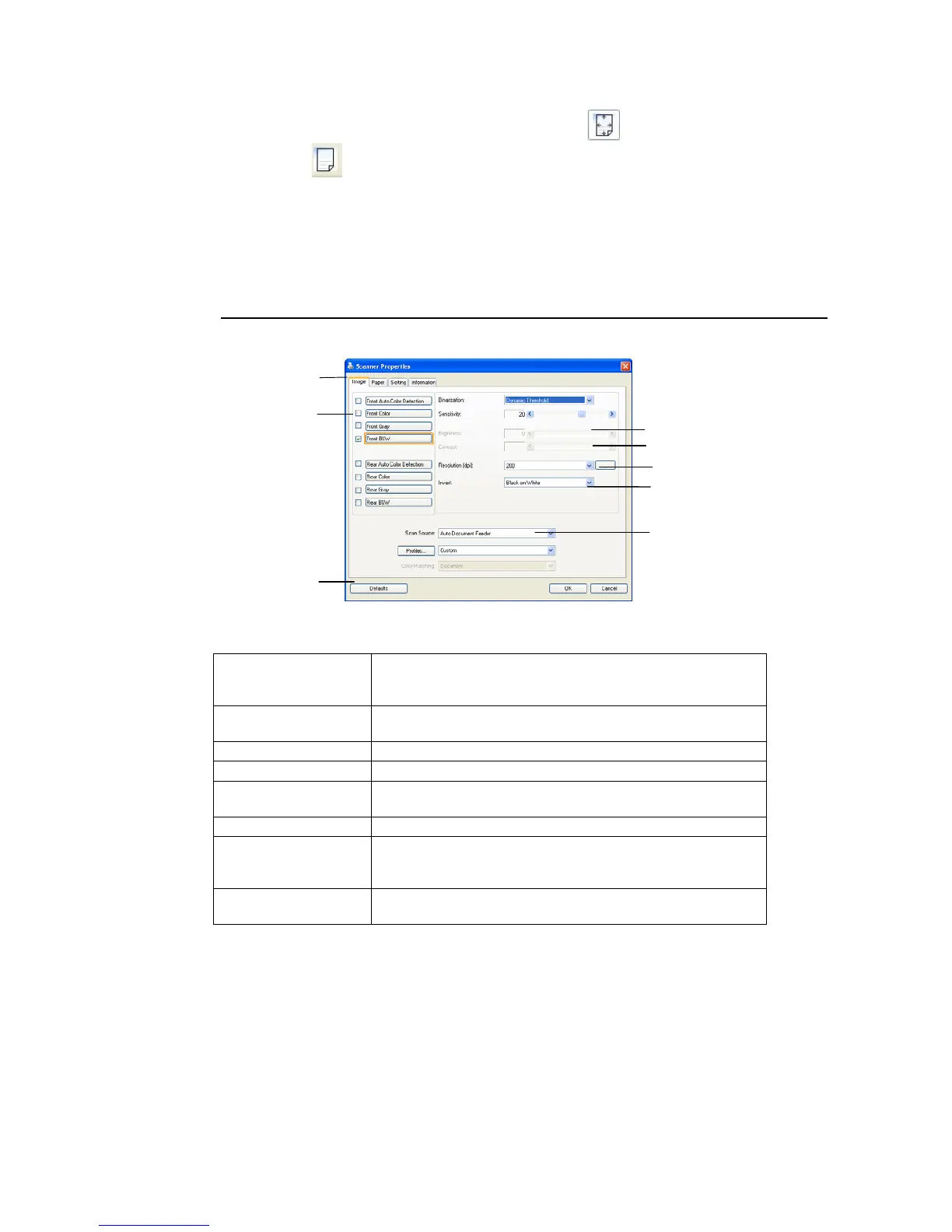
A Glance of the Scanner Properties Dialog Box
1. Tab Options Choice: Image, Compression, Color Dropout, Paper,
Multi-Feed Detection, Preview, Options, Settings,
Information.
2. Image Selection
Box
Choose your image type and the side of document you
wish to scan. Options vary based on type of scanner.
3. Brightness Adjust the brightness level from –100 to +100.
4. Contrast Adjust the contrast level from –100 to +100.
5. Resolution
Determine the quality of the scanned image. The
industry standard is 200 dpi.
6. Invert Reverse the color of your scanned image.
7. Scan Source Choice: Auto Document Feeder, Flatbed, Flatbed
(Book), Automatic (varies due to different scanner
model)
8. Defaults Reset all values on the tabs to the factory default
settings.
3
4
5
6
7
1
2
8



 To Next Page