Fehler! Formatvorlage nicht definiert.. Fehler! Formatvorlage nicht definiert. - Page 3
AZUREM2.DOC 18.03.1999 12:40
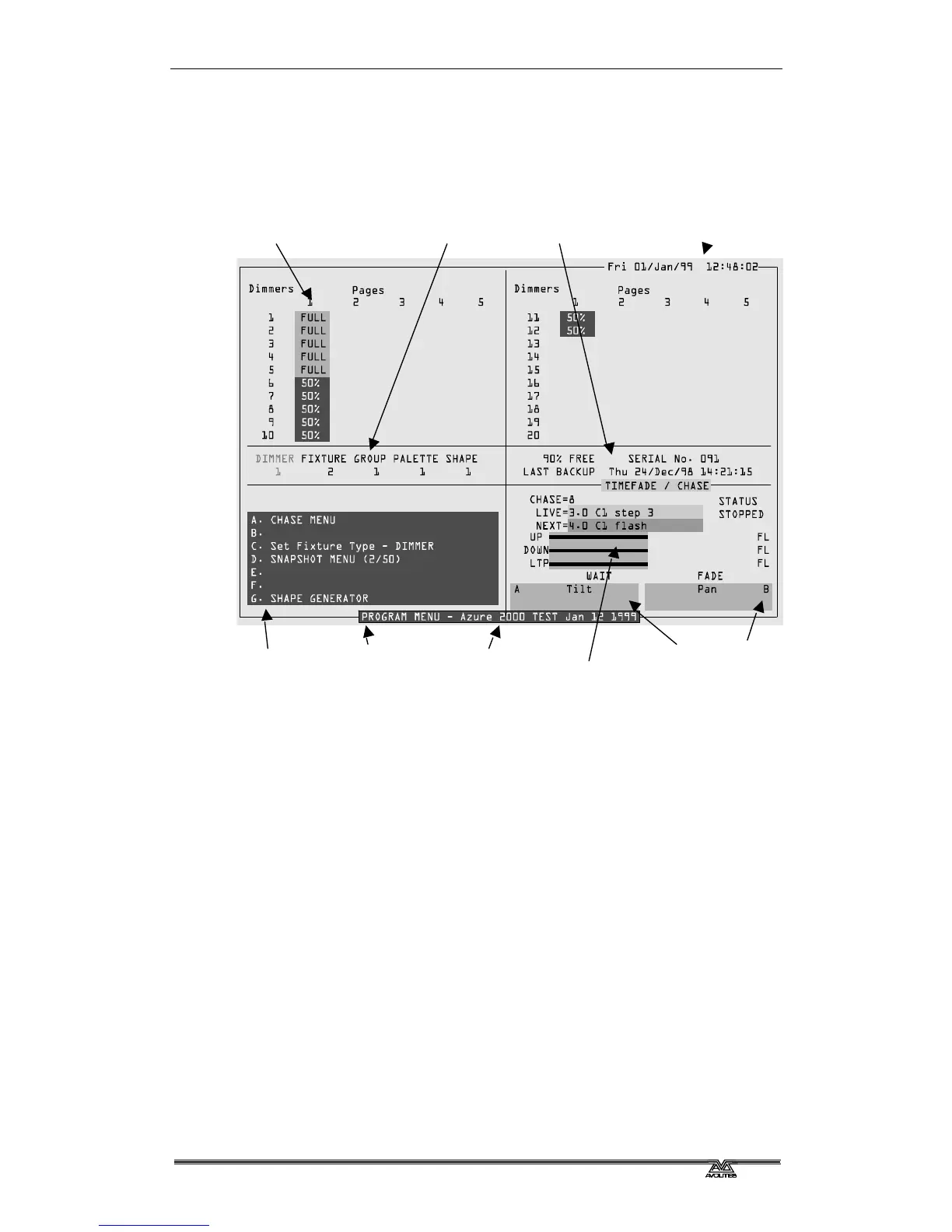
The VGA display shows everything which is going on. There are various
different screens you can display, by pressing the On Screen button in the
area you want to look at. Each control area on the Azure has its own On
Screen button. The picture below shows you a typical VGA display.
The bottom half of the display usually remains the same whatever the
display mode. The softkey options are shown on the bottom left. The chase
information is shown on the right. The current function of the two wheels
is shown on the bottom right.
If the Azure has anything to tell you, it will display the message on the
bottom line of the screen (where the software version number is on the
above screen).
When you are selecting items from a list (such as shapes or colour values),
the list appears in the bottom right hand corner of the screen.
The top part of the display varies depending on the display mode, which
you can choose by pressing the various On Screen buttons on the Azure.
The possible modes are System, Channel Output, Shape Output,
Environment, Chase Times, and Memories.
Today’s date and time
Current operation
(this is the Dimmer output page)



 To Next Page