6
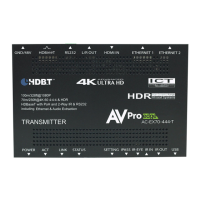
STATUS - On front by HDMI Port: (Blue) This indicator shows that the HDMI
source is connected. The states are:
·Light Is On (Solid) = Sync w/ HDMI source is correct and solid.
·Light Is Flashing = The light ashes during the sync process. If it is ashing continuously, a
picture may not be present.
If the BLUE HDMI SIGNAL LIGHT is ashing, check the following:
·The source. Plug it directly into the display to be sure it’s functioning properly.
·Try a longer HDMI cable. Some HDMI cables do not sync well at shorter lengths, a 2 meter
minimum is recommended per HDMI Specications.
·Set the EDID to state #1 (See Page[s] 11).
·Contact AVProEdge if these suggestions do not work.
LINK above the RJ45 (HDBaseT) Port: (Green) This indicator shows that the
HDBaseT link between the Tx and Rx is intact. This light should ALWAYS be solid. If
this light is ashing or not present attempt the following:
·Check the length. The maximum distances are 40m (131ft) on 4K and 70m
(230ft) on 1080P.
·Remove any coils of cable and make sure that there is not excess cabling.
·Bypass all patch panels and punch-down blocks.
·Re-terminate connectors. Sometimes, even if a cable tester indicates the run is valid,
something may be slightly o.
·Contact AVProEdge if these suggestions do not work.
If the BLUE HDMI SIGNAL LIGHT is ashing, check the following:
·The source. Plug it directly into the display to be sure it’s functioning properly.
·Try a longer HDMI cable. Some HDMI cables do not sync well at shorter lengths, a 2 meter
minimum is recommended per HDMI Specications.
·Set the EDID to state #1 (See Page[s] 12).
·Contact AVProEdge if these suggestions do not work.


 To Next Page