AVTECH Software Inc. 9
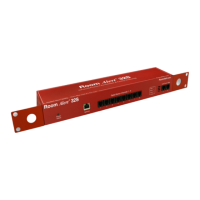
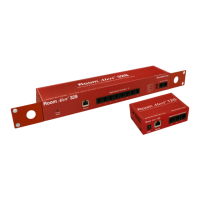
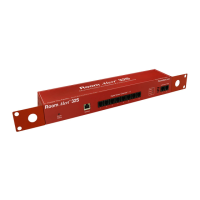
Room Alert Signal Tower Installation
Switch Sensors — Connect the optional Switch Sensors to one of the Switch Sensor Contact Set
(C). Position the sensor in the desired location, running the sensor cable back to the Room Alert
Signal Tower ID box. This is an instant ‘plug & play’ sensor that connects to one of the switch
sensor contact sets via a low voltage 2-wire cable.
Step 5: Check Room Alert Signal Tower Firmware Version
Open the AVTECH Device Discovery Utility and click the ‘Search’ button. When the Room Alert Signal
Tower unit is located, select it and click the ‘Web’ button. If you are unable to locate your Room Alert
Signal Tower unit because UDP broadcast packets are blocked on your network, simply type the IP
address of the Room Alert Signal Tower unit in the location bar of a web browser.
NOTE: If the ‘Status’ screen does not load sensor data, be sure that a proxy or Microsoft ISA (Internet Security and
Acceleration) server is not blocking trafc to or from the Room Alert Signal Tower unit.
After the ‘Status’ screen has loaded and is fully displayed, click the ‘Room Alert Signal Tower vX.X.X’ link
in the top right hand corner. If the pop-up that loads says a more current version is available, then follow the
instructions in the ‘Upgrading Firmware’ section of the ‘Advanced Topics’ chapter of this manual.
C.



 To Next Page