4 AVTECH Software Inc.
Installation Room Alert Signal Tower
remains unlit and the Activity LED is blinking orange, please refer to the ‘Performing Firmware
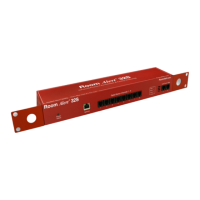
Recovery’ section of the ‘Advanced Topics’ chapter. This is an RJ-45 port.
External Environment Sensor Channels (Digital Sensor Channels) — AVTECH’s Digital
Temperature Sensors can be connected to these sensor channels. This is an RJ-11 port.
Switch Sensor Contact Sets — Connect any AVTECH switch-based environment sensor to a set
of sensor contacts for monitoring by the Room Alert Signal Tower unit. Any switch sensor device
with a set of voltage-free dry contacts can be attached to a set of sensor contacts. AVTECH has
many sensors available for monitoring environment and other conditions.
Step 1: Install The AVTECH Device Discovery Utility
The AVTECH Device Discovery Utility is used to initially discover the Room Alert Signal Tower after it
is connected to your network. The Device Discovery Utility can be installed from the AVTECH Update
CD or downloaded from the ‘Downloads’ section of the AVTECH.com website. Install this utility on a
Windows-based computer that is located on the same network that the Room Alert Signal Tower unit
will be connected to. Install this now and we will come back to the Device Discovery Utility in a later
step.
Step 2: Install The Room Alert Signal Tower ID Box
The Room Alert Signal Tower must be connected in the following order for initial
conguration and discovery on the network to be successful. Locate the Ethernet cable
included with your package and connect one end to the ‘Network’ port on the front of the
Room Alert Signal Tower unit. Connect the other end of the Ethernet cable to an open port on
the switch or router that will give the Room Alert Signal Tower unit access to your network.
Next, locate the ‘AVTECH 5v 1A Power Adapter’ and plug it into a surge protected UPS power source.
This will allow alert notications even after a complete power loss.
NOTE: The Room Alert Signal Tower unit should be plugged into a UPS.
Attach the other end of the power adapter to the ‘Power’ port on the Room Alert Signal
Tower unit only if the Room Alert Signal Tower unit is already connected to the network.
Be sure to remove the sticker over the ‘Power’ port before attaching the ‘AVTECH 5v 1A
Power Adapter’ to the Room Alert Signal Tower unit.
IMPORTANT NOTE: DO NOT CONNECT POWER to the Room Alert Signal Tower unit during the initial setup UNTIL AFTER
you have connected it to your network as described above or it will cause problems automatically assigning the initial IP
address.
Once the network and power connections have been completed, verify that the LED
located on the top-left side of the network jack lights up indicating power and network
connectivity.
C.
D.



 To Next Page