SMART HOME (CONT.)
1. Select the app you want to edit, and press and hold the ( ) button on the remote
control. This will activate the app edit mode.
2. To move the app to your desired position, go to the position and press the
( )
button. To delete an app, select the “X” icon above the app. You can move and delete as many
apps as you wish before exiting the edit mode. You can also move apps with the buttons
on your remote control.
3. After the editing is done, press the “X” at the top right to exit the App Edit mode.
The default TV app cannot be edited.
Launching Apps through QUICK ACCESS
Press and hold a number button on the remote control to open an app or to activate an external
input registered to the button.
Setting QUICK ACCESS
1. Launch the app or select the programme or input you wish to assign.
2. Press and hold the number button (1~9) you want to register.
3. When the registration pop-up window appears, select Yes.
If you press and hold a number button that has already been registered, the registered
function will be performed.
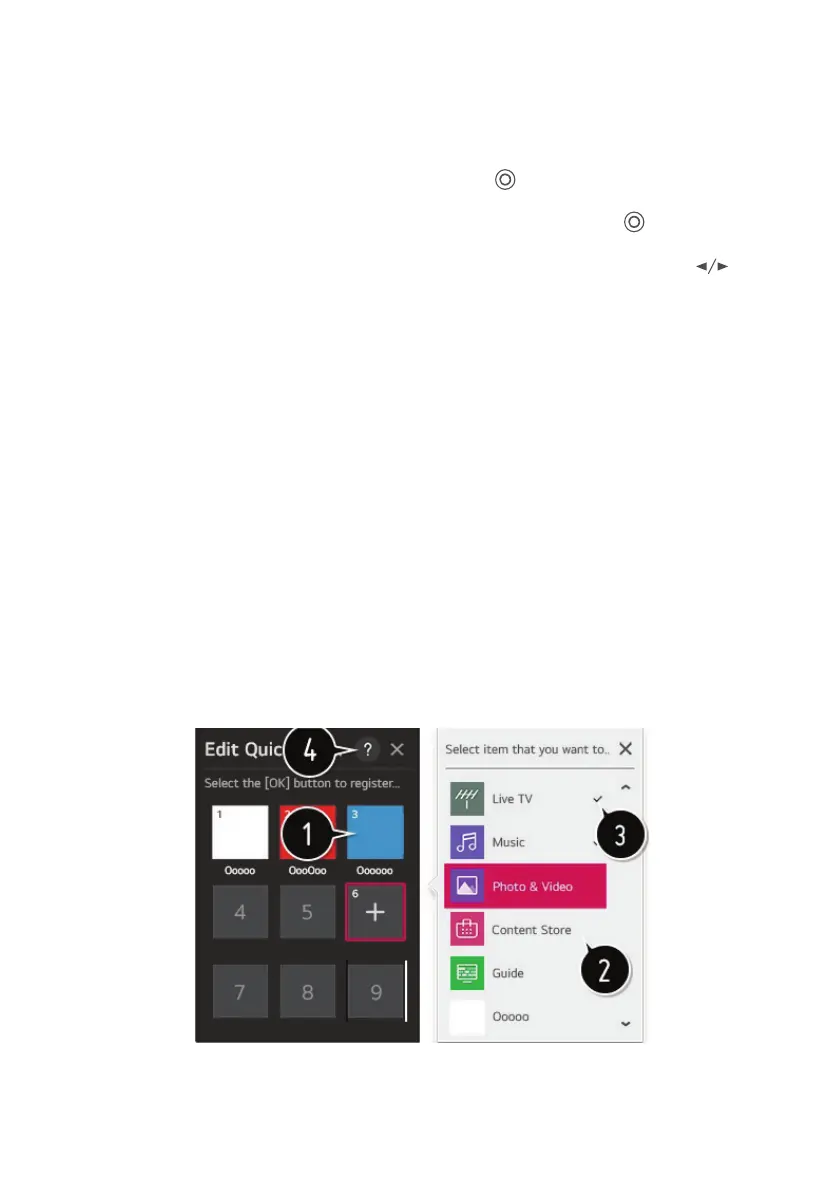
To see the items that can be registered, select a number that has not been registered in the
QUICK ACCESS edit mode.
If you are in a mode where QUICK ACCESS cannot run, no action will be performed.
If you delete a registered app, QUICK ACCESS will be deregistered as well.
16



 To Next Page