- 18 -
If the “Summary” Screen has shown poor print quality then the “Details”
screen is the ideal point to initially see what went wrong with the
barcode and hence focus the user on appropriate corrective action.
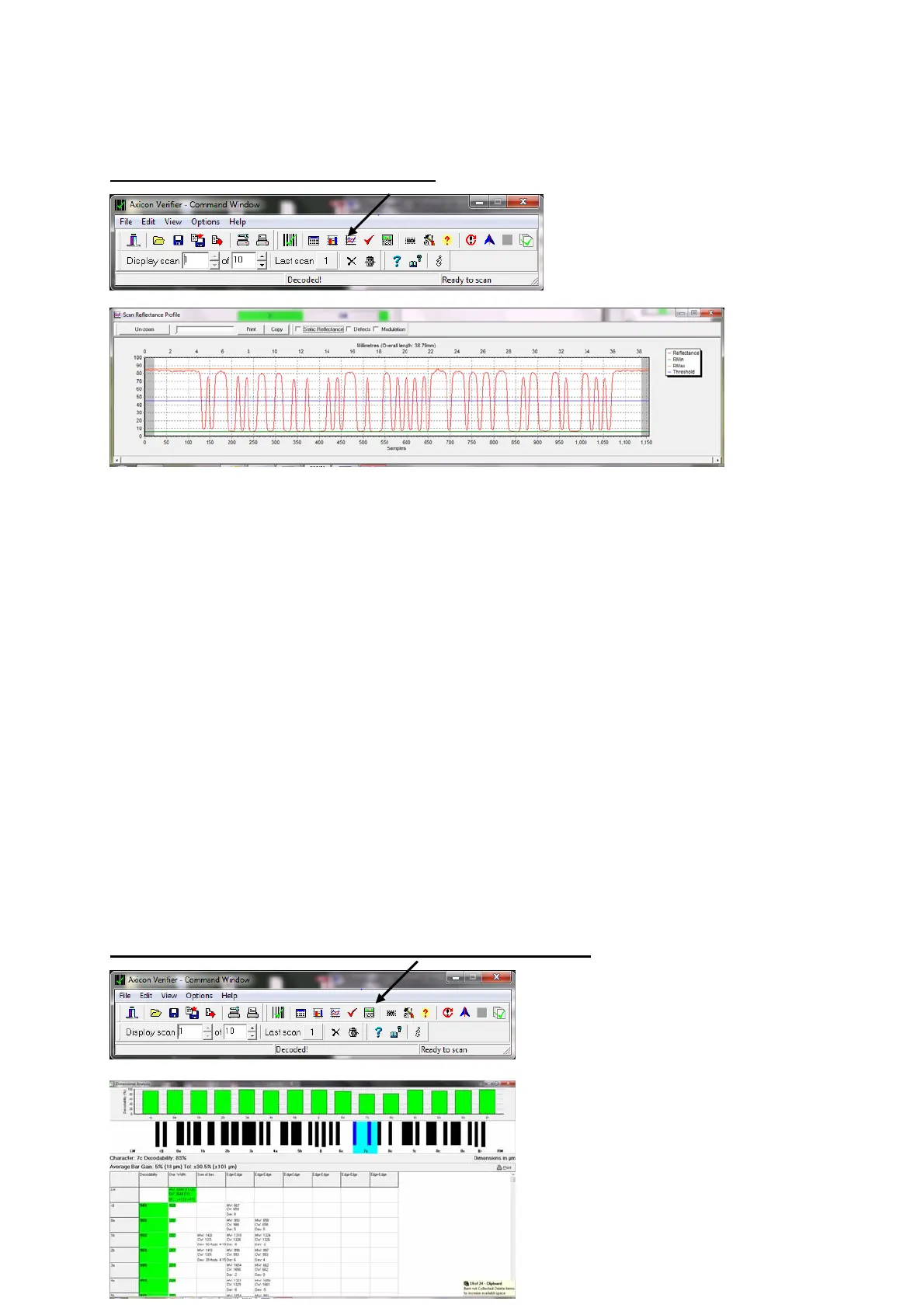
The Scan Profile Screen…. Press
to get:-
The Scan profile screen shows the user exactly what the barcode will look
like to a scanner.
At the top of the graph are the higher levels of reflectance from the
background and at the bottom of the graph are the lower levels of
reflectance from the darker bars.
Ideally the “sweep” (contrast) from top to bottom should be as great as
possible with smooth curves between the two, the “peaks” should ideally
be all around the same level and the “troughs” also at the same level.
If the cause of barcode problems is poor “modulation” or a high level of
defects then these can be shown overlaid on the graph by clicking the
appropriate box at the top of the Scan Profile Screen.
The Dimensional Measurements Screen…. Press
to get:-
If your “Details” screen has
shown a poor “Decodability”
grade then this is normally
because of bad dimensional



 To Next Page