- 20 -
or click on “ANSI” if you would prefer to be shown both results.
Units:- The “default” is to track the Windows settings for metric or
imperial measurements – alternatively you can set this as required.
Pass Grade:- If you are working on barcodes within the retail supply chain
then the “Apply GS1 General Specifications” should always remain ticked
on. The user can select the pass/fail grade for other barcode types as
specified either by an Industry Application Specification or by their
customer.
Magnification factor:- This remains for past support for Axicon customers
who have model 5000 verifiers. For all others the settings in this field
have no effect.
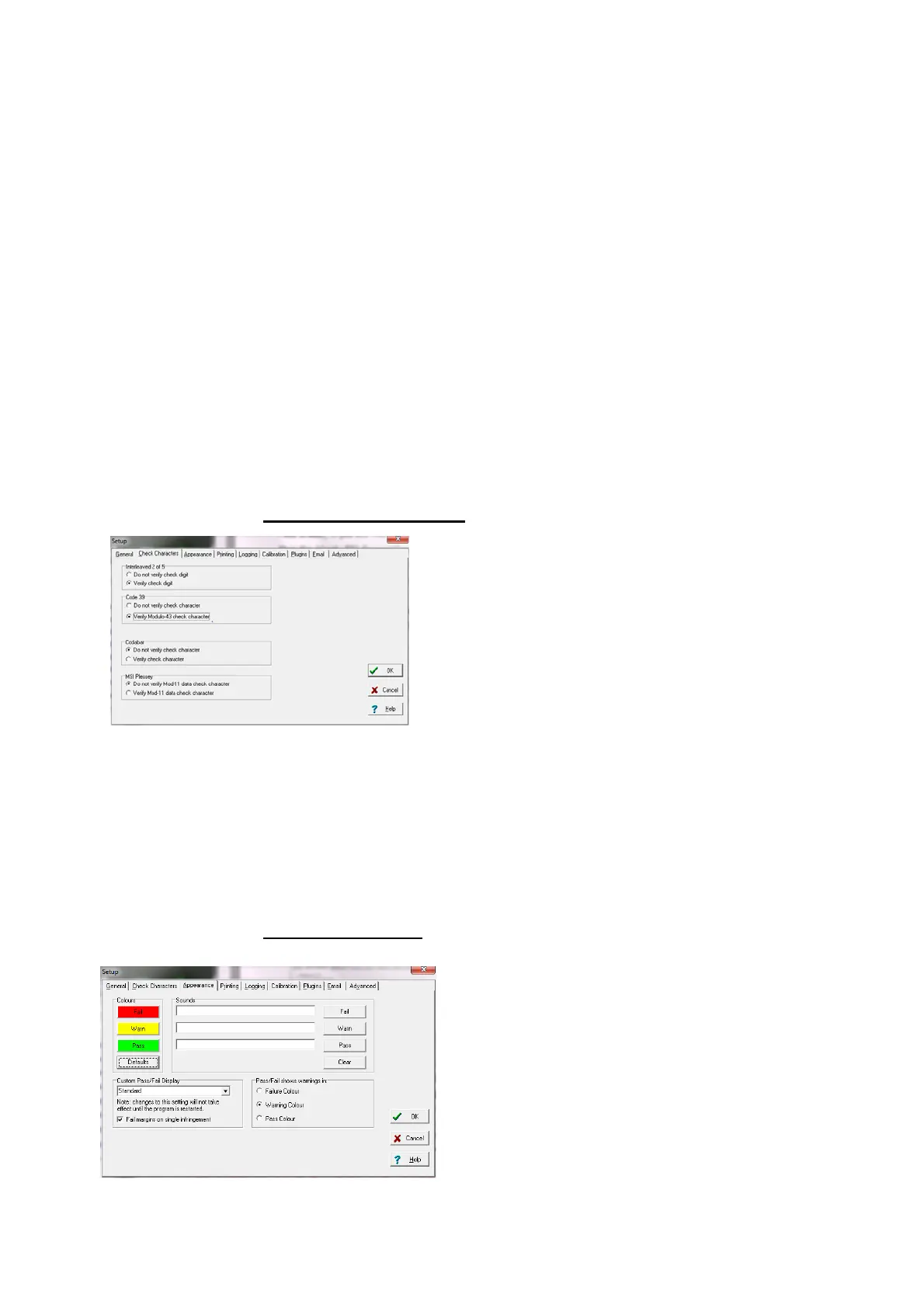
The next tab is “Check Characters”
Most barcode symbologies (types) have
mandatory check digits and these will be
automatically validated as to their
correctness. A few barcode types have no
check digits at all.
This screen is to allow the user to select specifically for the barcode
types that have optional check digits. If these are being used then the
verifier can be set to validate them, if not then to ignore any checks.
The next tab is “Appearance” –
This can be used to adjust any display
colours/shades for the pass, warning
and fail messages – and can also be
used to add Windows wave sounds to
give an audible indication of quality if
required.



 To Next Page