- 21 -
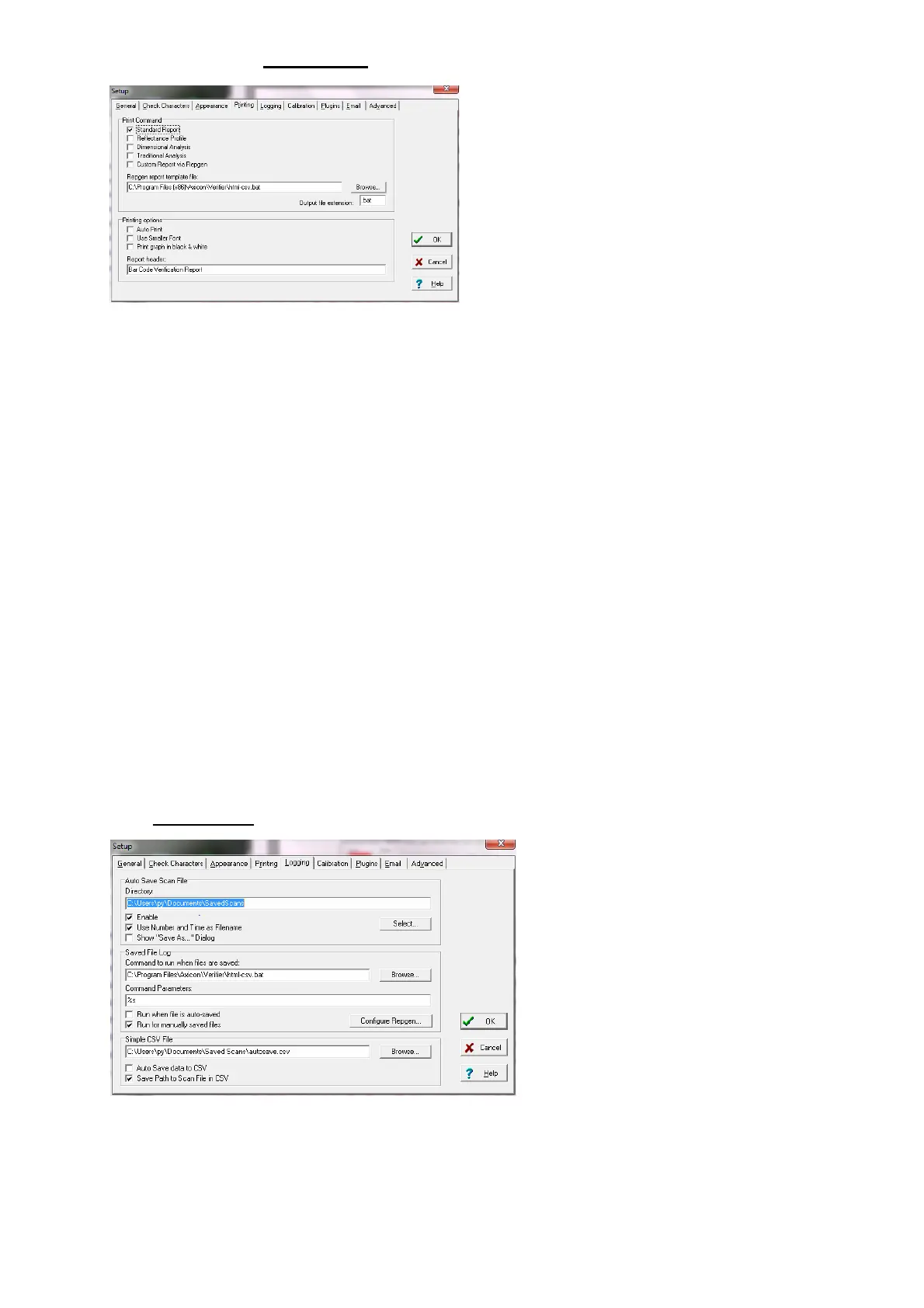
The next tab is “Printing”
The user can pre-select any
particular reports that are required –
some users take the view that if the
barcode passes they will just save
the electronic report but that if the
barcode fails they want all of the
information possible – the required prints can be pre-selected.
This includes the option to have a personalised report generated through
the built-in Report Generator, although we do recommend that if you
have any particular non-standard requirements these should be discussed
with Axicon.
The verifier can also be set to “Auto-print” in order to avoid a user
forgetting to print a particular report.
“Print graph in Black and White” – essential to tick this is you are using a
monochrome (black and white) printer, otherwise a scan reflectance
profile will only show the outline and not the detail.
Also, the standard printed report can be personalised if required using
the “Report Header” feature.
The “Logging”
tab
The “logging” tab is used to
set the electronic saving of
records and to run pre-
configured external programs
from the verifier.
We strongly advise all users to
click on “Enable” to the “Auto
Save Scan File” and to set a suitable location for the records to be
stored.



 To Next Page