AXIS 215 PTZ/AXIS 215 PTZ-E - Setup
13
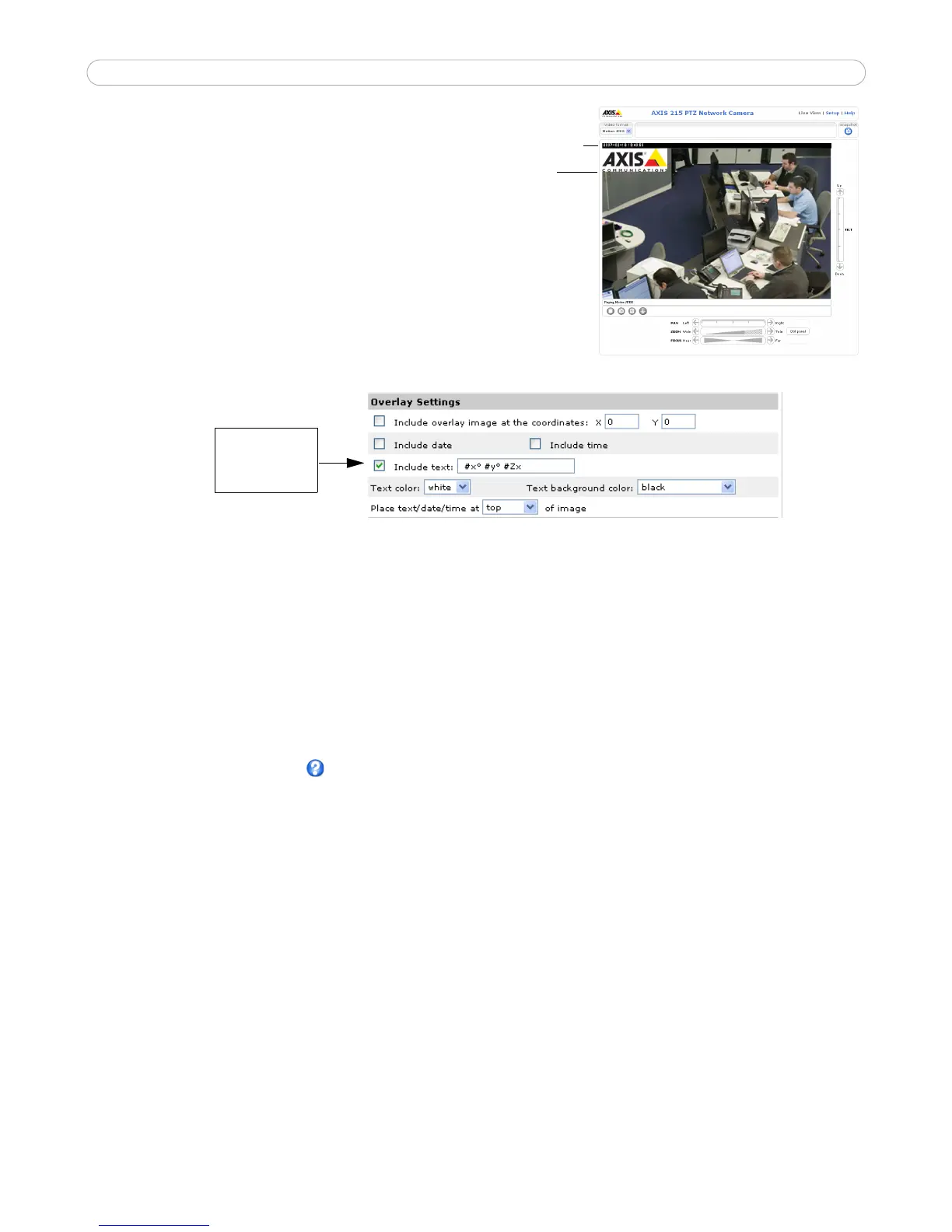
Overlay Settings
Use these settings to include an image as an overlay, and/or
the date and time, along with text of your own.
See Overlay Image Settings below for instructions on how
to upload an overlay image to the AXIS 215 PTZ/AXIS 215
PTZ-E.
Text overlays are included on one line at the top or bottom
of the video image. Use text overlays in combination with
OSDI (On-Screen Directional Indicator) on page 31 to aid
the viewer in navigating the camera.
Video Stream
The video stream time can be set as Unlimited, or a maximum stream time per session in seconds, minutes or
hours can be defined. When the set time has expired, a new stream can be started by refreshing the page in the
Web browser. Note that the maximum video stream time does not apply to clients connecting via multicast.
To avoid bandwidth problems on the network, the frame rate allowed to each viewer can also be limited. Select
either Unlimited or define a maximum frame rate per viewer.
For a preview of the image and overlay settings click Test. When satisfied with the settings, click Save.
Please use the online help files for more information.
Overlay Image
An overlay image is an image included in the video image. This might, for example, be your company logo.
Follow these instructions to upload and use an overlay image:
1. Go to Setup > Video & Image > Overlay Image.
2. To upload the image to the AXIS 215 PTZ/AXIS 215 PTZ-E, click the Browse button and locate it on your
computer or server.
3. Click the Upload button and follow the on-screen instructions.
4. The image is now available in the Use overlay image drop-down list.
5. Click Save.
6. Go to Setup > Video & Image and modify the parameters under Overlay Settings.



 To Next Page