AXIS 215 PTZ/AXIS 215 PTZ-E - Accessing the camera
5
The Live View page
The following provides an overview of each button on the Live View page. Depending on how the AXIS 215
PTZ/AXIS 215 PTZ-E has been customized, some or all of the following buttons will be displayed:
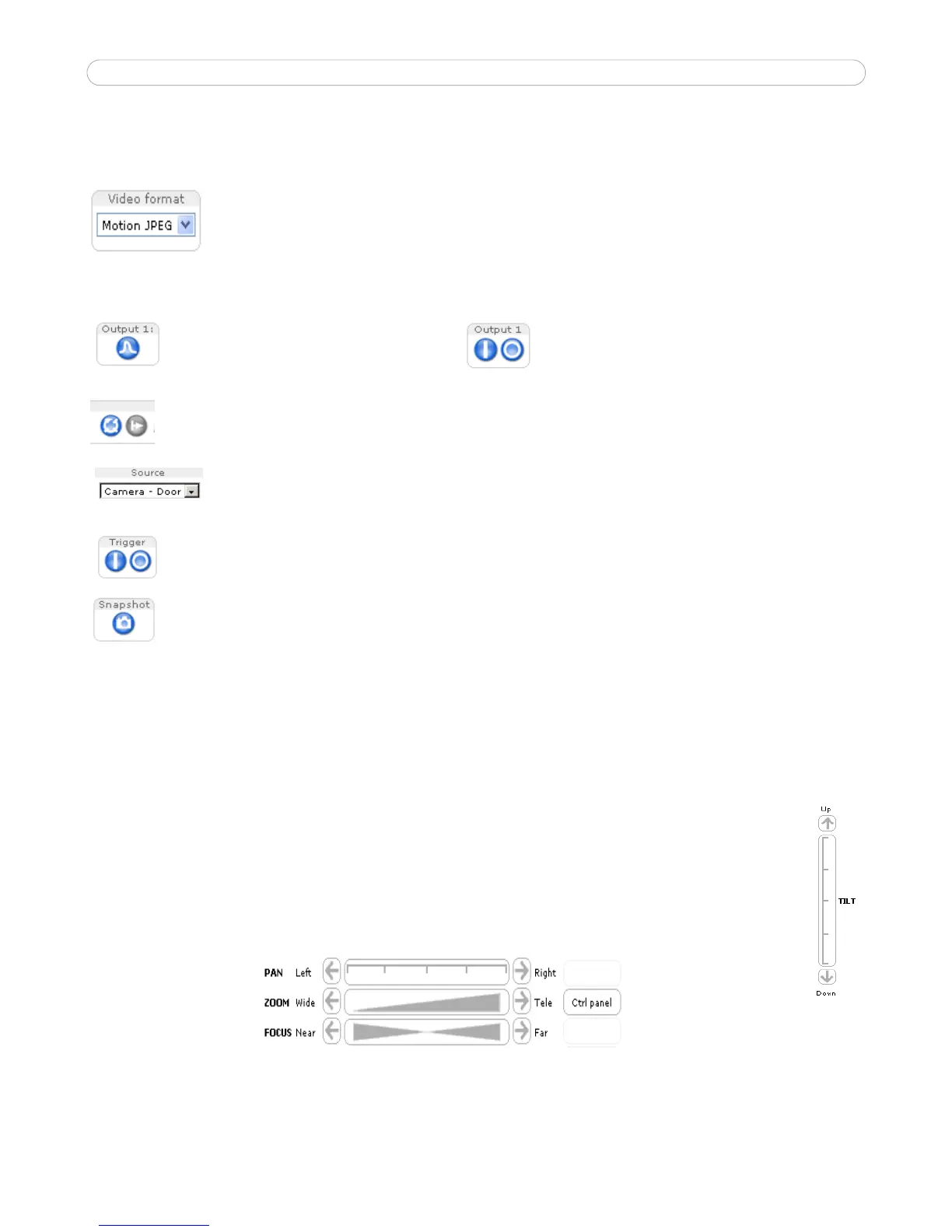
The Video Format drop-down list allows the video format in the Live View page to be
temporarily changed.
These buttons start/stop the Sequence Mode which automatically displays the view from preset
positions at set intervals. Sequence mode is configured in Setup > PTZ Configuration > Sequence
Mode.
The source list is used to select the preset positions already configured in the camera. These
are created in Setup > PTZ Configuration > Preset Positions.
The Manual trigger buttons trigger an action directly from the Live View page. These buttons are
configured under Setup > Live View Config > Layout. Click these buttons to manually start and
stop events.
Use the Snapshot button to capture a snapshot of the image currently displayed in the window.
Right-click on the image to save it in JPEG format on your computer.
Area Zoom
This allows you to draw a box over a desired area to zoom into. In order to fine-tune the precision, Area zoom
should be calibrated from Setup > PTZ Configuration > Advanced > Calibration.
To activate Area Zoom on the Live View page, click the Center mode button in the AMC viewer toolbar (in
other Internet browsers choose PTZ > Center). Click in the image and while holding down the left mouse
button, draw a square over the area you would like to zoom into.
Pan/Tilt/Zoom controls
The Live View page also displays the Pan/Tilt/Zoom controls. These are enabled/disabled for specified
users by the administrator under System Options > Security > Users > User List.
See also Advanced, on page 23 for information on E-flip, proportional speed and Auto-flip (PTZ
Configuration > Advanced > Limits.)
The two types of Output button (AXIS 215 PTZ only) each control the output directly from the Live
View page. These are configured under Setup > Live View Config > Layout.
Pulse - click this button to activate the
output for a defined period of time, e.g.
to switch on a light for 20 seconds.
Active/Inactive - click these buttons to
manually start and stop a connected device,
e.g. switch a light on/off.



 To Next Page