AXIS 215 PTZ/AXIS 215 PTZ-E - Setup
17
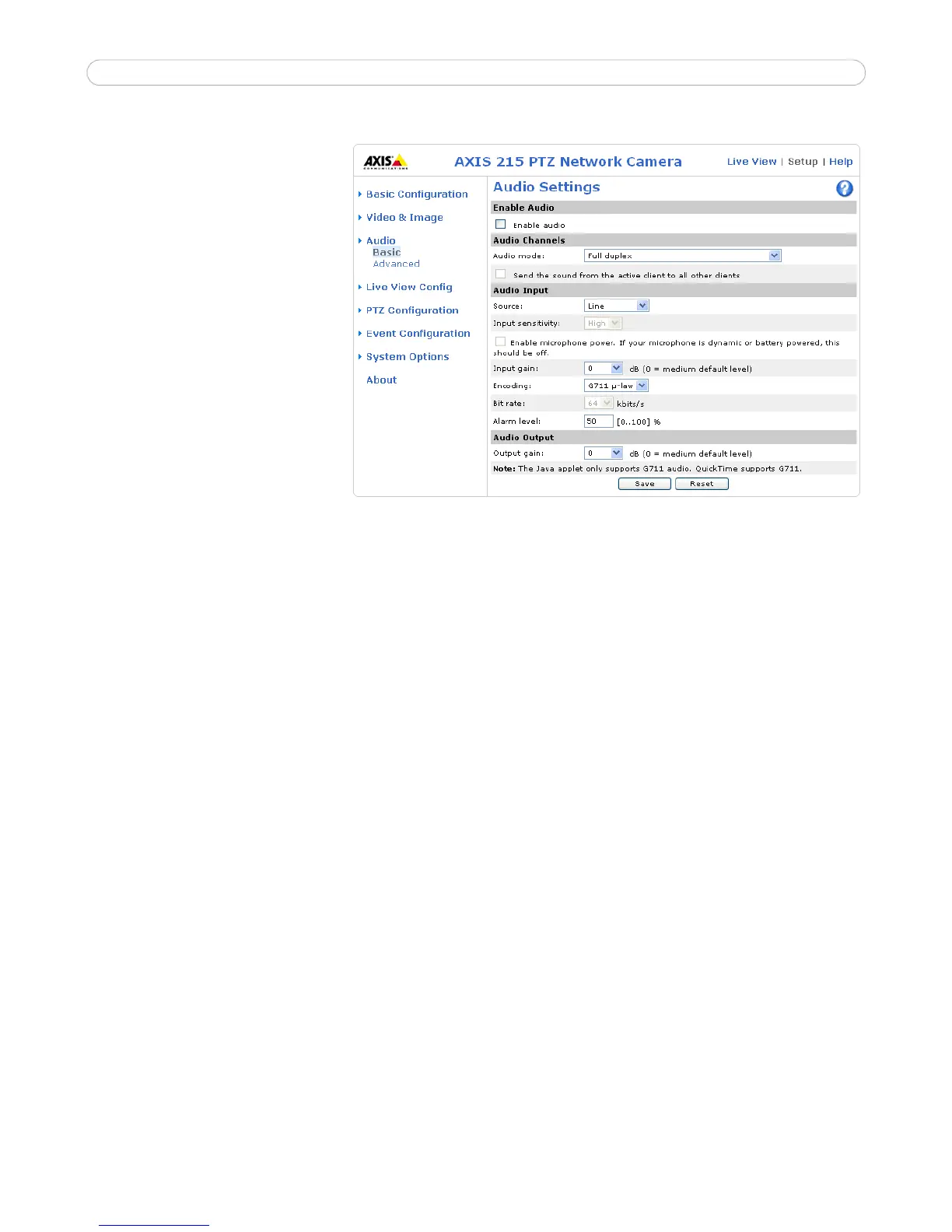
Audio Settings (AXIS 215 PTZ only)
This section describes how to
configure the basic audio settings
for the AXIS 215 PTZ, such as
setting the communication mode
and adjusting the sound levels in
the microphone and speaker.
Enable Audio
Select the Enable Audio checkbox
option to enable the audio
functionality.
Audio Channels
There are two mono audio
channels between the AXIS 215
PTZ and other clients, one for
receiving audio and one for
transmitting audio. Each audio
channel can be turned on or off,
which means that there are four
audio mode options that can be used.
Full-duplex mode means that you can transmit and receive audio (talk and listen) at the same time, without
having to use any of the controls. This is just like having a telephone conversation. The only controls you may
wish to use are the mute buttons to turn off the sound, and the sliders, to adjust the input/output volume levels.
This mode requires that the client PC has a sound card with support for full-duplex audio. If your available
bandwidth is 0.2 Mbit/s or less, it is recommended that you use Half-duplex mode instead.
Half-duplex mode also transmits and receives audio in both directions, but only in one direction at a time. This
means that you must select when to receive or transmit audio using the push-to-talk button. To speak, press and
hold the button (check that the microphone is not muted). When finished speaking, release the button. You will
now be receiving audio from the other end of the connection.
Note that the push-to-talk button is configured from AMC, see How to stream MPEG-4, on page 9. It is also
possible to configure the Push-to-talk button so that it toggles between speaking and listening modes.
Half-Duplex mode is best if you only have limited bandwidth available.
When you select Simplex - Network Camera speaker only mode, the speaker connected to the AXIS 215 PTZ
will play audio, but no audio will be transmitted from the AXIS 215 PTZ to other web clients. This could be
used, e.g. to provide spoken instructions to a person seen in the network camera. This mode requires you to use
the push to talk button.
Simplex - Network Camera microphone only mode transmits audio from the microphone connected to the
AXIS 215 PTZ to any web clients. It will not receive audio from any other web clients. This can be used in
remote monitoring, web attractions etc., to provide live audio, as well as video, of a monitored situation.
When using half-duplex, the Send the sound from the active client to all other clients option transmits the
audio signal from the client that is talking to all the other clients.
Audio Input
If the sound input is too low or high, it is possible to adjust the input gain for the microphone connected to the
AXIS 215 PTZ.
Source - select Microphone for an external microphone or Line for a Line in device, e.g. an audio mixer for
multiple microphones or a microphone with a built-in amplifier.
Input sensitivity - set the sensitivity level of the audio input according to the following:



 To Next Page