12
View an Axis or 2N Intercom Camera
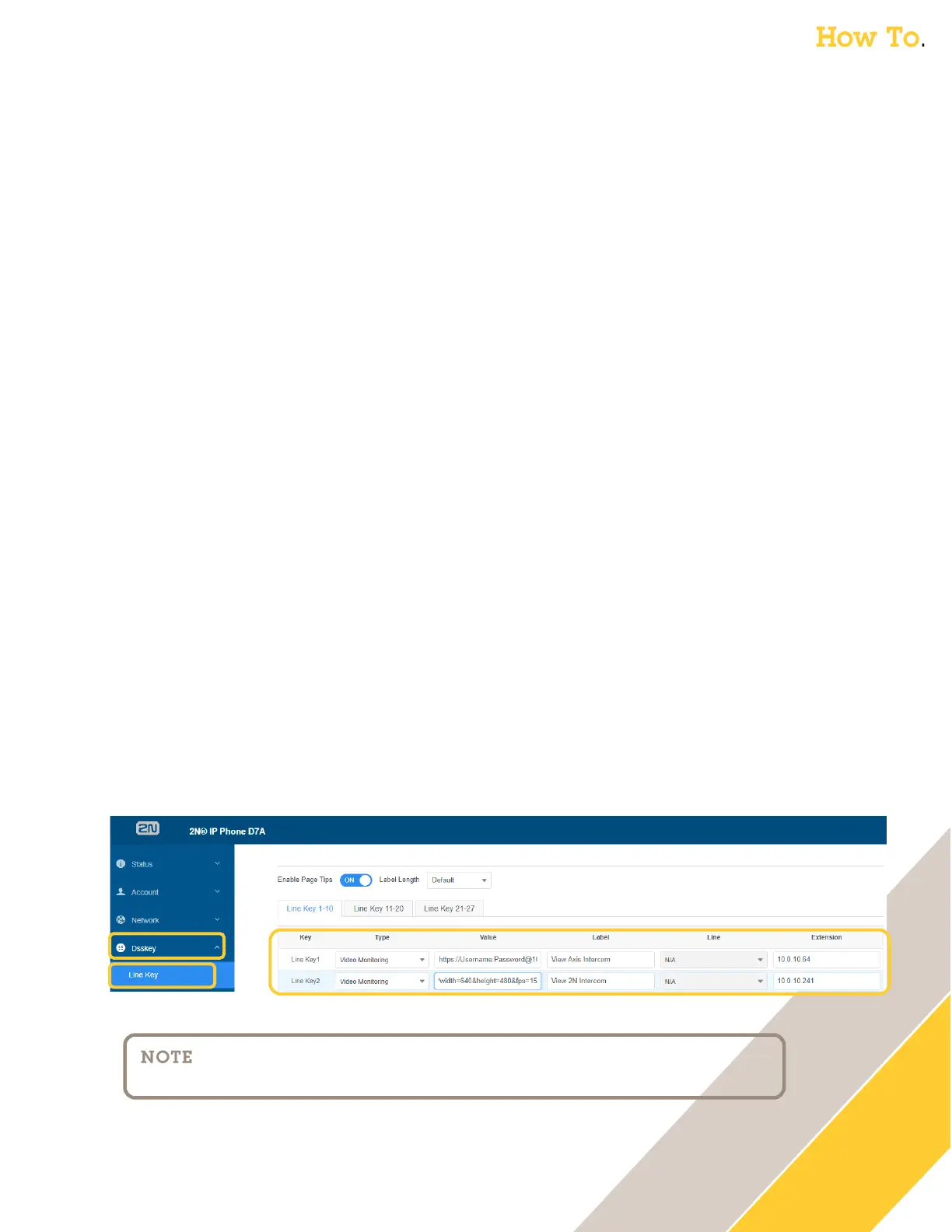
The following steps are performed in the web GUI of the 2N D7A Phone
1. Click on Dsskey then Line Key
2. Set the key type
o Type = Video Monitoring
3. The value is the command specific for the (Axis or 2N) intercom
o Axis Intercom:
Value = https://Username:Password@<IP_of_Axis_Intercom>/axis-
cgi/mjpg/video.cgi?resolution=640x480&camera=2
The above command requests video from the Axis Intercom. Prior to the IP address, insert
the Username:Password@ credentials that the D7A will use to log into the Intercom. The
command requests a resolution of 640x480 from the custom view (&camera=2). To
retrieve the default fisheye view, remove &camera=2 from the string.
o 2N Intercom:
Value = https:// Username:Password@<IP_of_2N_Intercom>/api/camera/snapshot?
width=640&height=480&fps=15
The above command requests video from the 2N Intercom. Prior to the IP address, insert
the Username:Password@ credentials that the D7A will use to log into the Intercom. The
command requests a resolution of 640x480 at a framerate of 15 fps.
4. Create a descriptive label
o Example: Label = View Intercom
5. Set the Extension / IP address of the intercom
o Extension = <IP_of_Intercom>
6. Click Confirm



 To Next Page