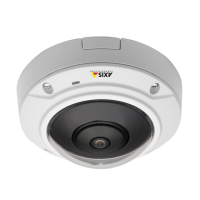
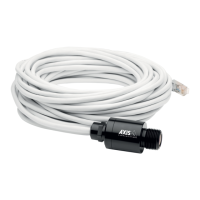
AXISM3026-VEFixedDomeNetworkCamera
Video
Forquicksetup,useoneofthepredenedstreamproles.Eachpredenedprolehasadescriptivename,indicatingitspurpose.If
required,thepredenedstreamprolescanbemodiedandnewcustomizedstreamprolescanbecreated.
Tocreateanewproleormodifyanexistingprole,gotoSetup>Video>StreamProles.
ToselectadefaultstreamprolefortheLiveViewpage,gotoSetup>LiveViewCong.
CameraSettings
TheVideo>CameraSettingspageprovidesaccesstoadvancedimagesettingsfortheAxisproduct.
CaptureMode
Thecapturemodesettingreducesimageickerinuorescentlightenvironmentsasimagedataissampledataratethatmatchesthe
localpowerlinefrequency.Capturemodeissetthersttimetheproductisaccessed.Selectthecapturemodewiththepower
linefrequency(50Hzor60Hz)usedatthelocationoftheAxisproductandclickOK.Whenusing50Hz,themaximumframerate
islimitedto25fps.
Note
Powerlinefrequencyisdifferentindifferentgeographicregions.IntheAmericas,60Hzisusuallyused;mostotherpartsof
theworlduse50Hz.Localvariationsmayapply,alwayscheckwiththelocalauthorities.
Important
Changingcapturemodewhentheproducthasbeenconguredisnotrecommendedasmostothersettingswillbeeither
removedorreset.
Tochangecapturemode,followthesesteps:
1.GotoSetup>Video>CameraSettings.
2.Selectthenewcapturemode.
3.ClickSave.
4.Reviewandrecongureallsettings,forexample:
-Viewareas
-Streamproles
-PTZsettingsincludingpresetpositionsandguardtours
-Motiondetectionwindows
-Privacymasks
-Imageoverlays
-Exposurezones
-Whitebalancewindows
-Actionrules
-Settingsinuploadedapplications
ImageAppearance
TochangeImageAppearancegotothemenusunderSetup>Video>CameraSettings.
17


 To Next Page