EasyManua.ls Logo

Axis Q1910-E - User Manual

Axis Q1910-E
63 pages
Print Icon
To Next Page IconTo Next Page
Loading...
USER MANUAL
AXIS Q19 Thermal Camera Series
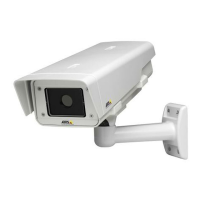
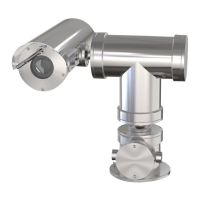
AXIS Q1910 Thermal Network Camera
AXIS Q1910-E Thermal Network Camera
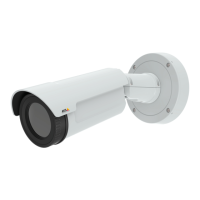
AXIS Q1921 Thermal Network Camera
AXIS Q1921-E Thermal Network Camera
AXIS Q1922 Thermal Network Camera
AXIS Q1922-E Thermal Network Camera

Other manuals for Axis Q1910-E

Questions and Answers

  • V
    Valerie HillAug 8, 2025
    How to fix Axis Thermal cameras accessible locally but not externally?
    • R
      Robert PrestonAug 8, 2025
      To resolve issues where the Axis thermal camera is accessible locally but not externally, first enable the NAT-traversal feature. This feature automatically configures the router to allow access to the camera. You can find this setting under Setup > System Options > Network > TCP/IP Advanced. Also, verify the Internet firewall settings with your system administrator and check if you need to configure the default router settings.
  • A
    afloresAug 13, 2025
    How to solve problems setting the IP address of Axis Thermal cameras?
    • J
      jennifermathewsAug 13, 2025
      If the Axis thermal camera's IP address setting is causing issues, and you are using ARP/Ping, retry the installation, ensuring the IP address is set within two minutes of powering on the camera and that the Ping length is set to 408. If the camera is on a different subnet, contact your network administrator for an appropriate IP address. If the IP address is already in use, disconnect the camera, run the Ping command to confirm, and obtain a new IP address if necessary. To avoid IP address conflicts, set the static IP address to 0.0.0.0. If DHCP has changed the IP address, use AXIS IP Utility to locate the camera and disable DHCP in the TCP/IP settings, or configure IP address change notification. For other networking problems, test the network cable with another device.
  • J
    Julie GreeneAug 17, 2025
    What to do if no images are displayed on the web page of Axis Thermal cameras?
    • R
      ronald62Aug 17, 2025
      If no images are displayed on the web page for your Axis thermal camera, and you are using Internet Explorer, enable ActiveX controls in your browser settings. Also, ensure that the AXIS Media Control (AMC) component is installed. If installing ActiveX components is restricted, configure your camera to use a Java applet for updating the video images under Live View Config > Layout > Default Viewer for Internet Explorer.
  • K
    kimberly81Aug 21, 2025
    Why do I have problems with the H.264 format on my Axis Thermal cameras?
    • J
      Jack ColemanAug 21, 2025
      If you're experiencing problems with the H.264 format on your Axis thermal camera, first check that the correct network interface is selected in the AMC control panel applet (streaming tab). If you're having trouble with multicast H.264, verify with your network administrator that the multicast addresses used by the camera are valid for your network. For poor rendering of H.264 images, set the color depth on clients to 16-bit or 32-bit color. If you notice image degeneration, decrease the GOV length.
  • T
    Timothy RodriguezAug 26, 2025
    What does it mean if the Status and Network indicator LEDs are flashing red rapidly on Axis Thermal cameras?
    • E
      Edward HigginsAug 27, 2025
      If the Status and Network indicator LEDs are flashing red rapidly on your Axis thermal camera, this could indicate a hardware failure. In this case, contact your Axis dealer. It could also mean that a firmware upgrade has been interrupted or the firmware is damaged. Refer to the Emergency Recovery Procedure to resolve this.
  • D
    David RossAug 29, 2025
    What to do if the Power indicator is not constantly lit on Axis Thermal cameras?
    • A
      Alexandra MartinAug 29, 2025
      If the Power indicator on your Axis thermal camera is not constantly lit, check your power supply.
  • E
    elizabeth81Sep 3, 2025
    What to do if images are missing in uploads from Axis Thermal cameras?
    • C
      conradhannahSep 3, 2025
      If you are missing images in uploads from your Axis thermal camera, try lowering the frame rate or the upload period. This issue can occur when trying to use a larger image buffer than is actually available.

Axis Q1910-E Specifications

General IconGeneral
BrandAxis
ModelQ1910-E
CategorySecurity Camera
LanguageEnglish

Related product manuals