EasyManua.ls Logo

Axis Q1755 - User Manual

Axis Q1755
66 pages
Print Icon
To Next Page IconTo Next Page
Loading...
USER’S MANUAL
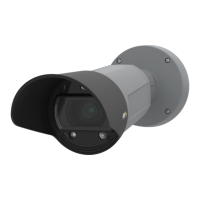
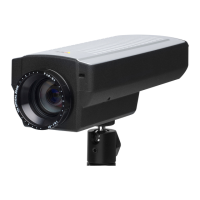
AXIS Q1755 Network Camera
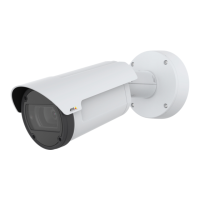
AXIS Q1755-E Network Camera

Other manuals for Axis Q1755

Questions and Answers

  • S
    Sara NelsonAug 20, 2025
    Why is my Axis Security Camera accessible locally but not externally?
    • M
      Mr. Andrew BurgessAug 20, 2025
      If your Axis Security Camera is accessible locally but not externally, the issue might stem from your broadband router configuration or firewall settings. To allow external access, first, enable the NAT-traversal feature in your camera's settings (Setup > System Options > Network > TCP/IP Advanced), which automatically configures the router. Also, check your Internet firewall settings with your system administrator to ensure they are not blocking the camera's external access. Finally, verify that the default router settings are correctly configured.
  • K
    Kristen HamiltonAug 25, 2025
    Why is the frame rate lower than expected on my Axis Q1755 Security Camera?
    • S
      Sara CookeAug 25, 2025
      If your Axis Security Camera is displaying a lower frame rate than expected, try the following: 1. Reduce the number of applications running on the client computer. 2. Limit the number of simultaneous viewers. 3. Consult with the system administrator to ensure sufficient bandwidth is available. 4. Check the AMC control panel applet (H.264 tab) and ensure that video processing is not set to Decode only I frames. 5. Lower the image resolution.
  • J
    jeffrey03Aug 27, 2025
    What to do if the power indicator is not constantly lit on Axis Q1755 Security Camera?
    • G
      Glenn RoblesAug 28, 2025
      If the Power indicator on your Axis Security Camera is not constantly lit, it may be due to a faulty power supply. Ensure that you are using an AXIS PS-P power supply.
  • K
    Kevin AtkinsAug 29, 2025
    Why does the motion detection trigger unexpectedly on my Axis Security Camera?
    • T
      tmurrayAug 29, 2025
      To resolve unexpected motion detection triggers on your Axis Security Camera, lower the sensitivity setting. Motion detection relies on changes in luminance, so sudden lighting changes can mistakenly trigger it.
  • T
    Terry MaloneAug 31, 2025
    What does it mean if the status and network indicator LEDs are flashing red rapidly on Axis Q1755?
    • R
      rowejonathanAug 31, 2025
      If the Status and Network indicator LEDs on your Axis Security Camera are flashing red rapidly, this indicates a hardware failure. Contact your Axis dealer for assistance.
  • J
    Jonathan AriasSep 2, 2025
    How to fix poor audio quality on my Axis Q1755 Security Camera?
    • G
      Gabriella MossSep 2, 2025
      If you are experiencing poor audio quality with your Axis Security Camera, reduce the number of listeners and viewers and decrease the image resolution and compression. This can occur if the CPU is overloaded.
  • D
    dgardnerSep 4, 2025
    What to do if the status indicator LED is flashing red and the Axis Q1755 is inaccessible?
    • M
      Mrs. Rachael SimpsonSep 4, 2025
      If the Status indicator LED is flashing red and the camera is inaccessible, it means a firmware upgrade has been interrupted or the firmware is damaged. Refer to the Emergency Recovery Procedure to resolve this issue.
  • J
    jessica46Sep 6, 2025
    How do I fix no audio on my Axis Q1755?
    • D
      Daniel YoderSep 6, 2025
      If you're not getting any audio from your Axis Security Camera, check the sound card in your PC. Make sure the mute button is not pressed and the volume settings are correct. This can happen due to an incorrect setup.
  • N
    Natalie BrownSep 8, 2025
    Why are images missing in uploads from my Axis Q1755?
    • O
      okramerSep 8, 2025
      If images are missing in uploads from your Axis Security Camera, it may be due to using a larger image buffer than available. Try lowering the frame rate or the upload period.
  • T
    Taylor RomanSep 9, 2025
    How to synchronize audio and video on my Axis Q1755?
    • C
      Cassandra GeorgeSep 10, 2025
      If you are experiencing unsynchronized audio and video with your Axis Security Camera, synchronize the camera's time setting with an NTP Server. This can be enabled under System Options > Date & Time.

Summary

Notices

Liability

Details Axis Communications AB's responsibility for manual content and product changes.

Intellectual Property Rights

Information on Axis AB's intellectual property rights and licensed third-party software.

Support

Information on how to contact Axis for technical assistance and resources.

Product Description

Key Features Overview

Highlights the main features of the AXIS Q1755/-E Network Cameras.

Intelligent Video Capabilities

Describes advanced video analytics like Gatekeeper and motion detection.

Outdoor-Ready (AXIS Q1755-E)

Details the AXIS Q1755-E's design for demanding outdoor environments.

Arctic Temperature Control (AXIS Q1755-E)

Explains the camera's functionality in extreme cold temperatures.

Overview

Rear View Camera

Illustrates and labels the connectors and features on the rear of the camera.

Bottom View Camera

Illustrates and labels the mounting thread and connectors on the bottom of the camera.

Accessing the Camera

Access from a Browser

Instructions for accessing the camera via a web browser.

Setting the Root Password

Guide to setting the initial administrator password for secure access.

Access from the Internet

Steps for configuring the camera for remote access over the internet.

The Live View Page

Overview of the live video feed interface and its controls.

AMC Audio Controls

Details on managing audio input/output and volume via AXIS Media Control.

Pan;Tilt;Zoom Controls

Information on controlling PTZ functions from the Live View page.

Video Streams

How to Stream H.264

Explains H.264 video compression and available streaming methods.

AXIS Media Control (AMC)

Details on using AMC for video and audio streaming and configuration.

Alternative Video Access Methods

Lists other ways to access video streams besides the Live View page.

Basic Setup

TCP;IP Settings

Configuration of network settings like IP address, subnet mask, and gateway.

Date & Time Configuration

Setting the camera's date, time, and time zone for accurate logging.

Video Stream Setup

Provides shortcuts to configure video stream parameters.

Video & Audio

Video Stream Settings

Configures video stream properties like capture mode, resolution, and compression.

Image Capture Settings

Options for setting resolution, frame rate, and image quality.

Image Appearance Settings

Adjustments for brightness, sharpness, IR cut filter, and white balance.

H.264 Settings

Configuration for H.264 video stream properties like GOV and bit rate.

Live View Config

Live View Layout

Customizes the Live View page, including stream profiles and viewer options.

Default Viewer Settings

Specifies the default method for viewing video streams based on browser.

Action Buttons Configuration

Enables or disables action buttons like manual trigger and snapshot.

User Defined Links

Allows creation of custom links for web pages or scripts.

PTZ (Pan Tilt Zoom)

Installing PTZ Devices

Steps for installing PTZ drivers and configuring COM ports for PTZ control.

PTZ Configuration

Settings for PTZ devices, including preset positions and advanced controls.

Control Queue Management

Manages access to PTZ controls, limiting user control time and managing queues.

PTZ Controls Overview

Explains the available PTZ controls like pan, tilt, zoom, and iris.

Applications

Application Packages Management

How to upload, install, and manage third-party applications on the camera.

Events

Event Servers Configuration

Setting up servers to receive uploaded images or notification messages.

Event Types Configuration

Defining event types and actions triggered by signals or schedules.

Triggered Events Setup

Steps to configure events triggered by inputs, motion, or tampering.

Scheduled Events

Setting up events that activate at predefined times or intervals.

Camera Tampering Detection

Configures alarms for camera repositioning, lens cover, or defocusing.

Motion Detection Setup

Configures windows to detect movement within the camera's field of view.

Recording List

Recording List - Events

Displays a list of recordings, including start time, duration, and event type.

Continuous Recording Setup

Enables and configures continuous video saving to local storage.

System Options

Security Settings

Manages user access control, IP address filtering, and HTTPS encryption.

IEEE 802.1 X Network Access

Configuration for secure network authentication using IEEE 802.1X.

Date & Time Configuration

Sets the camera's time, time zone, and date/time formats for images.

Network Settings

Configures IP address, DHCP, DNS, and other network-related parameters.

NTP Configuration

Synchronizes camera time with an NTP server for accurate timekeeping.

NAT Traversal (Port Mapping)

Enables camera access from outside the local network via NAT routers.

Storage - Disk Management

Manages local storage devices for recordings, including cleanup settings.

Maintenance Settings

Options for restarting, restoring, and upgrading the camera's firmware.

Support Information

Provides access to support overview, system status, and logs for troubleshooting.

About

Resetting to Factory Default Settings

Instructions for resetting the camera to its original factory default settings.

Unit Connectors

Network and Audio Connectors

Details on RJ-45 Ethernet, audio in/out, and video out connectors.

RS-485;422 Serial Interface

Configuration and pinout for controlling auxiliary equipment via serial ports.

I;O Terminal Connector

Interface for connecting external devices for inputs and outputs.

LED Indicators

Explanation of the status and network LED behaviors.

Troubleshooting

Checking and Upgrading Firmware

Procedures for checking firmware version and performing upgrades.

Emergency Recovery Procedure

Steps to recover the camera after a failed firmware upgrade.

Axis Support Resources

Guidance on contacting Axis support and providing necessary information.

Symptoms and Remedial Actions

Common problems, their causes, and suggested solutions for camera operation.

Technical Specifications

Camera Specifications

Details on image sensor, lens, resolution, frame rates, and image settings.

Audio Specifications

Information on audio streaming, compression, and input/output capabilities.

Network and Security Specifications

Details on network protocols, security features, and supported standards.

System Integration Specifications

Information on API, intelligent video features, and web browser access.

General Specifications

Details on casing, power, connectors, storage, and operating conditions.

General Performance Considerations

Factors affecting camera performance, bandwidth, and response time.

Glossary of Terms

Axis Q1755 Specifications

General IconGeneral
Maximum resolution1920 x 1080 pixels
Camera shutter speed1/10000 - 1/2 s
Minimum illumination2 lx
Sensor typeCMOS
Optical sensor size1/3 \
Sample rate16 kHz
Supported network protocolsIPv4/v6, HTTP, HTTPS, QoS Layer 3 DiffServ, FTP, SMTP, Bonjour, UPnP, SNMPv1/v2c/v3(MIB-II), DNS, DynDNS, NTP, RTSP, RTP, TCP, UDP, IGMP, RTCP, ICMP, DHCP, ARP, SOCKS, Pelco-D
Power source typePoE
Power over Ethernet (PoE)Yes
Power consumption (typical)17.4 W
Ethernet LAN (RJ-45) ports1
Dimensions (WxDxH)186 x 85 x 211.4 mm
Power requirements20 - 24 V AC
CertificationEN 55022 Class B, EN 61000-3-2, EN 61000-3-3, EN 55024, EN 61000-6-1, EN 61000-6-2, EN 60950-1, FCC Part 15, Subpart B, Class B, VCCI, Class B ITE, C-tick AS/NZS CISPR 22, ICES-003, Class B
Processor modelARTPEC-3
Flash memory256 MB
Internal memory128 MB
Operating temperature (T-T)0 - 45 °C
Operating relative humidity (H-H)20 - 80 %
Weight and Dimensions IconWeight and Dimensions
Weight985 g

Related product manuals