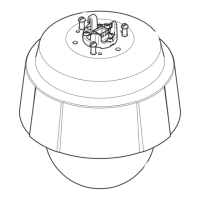
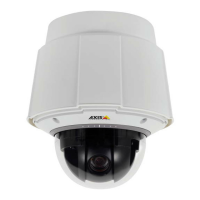
AXISQ6045PTZDomeNetworkCamera
AccessingtheProduct
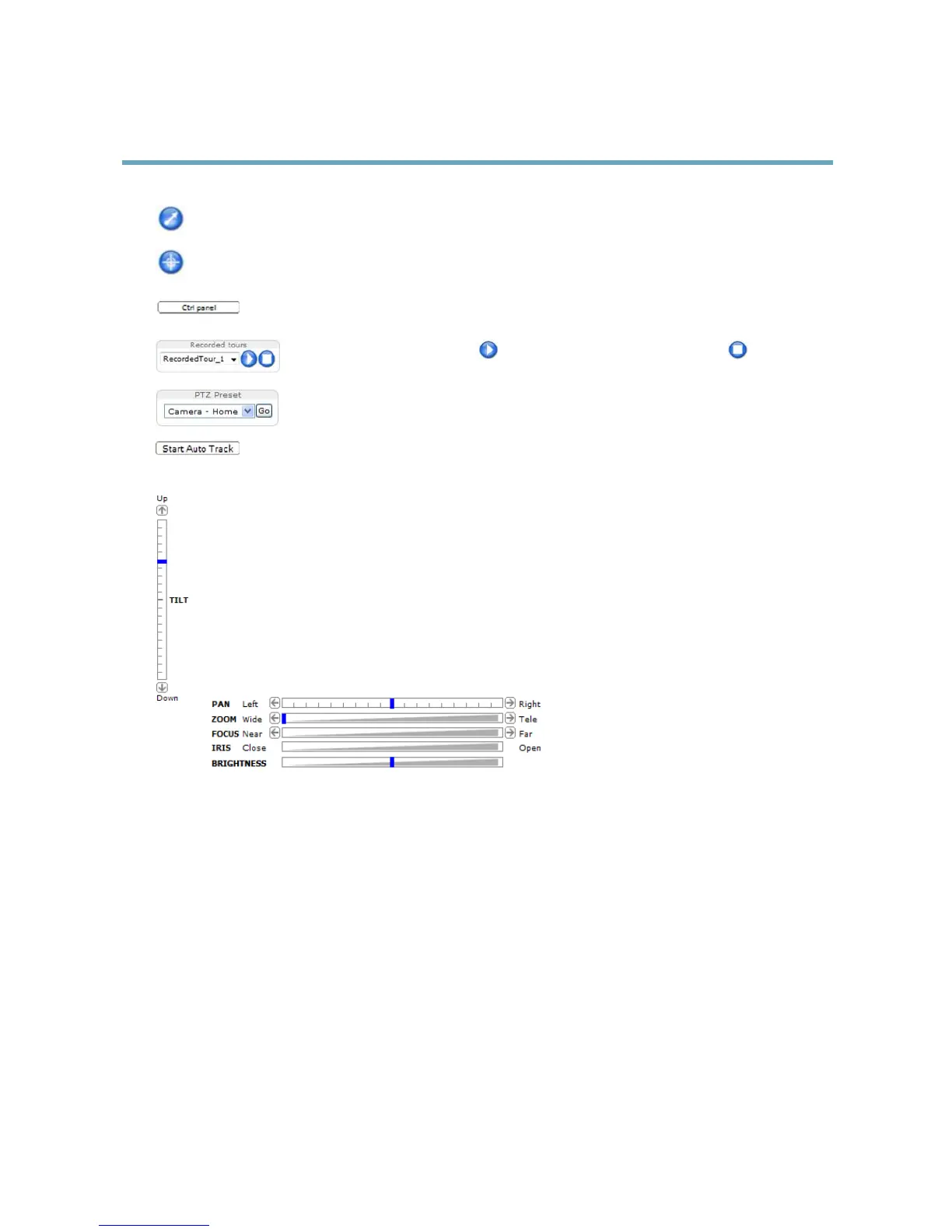
ClicktheEmulatejoystickmodebuttonandclickintheimagetomovethecameraviewinthedirectionofthe
mousepointer.
ClicktheCentermodebuttonandclickintheimagetocenterthecameraviewonthatposition.Thecentermode
buttoncouldalsobeusedtozoominonaspecicarea.Clickintheimageanddragtodrawarectanglesurrounding
theareatobemagnied.Tozoomout,rotatethemousewheel.
ClicktheCtrlpanelbuttontoopenthePTZcontrolpanelwhichprovidesadditionalPTZcontrols.
User-denedbuttonscanalsoappearintheControlpanel.SeeControls,onpage32.
Selectarecordedtourandclick toplayapreviouslyrecordedtourandclick tostop.See
TourRecording,onpage30.
SelectaPTZpresetpositiontosteerthecameraviewtothesavedposition.SeePresetPositions,
onpage28.
ClicktheStartAutoTrackbuttontostartautotrackingdirectlyfromtheLiveViewpage.See
Autotracking,onpage29.
PanandTiltbars–Usethearrowstopanandtiltthecameraview,orclickonapositiononthebartosteerthe
cameraviewtothatposition.
Zoombar–Usethearrowstozoominandout,orclickonapositiononthebartozoomtothatposition.
Focusbar–Usethearrowstofocusthecamera,orclickonapositiononthebartosetthefocusposition.Usingthe
focusbarwilldisabletheproduct’sautofocus.Tore-enable,usethePTZcontrolpanelwhichisopenedbyclicking
theCtrlpanelbutton(seeabove).
Irisbar–Clickonapositionontheirisbartochangethedegreetowhichtheirisisopened.Thiswilldisablethe
product’sautoiris.Tore-enable,usethePTZcontrolpanelwhichisopenedbyclickingtheCtrlpanelbutton(seeabove).
Brightnessbar–Clickonapositiononthebrightnessbartoadjusttheimagebrightness.Thissettingwillnotbesaved.
Tomakeasavedchange,gotoSetup>Video>CameraSettings>Brightnessandadjustthebrightness.
ThePTZcontrolscanbedisabledunderPTZ>Advanced>Controls,seeControls,onpage32.
13


 To Next Page