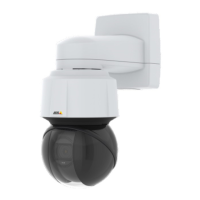
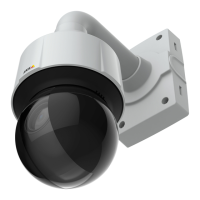
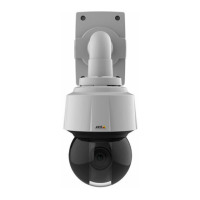
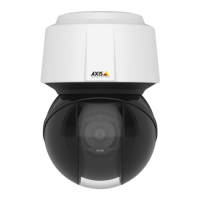
AXISQ6128-EPTZNetworkCamera
Howtoaccesstheproduct
ClicktheCtrlpanelbuttontoopenthePTZcontrolpanelwhichprovidesadditionalPTZcontrols.
User-denedbuttonscanalsoappearintheControlpanel.SeeControlsonpage29.
Selectarecordedtourandclicktoplayapreviouslyrecordedtourandclicktostop.See
TourRecordingonpage27.
SelectaPTZpresetpositiontosteerthecameraviewtothesavedposition.SeeAboutpreset
positionsonpage24.
ClicktheStartAutoTrackbuttontostartautotrackingdirectlyfromtheLiveViewpage.See
Autotrackingonpage25.
PanandTiltbars–Usethearrowstopanandtiltthecameraview,orclickonapositiononthebartosteerthecameraviewto
thatposition.
Zoombar–Usethearrowstozoominandout,orclickonapositiononthebartozoomtothatposition.
Focusbar–Usethearrowstofocusthecamera,orclickonapositiononthebartosetthefocusposition.Usingthefocusbarwill
disabletheproduct’sautofocus.Tore-enable,usethePTZcontrolpanelwhichisopenedbyclickingtheCtrlpanelbutton(seeabove).
Irisbar–Clickonapositiontosetamanualexposureleveltomaketheimagebrighterordarker.Thiswilldisableautoiris(automatic
exposure)andsetxedlevelsoniris,gainandshutterspeed.Tore-enableautoiris,usethePTZcontrolpanelwhichisopenedby
clickingtheCtrlpanelbutton(seeabove).Ifautoirisisenabled,AutoisvisiblenexttotheIrisbarbar.
Important
InanenvironmentwithvaryinglightconditionsitisrecommendedtousetheBrightnessbarinsteadoftheIrisbartoadjust
imagebrightnesssincechangingthebrightnesslevelwillnotdisableautoiris(automaticexposure).
Brightnessbar–Clickonapositiononthebrightnessbartoadjusttheimagebrightness.Thissettingwillnotbesaved.Tomakea
savedchange,gotoSetup>Video>CameraSettings>Brightnessandadjustthebrightness.
ThePTZcontrolscanbedisabledunderPTZ>Advanced>Controls,seeControlsonpage29.
11



 To Next Page