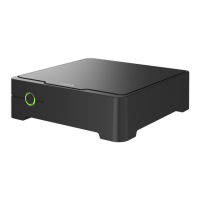
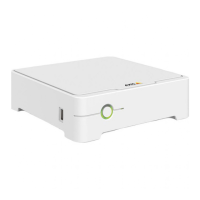
The AXIS Camera Station S1116 MT Recorder is an out-of-the-box ready work station designed for reliable high-definition surveillance up to 4K. It comes preconfigured and preloaded with AXIS Camera Station video management software, including licenses and all necessary system software, ensuring quick and easy installation. The system configuration can be easily imported from AXIS Site Designer, and the recorder is optimized to take full advantage of Axis' wide range of video surveillance devices. For high performance and reliability, it features redundant enterprise-grade hard disks and an operating system stored on a solid-state drive (SSD).
Function Description:
The AXIS Camera Station S1116 MT Recorder serves as a central component for video surveillance systems. It manages connected cameras, records video, and allows for live viewing, playback, and export of recordings. The device supports various recording methods, including motion detection and continuous recording. It integrates with AXIS Camera Station client and server components, enabling comprehensive system management and monitoring. The recorder also supports user account management with configurable permissions, ensuring secure access to surveillance data.
Important Technical Specifications:
The recorder supports high-definition surveillance up to 4K. It utilizes redundant enterprise-grade hard disks for data storage and an SSD for the operating system, contributing to high performance and reliability. The device includes a variety of ports for connectivity, such as:
- Audio line out (1x)
- PS2 keyboard port (1x)
- Serial port (1x)
- PS2 mouse port (1x)
- DisplayPort™ 1.2 (1x)
- USB 3.1 (2x)
- USB 2.0 (2x)
- Ethernet (RJ45) 1 GbE (1x)
- Power connector (1x)
- USB 3.1 Type-C (1x)
- Universal audio jack (1x)
Indicator LEDs include a System power LED and a Drive activity LED. The power input is 100-240 V AC, 5.0-2.5 A.
Usage Features:
The AXIS Camera Station S1116 MT Recorder offers a range of usage features for efficient surveillance management:
Installation and Setup:
- Device Installation: The manual provides a step-by-step guide for physical installation, including connecting peripherals like keyboard, mouse, display, network, and power.
- AXIS Camera Station Update: Users can update the AXIS Camera Station to the latest version either online via the AXIS Recorder Toolbox app or offline by downloading from axis.com.
- Windows® Configuration: Recommendations include updating Windows® to the latest version and creating a standard user account for enhanced security.
- AXIS Camera Station Configuration: The system guides users through starting the AXIS Camera Station, adding devices, configuring recording methods, live viewing cameras, playing back recordings, adding bookmarks, and exporting recordings.
- License Registration: The device supports both online and offline license registration for AXIS Camera Station. Online registration involves signing into MyAxis, entering the license key, and verifying it in the client. Offline registration requires exporting a system file, uploading it to the AXIS License Portal, downloading a license file, and importing it back into the client via a USB flash drive.
- Mobile App Connectivity: The system can be connected to the AXIS Camera Station mobile viewing app for remote access.
User Account Management:
- Windows® User Accounts:
- Creating User Accounts: Users can create standard user accounts with passwords and password hints for enhanced data security.
- Creating Administrator Accounts: Existing user accounts can be elevated to administrator status.
- Creating Local User Groups: New local user groups can be created, and user accounts can be added as members.
- Deleting User Accounts: Accounts can be removed, which also deletes associated files, settings, and program data.
- Changing Passwords: Passwords for user accounts can be changed by an administrator.
- Password Reset Disk: Users are advised to create a password reset disk using a USB flash drive to recover lost passwords. Windows 10 version 1803 and later also offer security questions for local accounts.
- AXIS Camera Station User Accounts:
- User Permissions: Access to AXIS Camera Station is managed through user permissions, viewable under Configuration > Security > User permissions. Administrators of the computer automatically receive administrator privileges.
- Adding Users/Groups: Users and groups from Microsoft Windows or Active Directory can be added to AXIS Camera Station.
- Roles: Three roles are available:
- Administrator: Full system access, including live and recorded video, I/O ports, and views. Required for system configuration.
- Operator: Access to live and recorded video of selected cameras, I/O ports, and views, with full functionality except system configuration.
- Viewer: Access to live video of selected cameras, I/O ports, and views, without access to recorded video or system configuration.
- Privileges: Specific access privileges can be configured for Operator and Viewer roles, including:
- Cameras: Access to camera features, live video, audio listen/speak, manual recording, mechanical PTZ controls (with priority settings).
- Views: Access and edit permissions for views in AXIS Camera Station.
- I/O: Full access, read-only, or write permissions for I/O ports.
- System: Taking snapshots, exporting recordings, generating incident reports, and preventing access to recordings older than a specified time.
Recording and Playback:
- Recording Methods: Users can configure motion detection or continuous recording for individual cameras.
- Live View: Navigate to the Live view tab to see camera feeds. Blue dots indicate continuous recording, and red dots indicate motion detection recording.
- Playback: Access recordings via the Recording tab, use the mouse wheel to zoom in/out on the timeline, and drag to the desired position for playback.
- Bookmarks: Bookmarks can be added to recordings with names and descriptions, and recordings can be locked to prevent deletion.
- Export Recordings: Recordings can be exported with notes, an included AXIS File Player, and a digital signature for verification.
Network Configuration:
- Client Proxy Settings: Configure proxy settings if the client and server are separated by a proxy server.
- Server Proxy Settings: Configure server proxy settings via the AXIS Service Control icon in the Windows notification area.
- NAT and Firewall: Configure NAT or firewall to allow HTTP, TCP, and streaming ports for communication between client and server.
- Server Port Configuration: Default server ports (55752 HTTP, 55754 TCP, 55756 mobile communication, 55757 mobile streaming) can be changed via AXIS Camera Station Service Control.
Security Considerations:
- Strong Passwords: Emphasizes the use of strong passwords for all network devices.
- Secure Network: Recommends installing the AXIS Camera Station Server, cameras, and other devices on a secure network separate from the office network.
- Windows Active Directory: Suggests implementing Windows Active Directory for high-level security.
Maintenance Features:
- Windows® Update Management:
- Manual Updates: Users can manually check for and install Windows® updates via Settings > Update & Security > Windows Update.
- Configuring Update Settings: Windows® update settings can be configured via gpedit.msc to control how and when updates are applied, including automatic downloads and scheduled installations/restarts.
- RAID Configuration:
- RAID Levels: Supports RAID 0 (Striping) for higher capacity and performance without redundancy, and RAID 1 (Mirroring) for data protection with redundancy.
- Enabling RAID: For AXIS S1116 MT recorders, RAID must be enabled in the BIOS settings (System Configuration > SATA Operation > RAID On).
- Creating RAID Volume: Users can create RAID volumes by selecting disks and choosing the RAID level in the Intel(R) Rapid Storage Technology menu.
- Configuring RAID in Windows®: The created RAID volume needs to be initialized and formatted as a New Simple Volume in Windows® Disk Management.
- Adding Additional Storage: The manual provides guidance on how to add additional storage to the system.
- Troubleshooting:
- BIOS Version Check: Users are advised to check and upgrade the current BIOS version as part of troubleshooting.
- System Recovery: In case of a complete system failure, a recovery image can be used to recreate the Windows® system. This involves downloading the AXIS Recovery Kit and AXIS ISO to USB Tool, creating a bootable USB drive, and reinstalling the operating system.
- AXIS Camera Station Troubleshooting: For specific issues with AXIS Camera Station, users are directed to the AXIS Camera Station user manual.
Useful Links and Support:
The manual provides links to the AXIS Camera Station user manual, configuration guides for AXIS Secure Remote Access, and information on Antivirus allowlist for AXIS Camera Station. Contact support information is also provided.

 Need help?
 General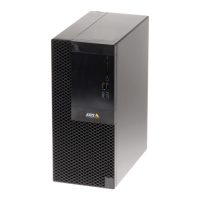

 To Next Page