EN-06EN-07
Tips:Specificationsaresubjecttochangewithoutnotice.
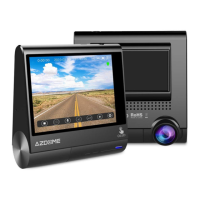
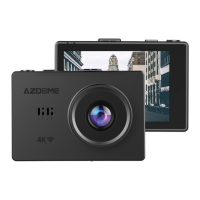
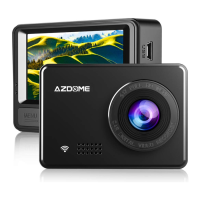
DisplaySize:2.45"IPSscreen
Cameralens:150°wide-anglelens
MaxResolution:1920*1080/30fps
EffectivePixels:200MegaPixels
VideoCodec:H.264,MOV
Memorycard:MicroSDClass10,Maxsupport64G
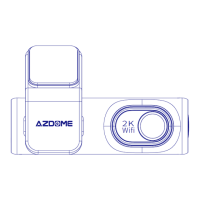
WIFI:Support
MIC:Support
Speaker:Support
PowerInterface:5V1.5A
Battery:Supercapacitorwithoutbattery
Workingtemperature:-20℃-60℃
OperatingHumidity:15%-60%RH
Dimension:49*72*35mm
1.DOWNLOADINGLuckyCamAPP
Searchfor"LuckyCam"inAppStoreorGooglePlayStoretofindtheAppandthendownload
andinstallit.
Note:
Applelogo&AppStorearetrademarksofAppleInc.,
GooglelogoandGooglePlayaretrademarksofGoogleInc.
1.ConnectingAZDOMEM08DashCamWithSmartPhone:
•TURNWIFIONfromAZDOMEDashCamfirst,byPressing&Holdingemergencybutton
for2-seconds.ThiswillturnONWiFirouter(signal)fromthedashcam.
•CONNECTWIFIfromyourSmartPhone:GotoPhone’sSettings>WiFi>SelectM08Dash
Cam’WiFi(WiFiNameSSID:M08_********,PASSWORD:12345678).
•NowopenLuckyCamApptoviewlivevideostream,view/downloadrecordedvideos&even
changesettings.
•WhenDone:TodisconnectWiFi,pressandholdbuttonfor3-secondstoreturntothe
videomode.
P.S.(YoucanonlyoperateitonyourphoneAppwhenconnectingAZDOMEDashCamwith
yourphone.MakesureyourphoneisclosetoAZDOMEDashCam)
Q1:CameradoesnotturnON?
Pleasemakesureyouchargecamerafor2hoursbeforefirstuse.Makesurememorycardis
insertedproperly.Thenpluginpowercablewhichshouldturnoncameraanditshouldstart
recording.
Q2:CameraturnsON/OFFfrequentlyautomatically?
Pleaseresetyourcamera.Pleasemakesurethat“MotionDetection”issettoOFF.AlsoPlease
makesure“AutoPowerOff”“ParkingMode”isalsosettoOFF.
Q3:MyVideoplaybackonPCislagging?
Youareviewinghigh-bitrateversionofvideofiles.Generalcomputerconfigurationmayhave
problemwithfasterdataprocessing.Pleaserecordvideosatlowerresolutionandtryagain.
Contactusifproblemstillpersists.
Q4:CameragetsHOT?
Itisnormalforyourcameratorunslightlyhot.Duetothehighervideoresolution,thedash
cammaybehotduringusing.(nomorethan140°F/60ºC).
Q5:Videoisfuzzy?
Pleasemakesurethelensofcameraiscleanandthereisnodirtonwindshieldalso.
Q6:CameraFreezing/LaggingorCrashing?
Pleasemakesureyouareonlyusingclass10oraboveMicroSDmemorycard.Insertpaperclip
intoreset.RestartwithanotherMicroSDcardandtryagain.


 To Next Page