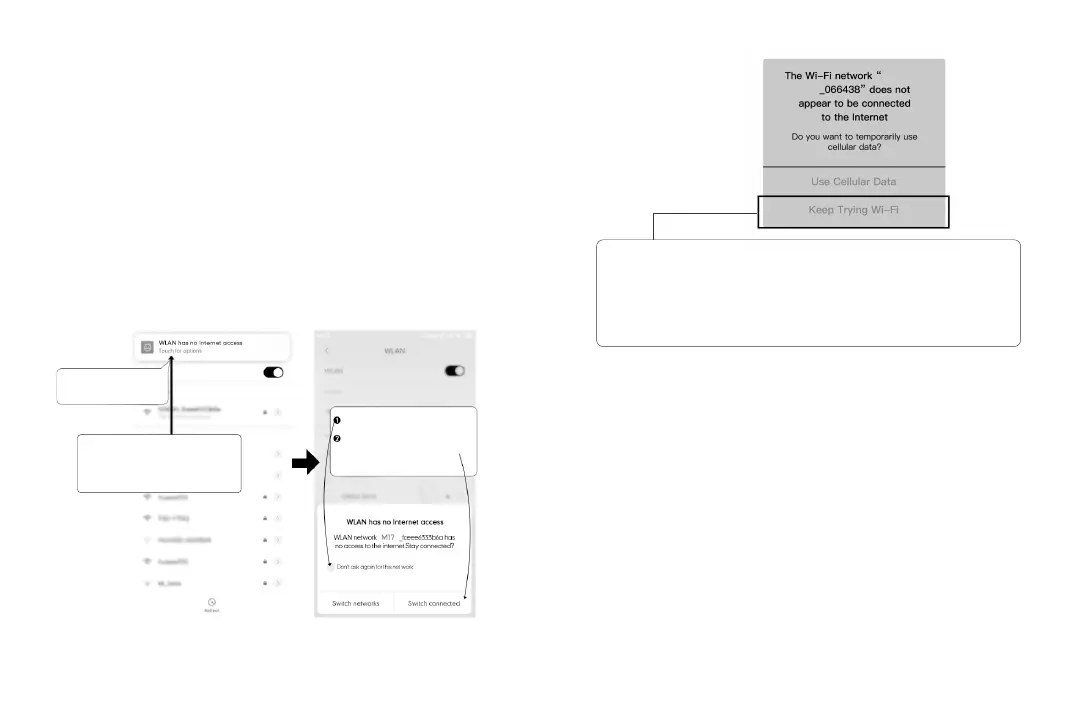
Touchhereassoonasyou
seethisnotification
Onceyouenterthedefault
passwordforAZDOMEWiFiandhit
connect,youwillseethispop-upin
fewseconds.
Touch here to check this box.
Then touch “ YES” to stay
connected to this WiFi and
save this preference
For Android phones:
When installing the AZDOME APP, it will have two pop-up
prompts, select ‘While using the APP’ to allow AZDOME to
access this device's location, and select ‘Allow’ to allow
AZDOME to access photos and media on your device.
There is one extra step you will have to take for the first time.
Once you connect to the WiFi of M330, it will say ‘No Internet’.
Which is fine. Wait about 10-15 seconds until you see the
below pop up or notification. You just have to tap on the pop
up notification that will show up in few seconds to select that
you still want to stay connected even though there is NO
Internet. Once you select this OK, you are set to go.
For iPhone:
If you get this pop up for your iPhone while using WiFi
feature, make sure to tap on ‘Keep Trying WiFi’. Otherwise
the camera will get disconnected from the WiFi and then
you will have to forget the A
ZDOME
WiFi and then start to
pair again to make it work again.
EN-21 EN-22
AZDOME
M330
8.3 Format Micro-SD Card
There are two ways to format Micro-SD card
1. Press and hold the WiFi button for more than 8 seconds,
then release it to restore factory settings and format the
memory card. When formatting is successful, a message
indicating success will appear on the screen.
2. Please connect to the WiFi of this dash cam through the
AZDOME APP, and then click on the settings button in the
upper right corner of the real-time preview page to find the
formatting menu to format this memory card.



 To Next Page