User Manual For Portable
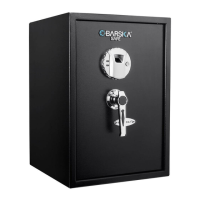
Biometric Compact Lock Box
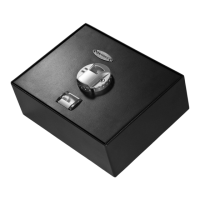
Parts of the Lock Box
A. Key Entry
B. Indicator Light
C. Fingerprint Scanner
D. Wake Up Button
E. Initialization Button
F. Battery Compartment and Cover
G. Cable Slot
H. Mounting Holes (located under the lock box)
WARNING
Avoid leaving lock box open and unattended; it will allow
unauthorized individuals to add their fingerprint and/or
reprogram the lock box, gaining full access to the lock box
and the contents.
Take care not to drop or abuse the lock box. This lock box
will stay locked when abused, but the biometric locking
mechanism is sensitive and may not reliably re-lock after
rough treatment. Be sure to check that it reliably locks, if it
has been dropped or abused. Abuse will void warranty.
OPENING THE LOCK BOX WITH ACCESS KEY
1. Insert access key into key entry (A), turn clockwise to open,
partially lift lid of lock box and remove access key by turning it
counter clockwise
2. Open lock box by lifting the lid of the lock box
CLOSING/LOCKING THE LOCK BOX
Press the top cover down to close the lock box and confirm that it
is locked by trying to open it.
NOTE: Barska will not provide replacement keys, please store the
keys in secure place, not inside the safe.
BATTERIES
1. Locate the battery compartment (F) and remove battery cover
2. Gently slide battery holder out of the compartment
3. Place 4, AA batteries and pay attention to the polarity of
each battery. Lock Box will beep and Indicator Light will
illuminate, if batteries were inserted properly.
4. Gently slide battery holder back into place
5. Replace battery cover (F)
REPLACING BATTERIES
The red indicator light (B) will start flashing and a continuous
beeping sound will be heard. This indicates that the batteries
are low.
1. Open lock box by using the access key; turn clockwise
2. Repeat steps 1-5 of “Batteries” and replace old batteries with
new batteries
3. Close lock box and ensure that the lock box is locked
NOTE: After replacing the batteries lock box retains registered
fingerprints
REGISTERING A FINGERPRINT
The lock box is in demo mode, ANY fingerprint can open the
lock box. You must successfully register and save at least one
fingerprint to take the lock box out of demo mode
1. With the lock box open press and release the small recessed
initialization button (E) in the small hole in the inside wall.
2. A beep will be heard and fingerprint scanner (C) will flash red
3. Immediately place desired finger on the fingerprint scanner (C)
- Hold finger still, until registration process is complete
4. The registration process is complete when a total of three
beeps are heard. See below
Successful Save
- Indicator light (B) will flash GREEN, followed by one beep,
indicator light (B) will flash GREEN twice and two
consecutive beeps
- Registration has been successful
Unsuccessful Save
- Indicator light (B) will flash GREEN, followed by one beep,
indicator light (B) will flash RED and two consecutive beeps
- Repeat registration process again
NOTE
- To add more fingerprints/users repeat steps above
- Stores up to 120 fingerprints
- For security purposes wipe fingerprint off fingerprint
scanner (C)
For Accurate and Consistent Fingerprint Scanning
- Use fingerprint scanner (C) in low light conditions
- Use the index finger
- Place and hold finger firmly on the fingerprint scanner (C)
- Each user should register 2-3 different fingerprints
TESTING THE REGISTERING OF A FINGERPRINT
1. With lock box lid open, press the wake up button (D)
2. Place registered finger on the fingerprint scanner (C)
Successfully Registered Fingerprint
- Indicator light (B) will flash green indicating a valid fingerprint
- You will hear the lock box unlock
Unsuccessfully Registered Fingerprint
- Indicator light (B) will flash red and green consecutively
indicating that the fingerprint in not valid
- Repeat steps in “Registering A Fingerprint”
4. Close lock box and ensure that the lock box is locked
5. For security purposes wipe fingerprint off fingerprint
scanner (C)
OPENING THE LOCK BOX USING A FINGERPRINT
1. Press the wake up button (D)
2. Place registered finger on the fingerprint scanner (C)
3. The indicator light (B) will flash green indicating a
valid fingerprint
4. Gently lift the door of the lock box
5. Close lock box and ensure that the lock box is locked
6. For security purposes wipe fingerprint off fingerprint
scanner (C)
See reverse side for more information
9/20
BC650
A
B
C
D
F
G
E
H
PARTS OF THE LOCK BOX

 Need help?
 General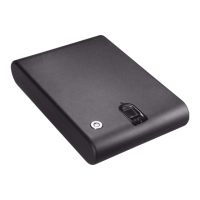

 To Next Page