Upper Threshold Moisture Sensor-Based Watering
Step 3 – Creating a Scheduling Group
1. Turn the dial to the Zones position.
2. Verify that the number displayed in the Program field in the upper-left corner of the screen matches
the program in which you want to set up the scheduling group. If the zone is enabled in multiple
programs and you want to set up the scheduling group in a different program, press the Next button
to move to the Program field, and then press the + or – button to change the program number.
Note: You can only link a zone to its primary zone within the same program. Linked zones cannot
cross programs.
3. In the Zone field, press the + or – button to select the zone that you want to link.
4. Press the Next button to move to the Zone Mode field.
5. Press the + button to change the entry in the field so it shows Linked-#.
6. To continue linking zones, press the Enter button until the number of the zone that you want to link
displays in the Zone field at the top of the screen.
7. Repeat steps 5 and 6 until you have linked all the zones in the group to the primary zone for that
group.
Step 4 – Assigning the biSensor to the Primary Zone
When you use soil moisture sensors (biSensors) to monitor your zones, you need to assign a biSensor to
a primary zone. If you have not configured any primary zones, you will not be able to complete the
following procedure. Refer to Step 2 in this document.
1. Turn the dial to the Smart Watering position.
2. The Moisture Sensor Assignments option should be highlighted. If it is not highlighted, press the +
or – button to highlight it.
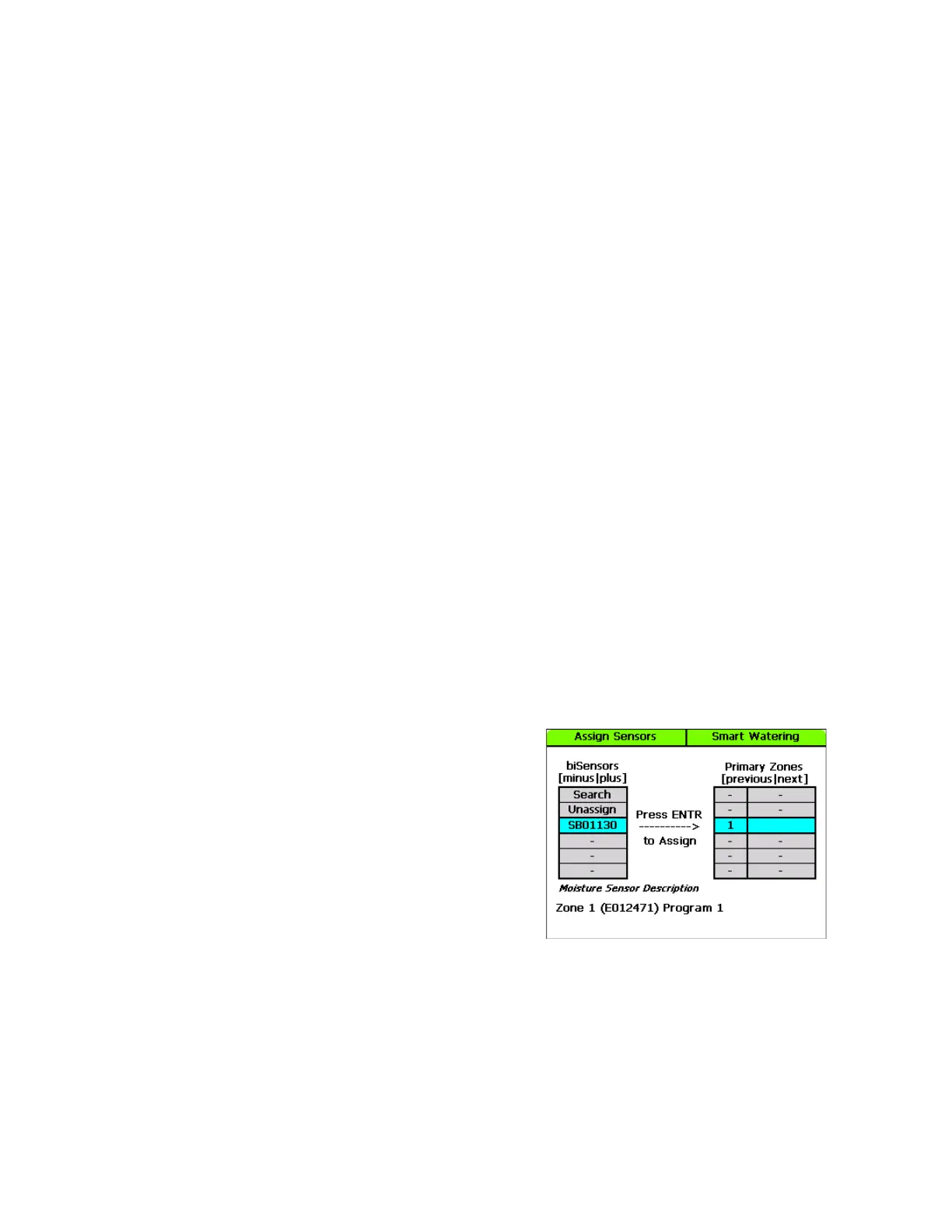
3. Press the Enter button. The Assign Sensors screen
displays.
4. The Search option should be highlighted in the column
on the left. If it is not highlighted, press the + or –
button to highlight Search.
5. Press the Enter button. The system lists the serial
numbers of all biSensors that it finds.
Note: The BaseStation 3200 supports 25 biSensors.
6. Press the + or – button to highlight the serial number of
the biSensor that you want to assign, and then press the Enter button. The serial number moves
from the list on the left to zone address on the right.
Baseline Support: 866-294-5847 5 www.baselinesystems.com


 To Next Page